
TeamViewer Android EMM Remote Session Behavior
What the Android user sees
This article shows the attended-session prompts that appear after a FileWave administrator requests TeamViewer remote control for an Android EMM device. Before requesting a session, prepare the Android device, including the QuickSupport add-on needed for keyboard and pointer control on that model. On the technician’s workstation, follow Start a TeamViewer Remote Session.
Android EMM remote sessions require the current FileWave Companion app and TeamViewer QuickSupport. TeamViewer licensing is assigned to support technicians, not to each managed device or end user.
Why the prompt sequence matters
Use this sequence to prepare the device user for the notification, one-time QuickSupport agreement, and attended-access approval. A remote-support request does not silently grant control; the user must open the notification and approve the session shown below.
Session sequence
The FileWave Companion app receives the remote-session request and posts an Android notification. Depending on the device's notification settings, the request may be easy to miss: it can appear as a sound and a status-bar icon rather than a full-screen prompt. The user must open that notification to continue:
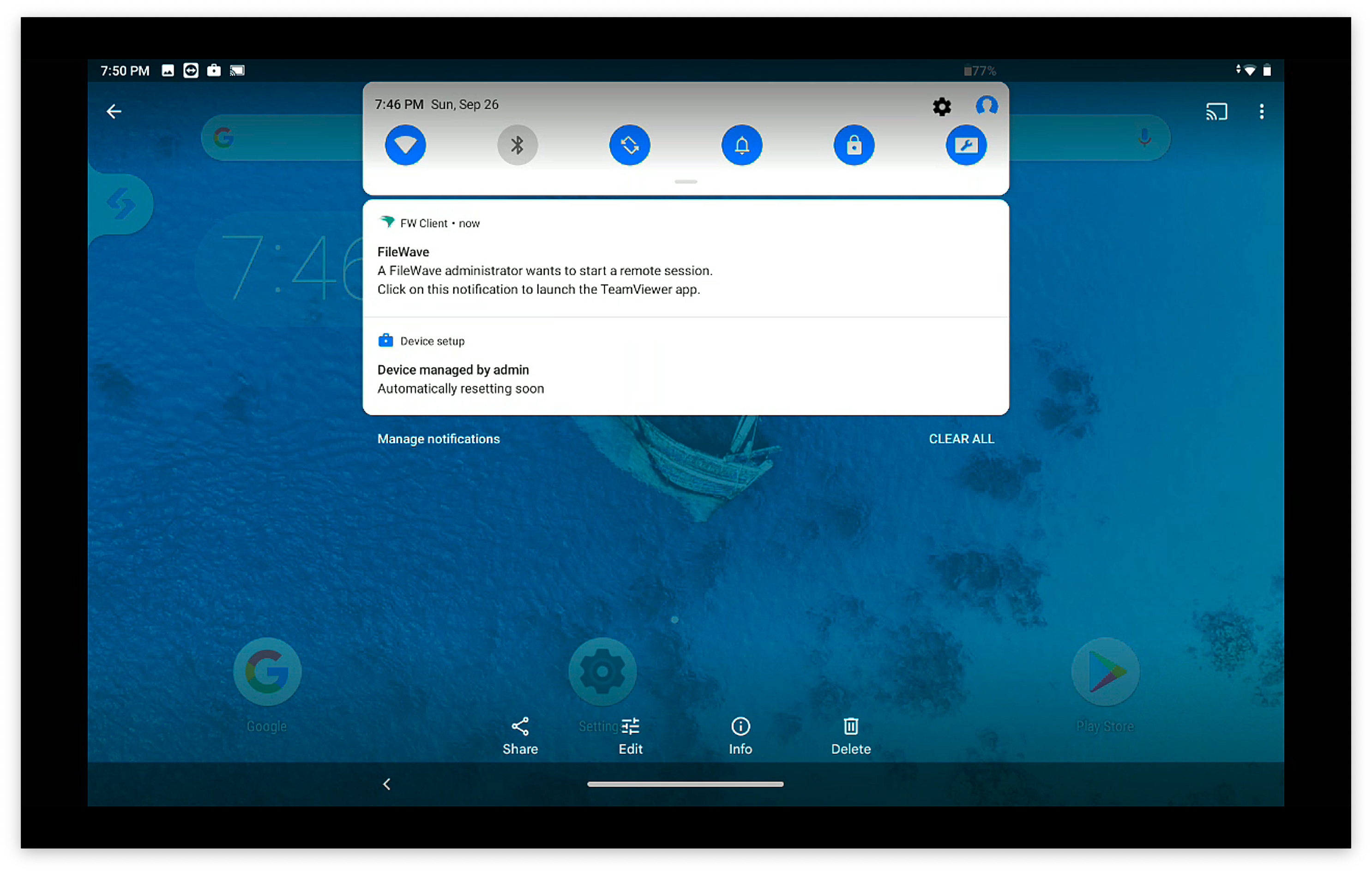
When that notification is acknowledged, the TeamViewer QuickSupport App will open to start a remote session.
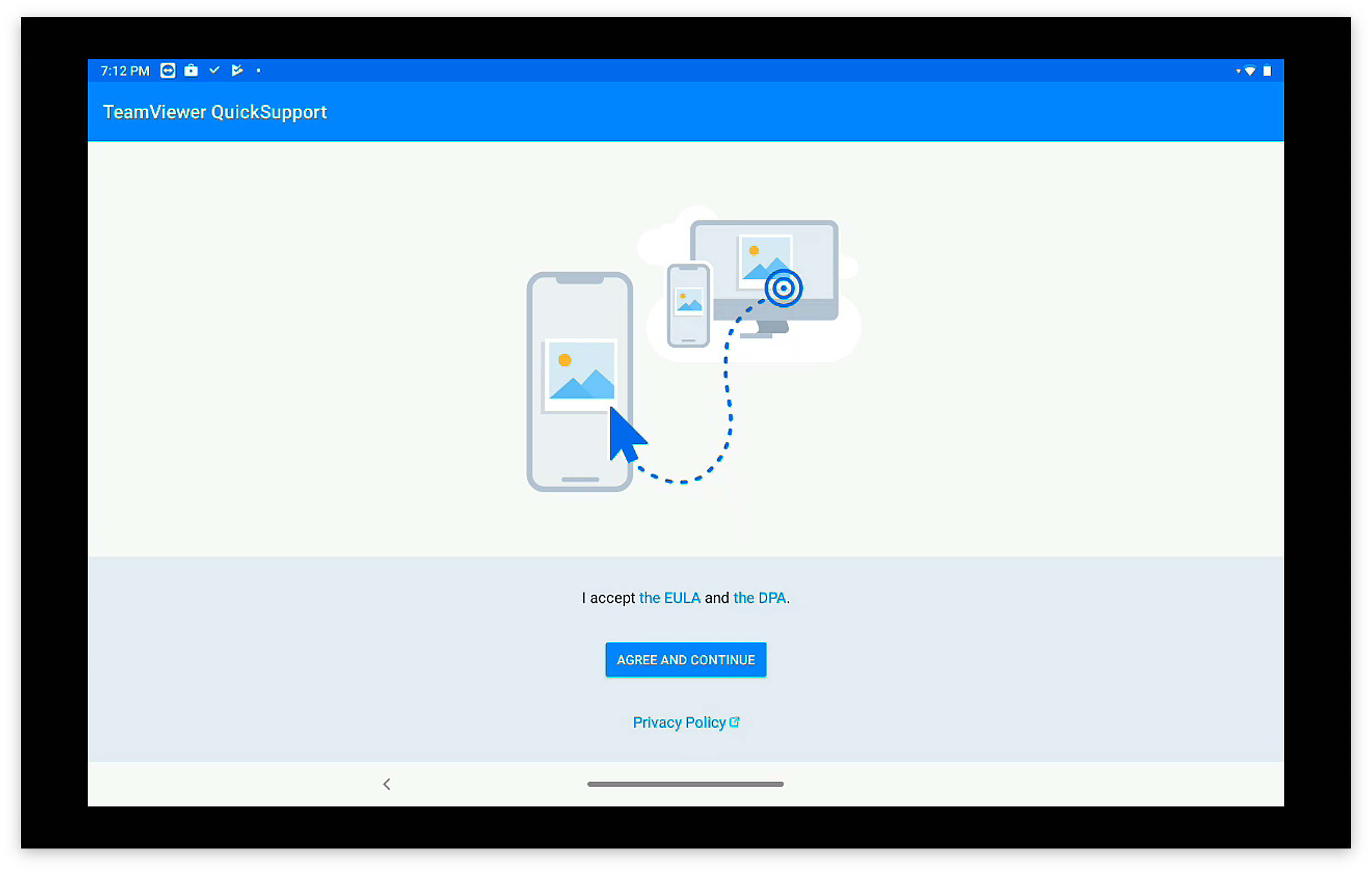
On first launch, the QuickSupport app will prompt the user to accept the EULA as shown above
If the notification does not appear, check that the FileWave Companion app is running and can report to the FileWave Server. The first notification comes from Companion, not QuickSupport.
Accepting the first-launch agreement opens the waiting screen. It does not give the technician access:
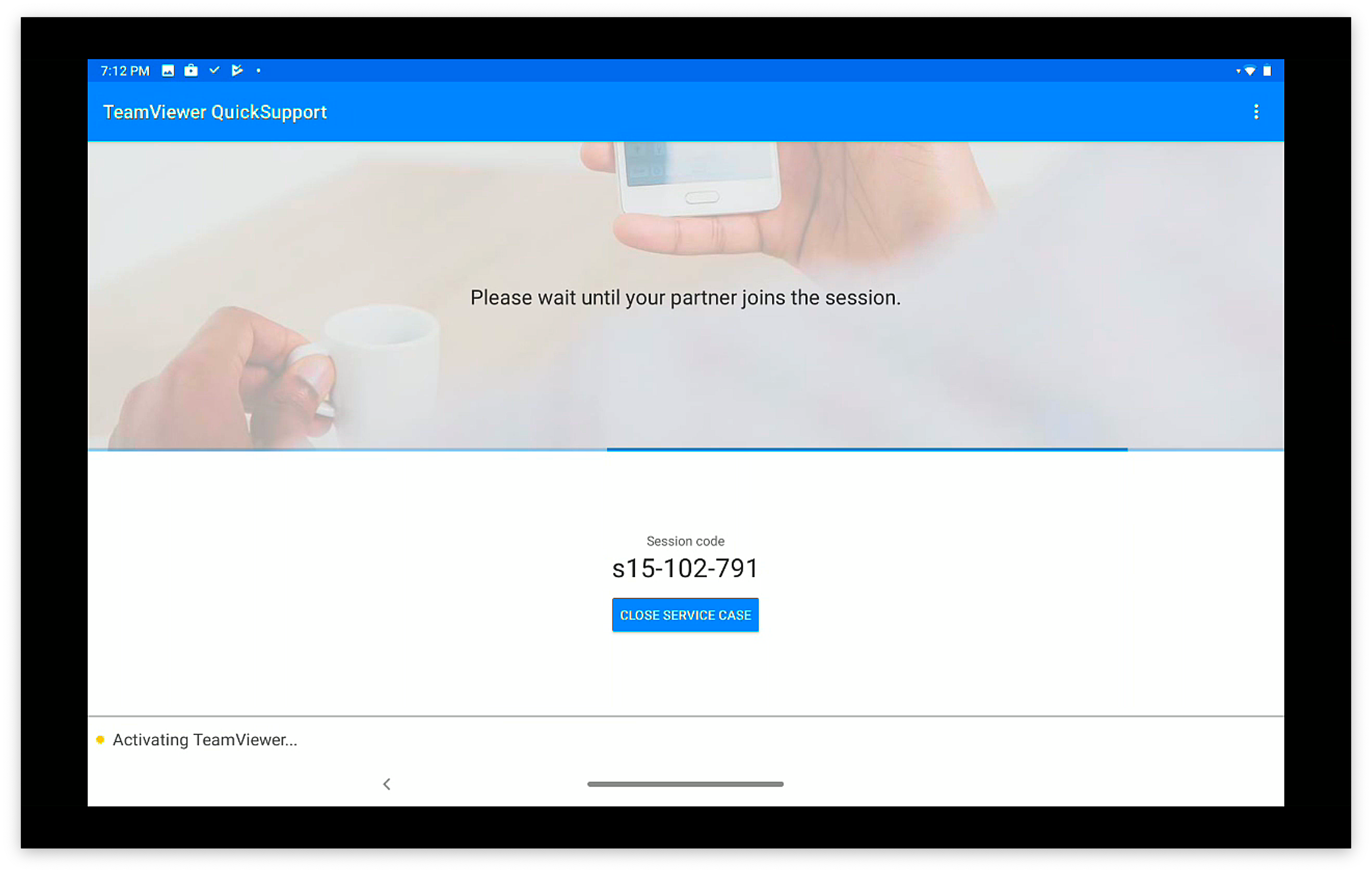
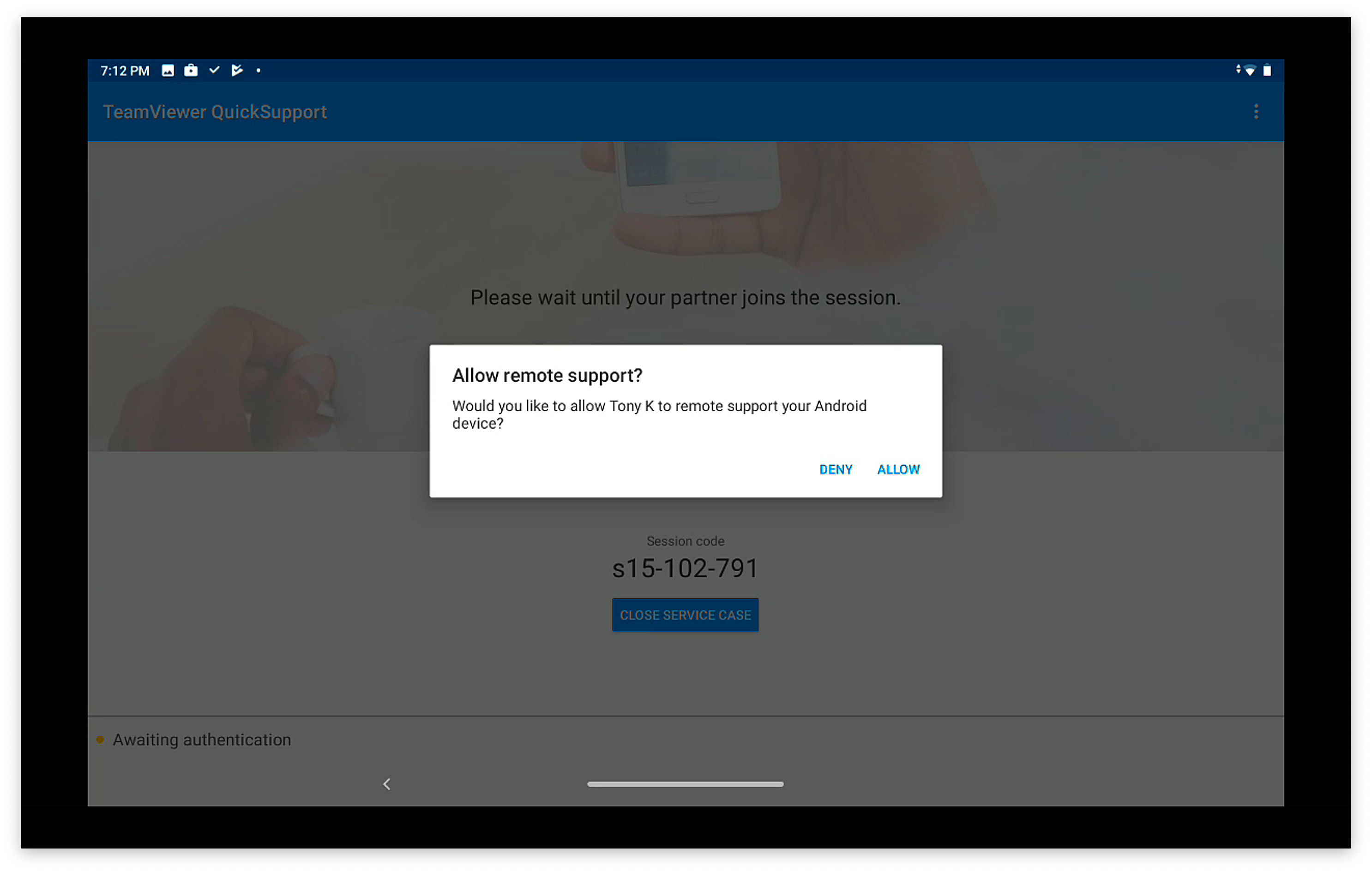
When the technician joins, QuickSupport asks whether to allow remote support. Check the name in the prompt. Choose Allow only for the technician you expect; if the request is unexpected, choose Deny and contact your support team.
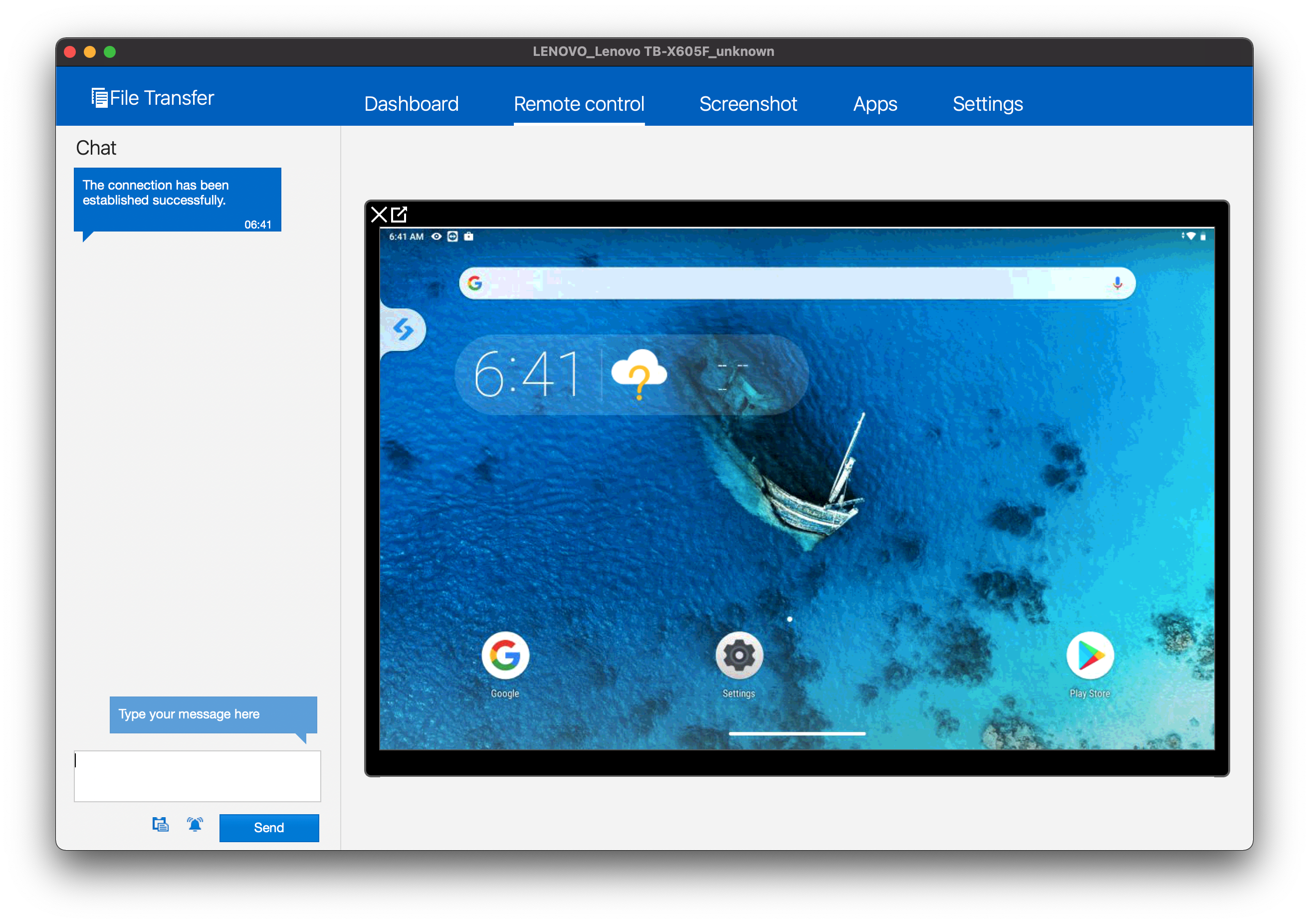
Once each of the above are completed, the remote session will look like this from the admin's machine:
No comments to display
No comments to display