
Enrolling Apple TV into FileWave
Use Apple Configurator for Mac to prepare an Apple TV blueprint for FileWave enrollment. The screenshots below show the blueprint-based workflow. Creating the blueprint alone does not enroll an Apple TV; it must be applied to the intended device.
Before applying the blueprint
For Apple TV HD or an Apple TV 4K model with Ethernet, connect the Apple TV to a display and to the same Ethernet network as the Mac running Apple Configurator. Bonjour discovery must work between them, including across subnets when applicable. Have the device at the first Setup Assistant screen, Pair Your Remote. This connection procedure is for Ethernet-equipped models; do not assume a Wi-Fi-only Apple TV can follow it.
In Apple Configurator, choose Apple Configurator > Paired Devices, select the intended Apple TV and click Pair. Enter the six-digit PIN shown on its display, then confirm that the Apple TV appears in Configurator's device window. See Apple's Prepare Apple TV instructions for the current connection and preparation steps. Do not reset an in-use device merely to reach Setup Assistant; arrange its reprovisioning with the device owner first.
For devices already assigned through Apple School Manager or Apple Business Manager, Automatically Advance Apple TV Through Setup Assistant describes the separate ADE route. Do not mix its unattended setup requirements with this interactive Configurator workflow.
Once preparation starts on a device, let it finish; do not shut down the Mac or interrupt the installation.
Create the enrollment blueprint
In Apple Configurator, create a new blueprint and set the target to Apple TV.
Newer Apple Configurator versions may change individual dialogs, but the overall process remains similar.
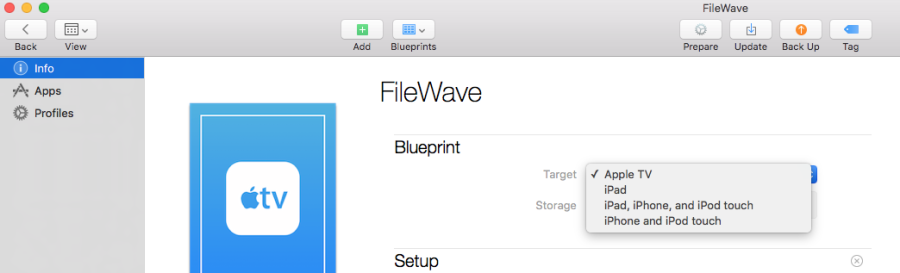
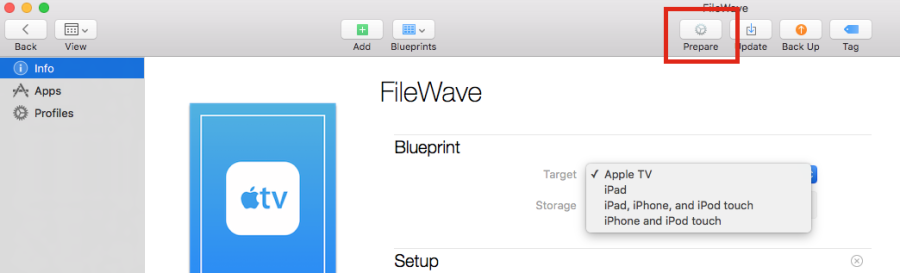
Click the Prepare icon.
The Prepare Devices dialog opens.
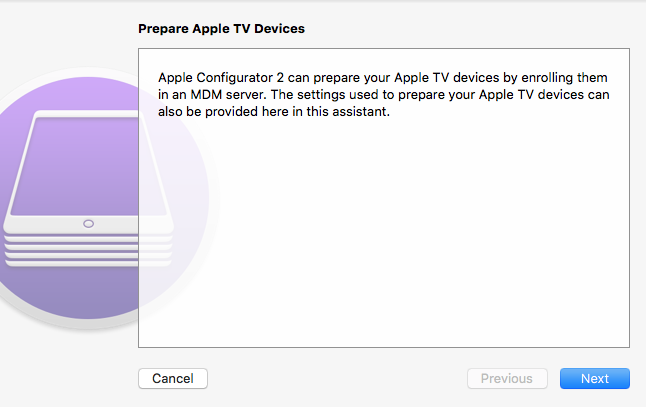
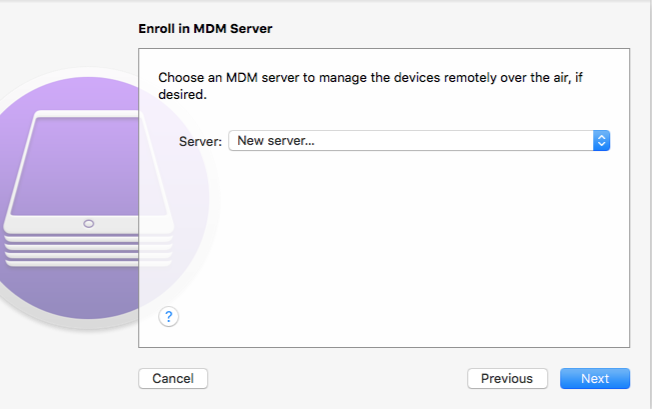
Click Next. Select New server... in the server selection box, then click Next.
Enter a server name and the URL for over-the-air enrollment, including the required port number at the end of the URL, then click Next. The server name is only for identification in Apple Configurator and does not need to match DNS.
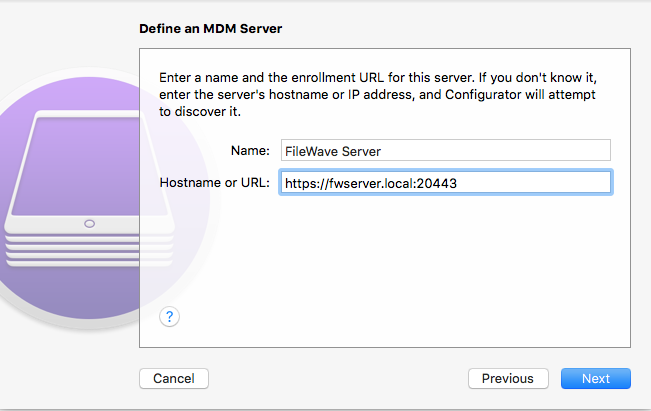
If Apple Configurator can connect to the FileWave Server, it shows the trust profile and FileWave Root Certificate. For the required enrollment profile, use FileWave Admin's Enroll iOS Device assistant and download the profile from the Apple TV tab.
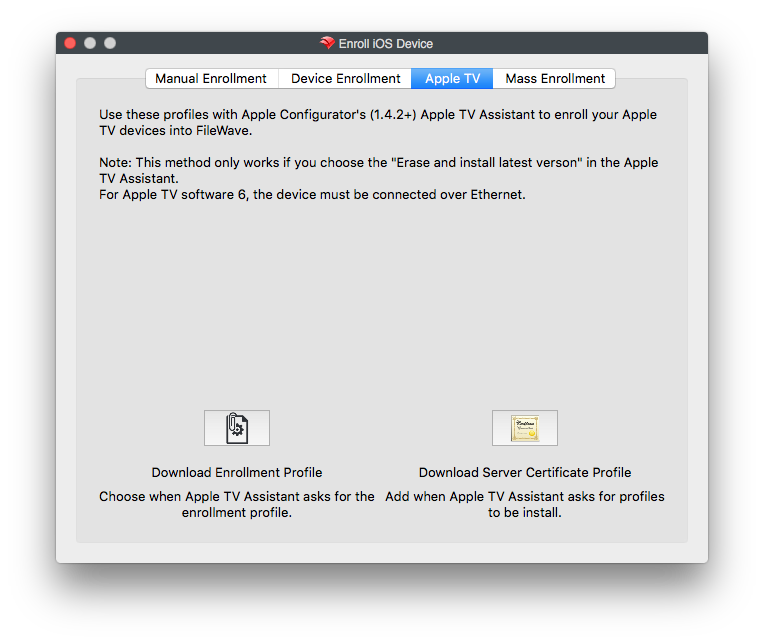
Click Choose... and select the enrollment profile you downloaded from FileWave Admin.
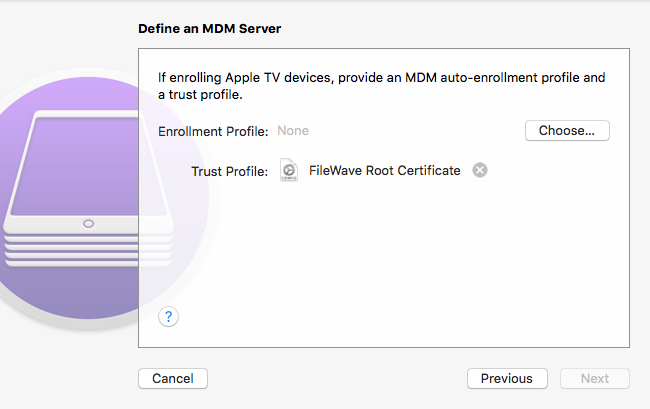
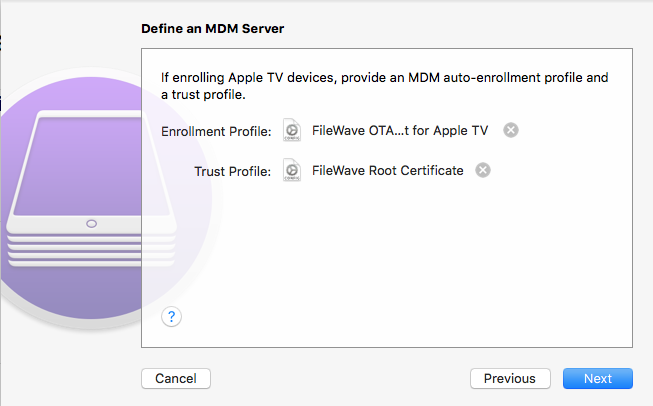
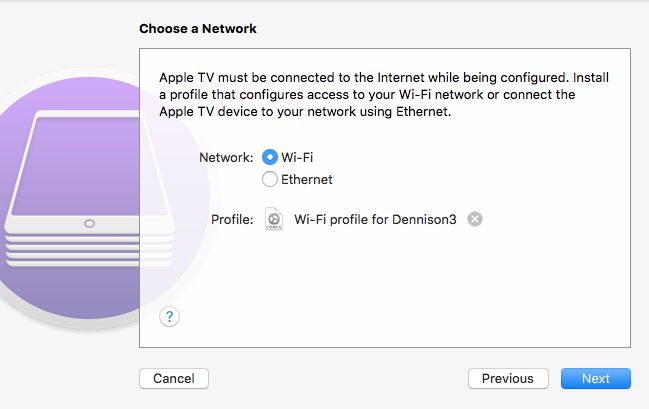
After the enrollment profile is selected, click Next. In FileWave, create a Wi-Fi profile with the SSID and password the Apple TV needs to join the wireless network. Add that Wi-Fi profile to the blueprint with Choose....
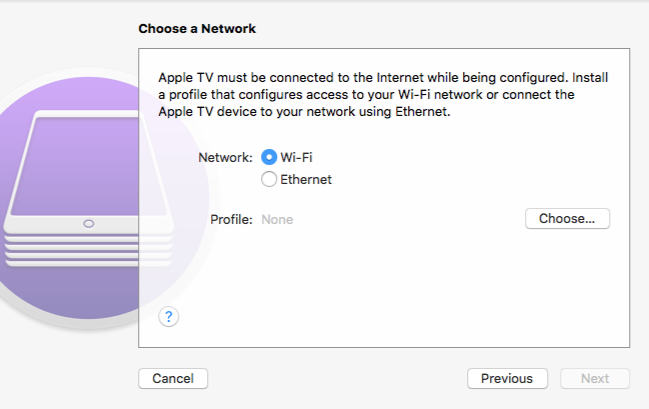
Click Next.
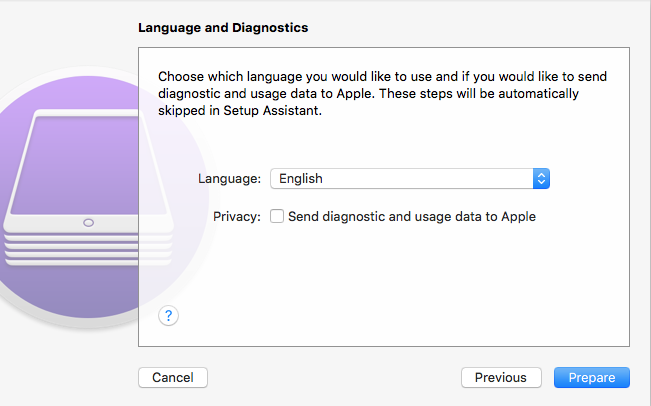
Select the language and diagnostic/usage-data options you want to use, then click Prepare.
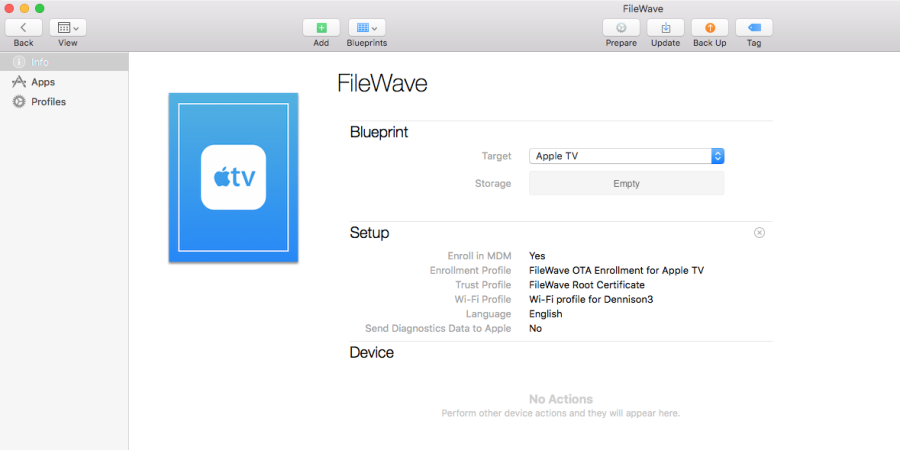
The blueprint now has the required pieces and can be applied to a connected Apple TV.
No comments to display
No comments to display