
Troubleshooting Deployment Issues with the FileWave Upgrade Fileset
Use this article when a FileWave Upgrade Fileset does not deploy correctly. Start with the section for the target operating system, because macOS redeployment and Windows archive-import failures have different fixes.
Scope: This article covers upgrade fileset deployment, redeploy, and Windows import/extraction issues. If the Windows upgrade fileset imports and deploys but the client upgrade itself does not complete, the client version does not update in inventory, or the service does not restart, see Troubleshooting Windows Client Upgrade Fileset Issues.
macOS Deployment
Issue: Devices show that the latest FileWave Client is not installed despite deploying the Fileset.
Solutions:
1. Reinstall on Selected Devices:
2. Redeploy the Fileset if reinstall does not resolve the issue:
-
Remove the affected devices from the Deployment. For a legacy Association, remove the Fileset Association instead.
-
Perform a Model Update and allow the removal to reach the devices.
-
Add the devices back to the Deployment, or recreate the legacy Association, then perform another Model Update.
Cause:
This pattern can occur while the required Privacy Preferences Profile (v3) and FileWave Client deployment are settling on the device. Removing and redeploying the Fileset gives the profile and client another installation pass in the required order.
Normally a one-time repair: Repeat this process only if the deployment becomes stuck again or a later macOS release requires a revised privacy profile.
Windows Deployment
Issue: The Windows Upgrade Fileset was imported from the wrong level of the extracted archive.
Solution:
1. Remove and Recreate the Fileset:
- Remove the Fileset association from devices.
- Delete the current Fileset from FileWave.
2. Redownload and Extract the Fileset:
- Download the Upgrade Fileset again.
- Right-click the downloaded file and select Extract All.
- Open the extracted
~Upgrade_Fileset_for_Windows.filesetfolder. - Locate the inner folder with the same name. Drag that inner folder into FileWave to create the replacement Fileset.
Verification:
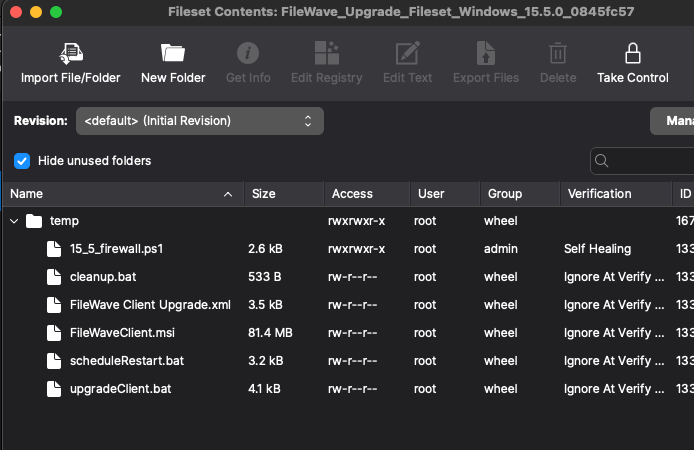
Open the imported Fileset and confirm that its scripts and MSI content appear as shown in the working example before creating the Deployment.
Examples:
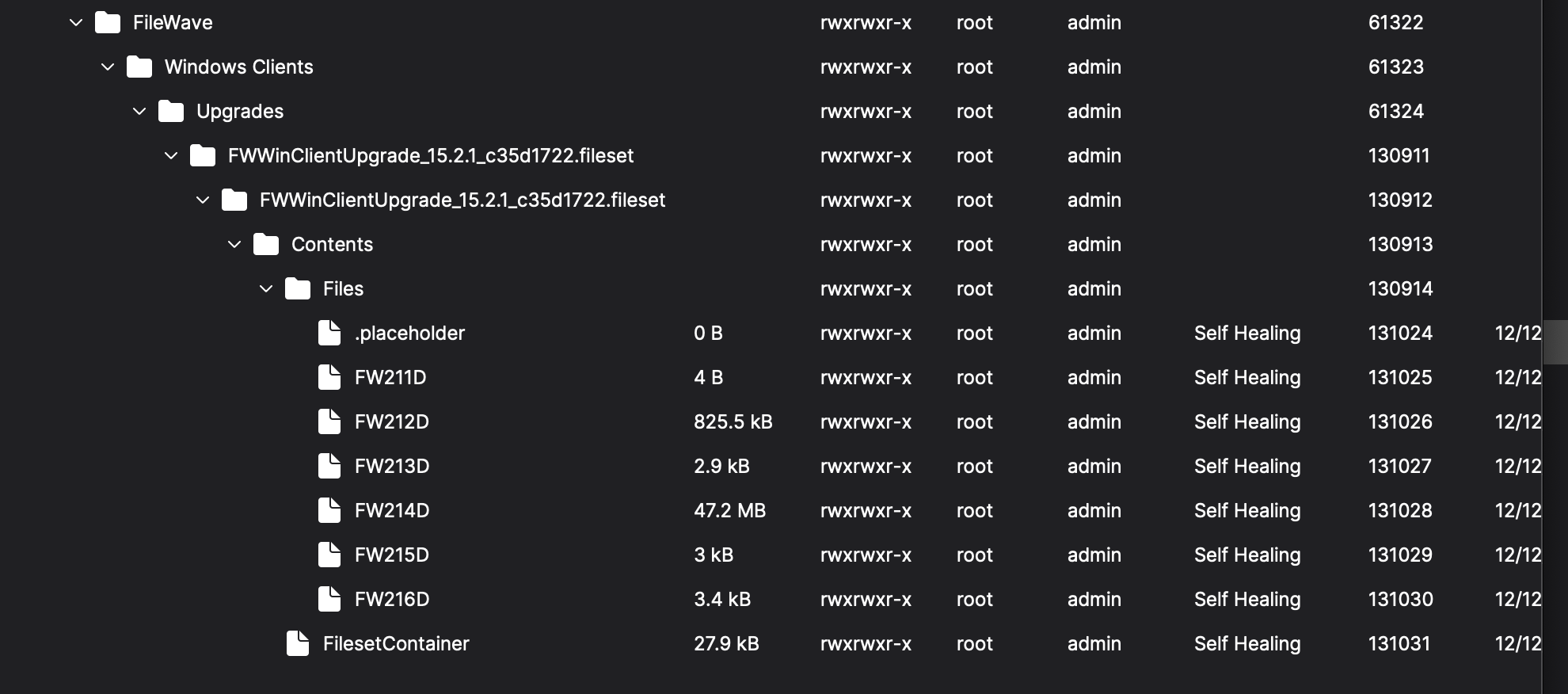
Broken Example:
• Windows fileset: The extracted folder contains only a single ~Upgrade_Fileset_for_Windows.fileset folder containing unusable files.
Working Example:
• Windows fileset: The extracted folder includes only the temp folder, containing scripts/MSI required to update the Client, which is imported into FileWave as the Fileset.
If the Fileset matches the working example but deployment still fails, collect the Fileset report and relevant client logs, then contact FileWave Support.
No comments to display
No comments to display