
Device Names and Client Name Synchronization in FileWave
A managed device can have a name in FileWave that differs from the name on the device itself. This article explains Client Name, Device Name, and what happens when names change on Windows, macOS, iOS, iPadOS, tvOS, Android, and Chromebooks.
Synchronize Client Name with Computer name is a desktop Client preference, not a switch for every platform. It applies to the native Windows and macOS Client. Apple MDM rename commands and Android/Chromebook naming use separate mechanisms.
Understand the two names
- Client Name: the name used in FileWave to identify the managed record. Depending on the platform and enrollment workflow, this can be chosen by an administrator or populated during enrollment or synchronization.
- Device Name: a platform-specific inventory value. On Windows, macOS, iOS, iPadOS, and tvOS, it reports the computer or device name. Android Enterprise and Chromebook integrations can populate it from an identifier instead; see their sections below.
On Windows and Apple platforms, a changed operating-system name appears in Device Name after updated inventory is received. Turning off the desktop synchronization preference does not freeze this inventory field.
What the desktop synchronization preference does
Synchronize Client Name with Computer name controls the direction computer name → FileWave Client Name. It does not rename the computer or stop FileWave from collecting its Device Name.
- Enabled: the native FileWave Client uses the computer's operating-system name for its Client Name when it synchronizes its name.
- Disabled: Client Name can remain separate from the operating-system name. Device Name inventory continues to report the operating-system name.
This preference applies to the native FileWave Client on Windows and macOS, including Macs enrolled in MDM. It can also read the name of an Active Directory domain-joined Windows computer; reading a name does not require permission to rename that computer. Check the deployed Client preferences rather than inferring this setting from MDM enrollment alone.
Naming behavior by platform
| Platform | Does the desktop sync preference apply? | Rename behavior |
|---|---|---|
| Windows, including AD domain-joined computers | Yes, for the native FileWave Client. | A FileWave rename changes Client Name, not the Windows computer name. When sync is enabled, the native Client reads the Windows name for its Client Name; it does not rename Windows. |
| macOS without MDM enrollment | Yes, for the native FileWave Client. | A FileWave rename changes Client Name, not the Mac's computer name. Enabled synchronization makes Client Name follow the computer name. |
| macOS enrolled in Apple MDM | Yes, if the native Client is installed; MDM rename is separate. | A FileWave rename changes the record name and queues an MDM command to change the Mac's actual device name, regardless of the native sync preference. |
| iOS, iPadOS, and tvOS | No. | For supported supervised MDM-enrolled devices, a FileWave rename changes the record name and queues a command to change the device's actual name. An unsupervised device does not receive that rename command from this workflow. |
| Android Enterprise | No. | Changing Client Name changes the name used in FileWave. It is not a command to rename the device in Android Settings. |
| Chromebook | No. | Google synchronization uses the serial number for naming. Do not treat a FileWave record-name edit as an OS hostname change or assume it will survive the next Google sync. |
For Apple MDM renames, the device must receive and successfully apply the command before its actual name changes. Updated inventory then reports that name. Disabling the desktop synchronization preference does not disable this MDM command.
Why a desktop FileWave rename turns synchronization off
When the native Client receives a different Client Name assigned by the Server, it saves that name and disables syncComputerName. This keeps the operating system's name from replacing the name chosen in FileWave. The Client must communicate with the Server to receive the change.
- The FileWave Client uses its name as part of its identity. Uncoordinated changes can cause an enrollment conflict; a rename does not automatically mean a new device record is needed. See How the FileWave Client Communicates.
- The underlying
syncComputerNamepreference is documented in FileWave Client Configuration Settings.
Rename and check the result
- Check the platform and enrollment type in the table above. For an eligible Apple MDM device, expect Rename to change its actual device name as well as its FileWave name. Choose a name appropriate for that platform.
- In FileWave Central, right-click the intended device and select Rename. Enter the new Client Name.
- Allow the device to communicate and submit updated inventory. For an Apple MDM rename, also check the command's result in Command History.
- Compare Client Name and Device Name with the platform's expected behavior, and confirm that the existing record continues to check in. A changed console name alone does not confirm that the device's actual name changed. For Chromebooks, check again after Google synchronization.
Where to change the desktop Client preference
For new installations: set it in the custom Client installer
With FileWave Server and Central 16.4.0 or later, you can set name synchronization while building a custom macOS or Windows Client installer in Central. For these Client installers, the integrated builder replaces the older custom.filewave.com workflow.
- In FileWave Central, open Preferences > Enrollment > macOS or Windows. In 16.4.0, the tab is named Mobile instead of Enrollment.
- In the current interface, select Change settings and build. In the package settings dialog, select or clear Synchronize client name with computer name, then build the package. The 16.4.0 interface displays the package settings on the platform pane instead of in a separate dialog.
- Review the package's Sync Client Name summary and test a new installation before wider deployment. The package summary describes the installer configuration, not the current preference on every enrolled device.
See Build Custom FileWave Client and Booster Installers for the complete version-specific procedure. Building a new enrollment package does not by itself change existing Clients. To change this preference on an already installed Client, use a Superprefs Fileset as described below rather than reinstalling the Client just to change its name setting.
For existing Clients: use a Superprefs Fileset
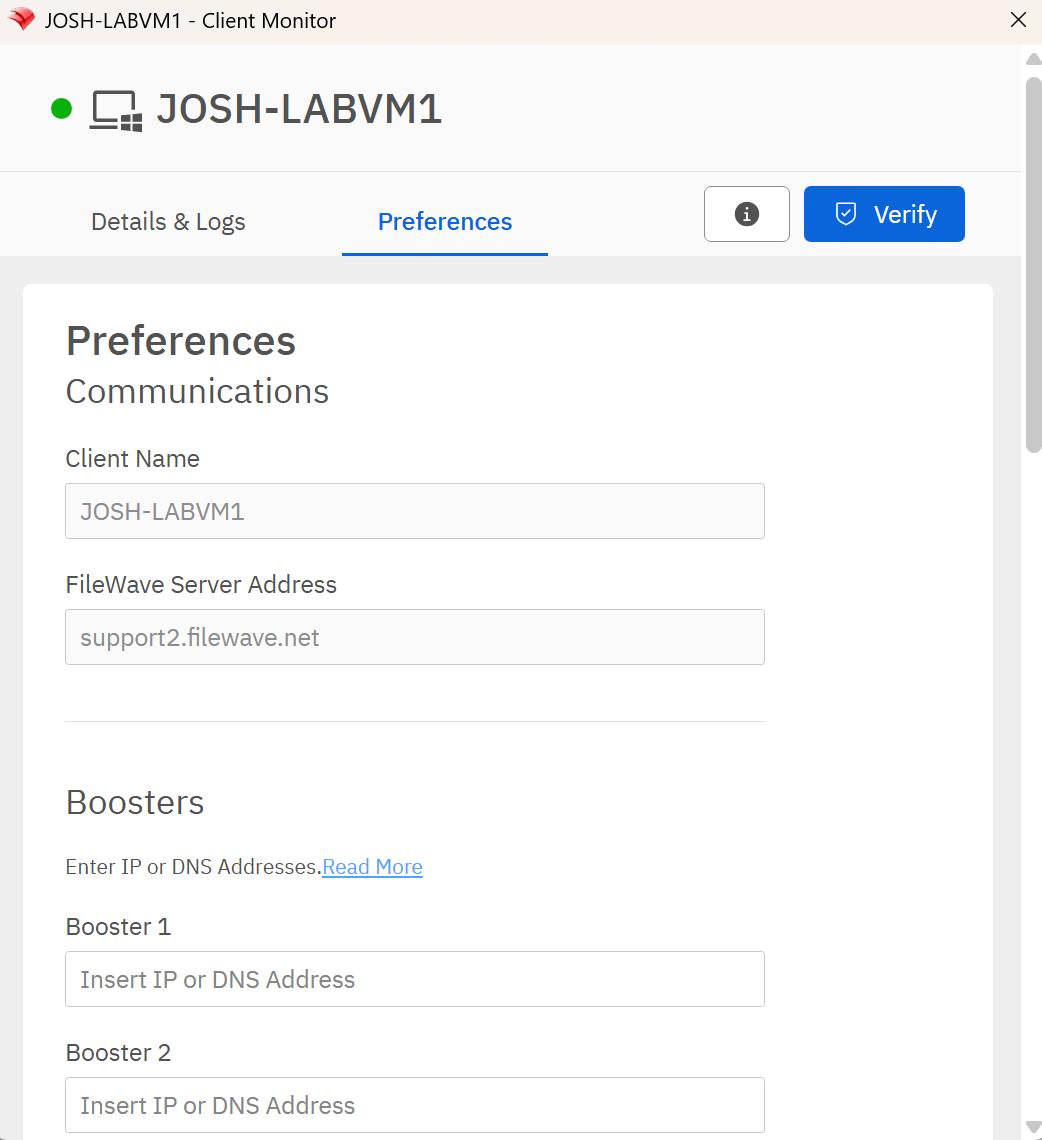
The current Client Monitor > Preferences view does not provide a Sync Computer Name toggle. To change this preference on macOS or Windows Clients, use the Superprefs Editor > Communications setting named Synchronize Client Name with Computer name.
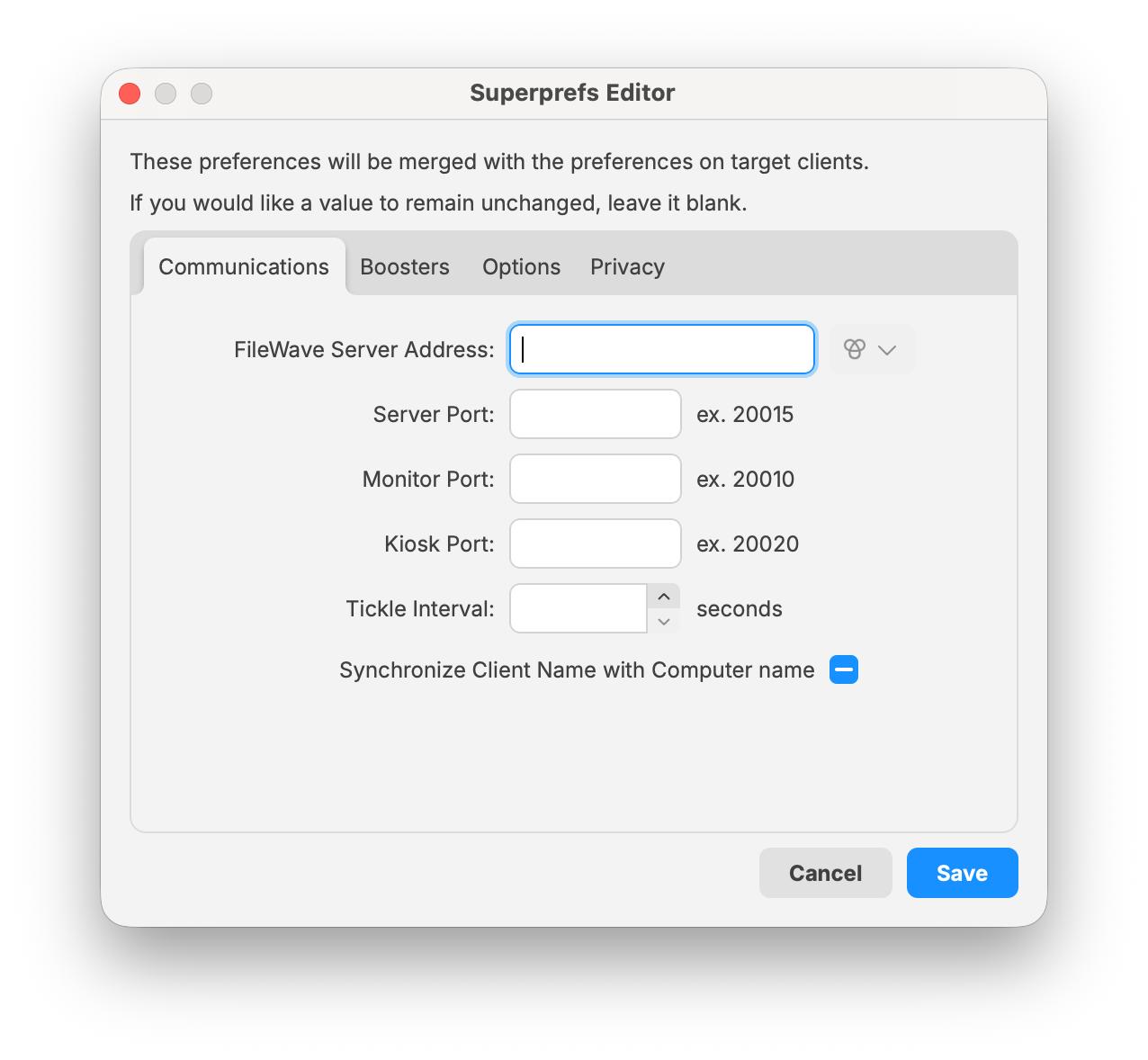
The dash shown above means leave the existing value unchanged; it does not mean synchronization is disabled. Select the checked state to enable synchronization or the unchecked state to disable it, leaving unrelated settings unset. Save and deploy the preference using the Superprefs Fileset procedure linked below.
The current Client Monitor screenshot below shows the Client Name field but no name-synchronization toggle:
Use Creating a Superprefs Fileset to apply the preference to the intended desktop Client or group. Test on one device first and confirm that Client Name behaves as intended after the preference is applied.
iPhone, iPad, and Apple TV: MDM rename versus a local name change
The desktop Superprefs setting does not apply to iOS, iPadOS, or tvOS. FileWave uses Apple's MDM Settings / DeviceName command to rename supported supervised iPhones, iPads, and Apple TVs. This is an action to set a name, not a continuously enabled name-synchronization preference.
If a user changes the name directly on an iPhone, iPad, or Apple TV, where permitted, subsequent MDM inventory reports the new Device Name. This does not mean that an existing FileWave Client Name is automatically replaced. The ordinary inventory update preserves an already-populated Client Name; iOS/iPadOS can initialize an empty Client Name from the reported name. Enrollment and Automated Device Enrollment naming rules are separate workflows.
Apple documents the device-name command in its Settings command reference. A restriction on whether users can change a name locally is also separate from the desktop sync preference.
Android Enterprise: a FileWave name is not the Android Settings name
Use Client Name to identify the device in FileWave. Android Enterprise enrollment initially populates Device Name from Google's device identifier, so that field is not necessarily the friendly name visible in Android Settings. Changing the FileWave Client Name does not change that Android Settings name. Likewise, changing a name locally is not a way to set FileWave Client Name through syncComputerName; this desktop preference does not apply to Android.
Chromebooks: naming comes from Google synchronization
FileWave's Chromebook integration uses the serial number to populate Client Name and Device Name during Google synchronization. These values should not be interpreted as an operating-system hostname. A later Google sync can restore the serial-number-based name after a FileWave record-name edit. The desktop sync preference does not control this behavior.
No comments to display
No comments to display