
TeamViewer: iOS/iPadOS Session Overview
What
This article shows what an iPhone or iPad user sees after a FileWave administrator requests a TeamViewer remote support session. First complete TeamViewer: iOS/iPadOS Client Setup, including the required apps and administrator license. The technician then follows Start a TeamViewer Remote Session; the steps below are for the person at the iPhone or iPad.
When to use it
Use these steps to guide the user through accepting an attended support session and starting the screen broadcast that TeamViewer needs. The user must remain available because iOS and iPadOS require confirmation on the device; the administrator cannot accept these prompts remotely.
Before sharing the screen: close sensitive documents and apps, and prevent private notification previews from appearing during support. The broadcast can expose what appears on the screen, not just the QuickSupport app. Confirm that the user is ready before starting it.
Join the session
After the device receives the session request, iOS or iPadOS plays a notification sound and displays a TeamViewer notification. The user must open that notification to view the session prompt:
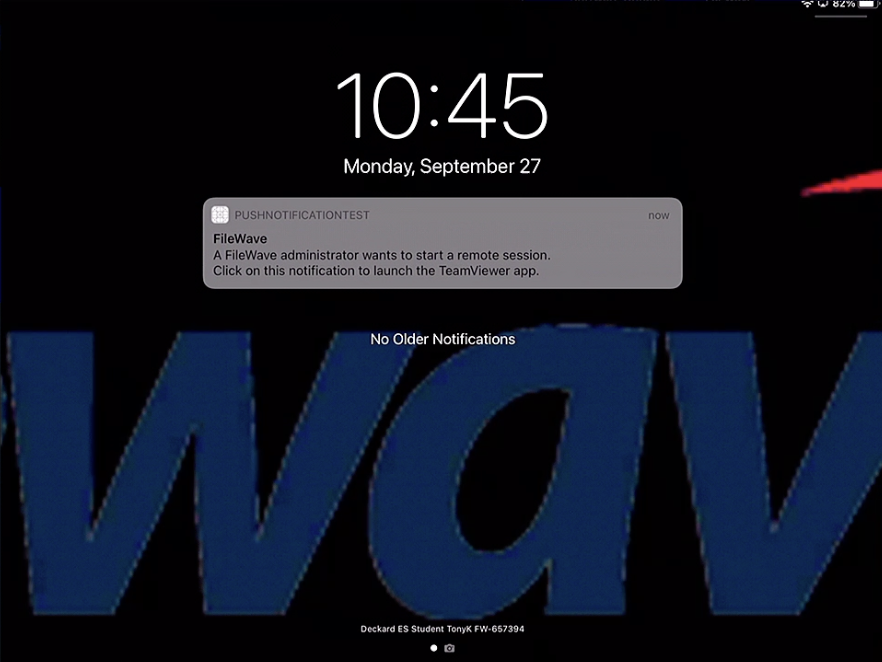
Opening the notification launches the TeamViewer QuickSupport app.
QuickSupport displays the session code while it waits for the administrator to join.
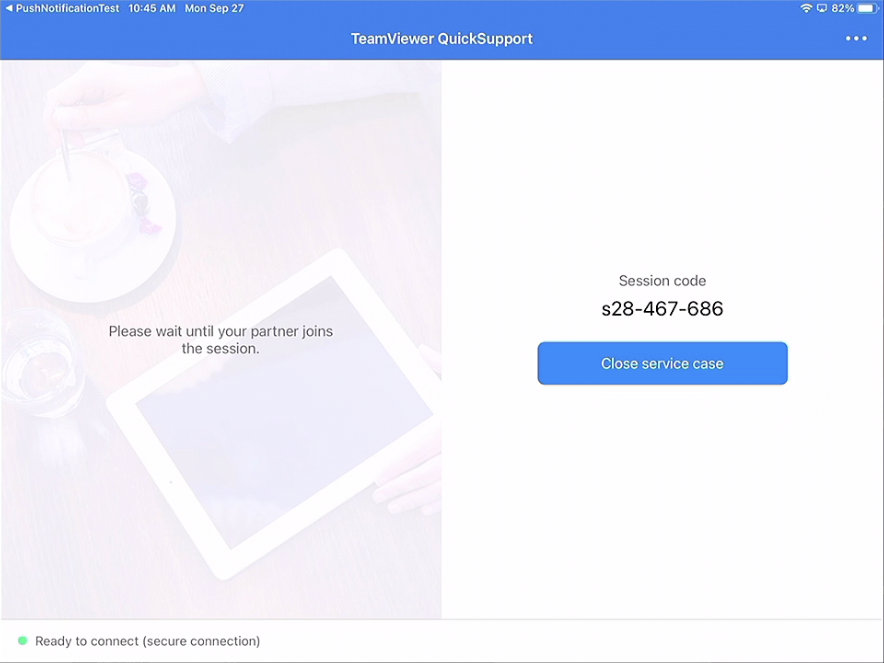
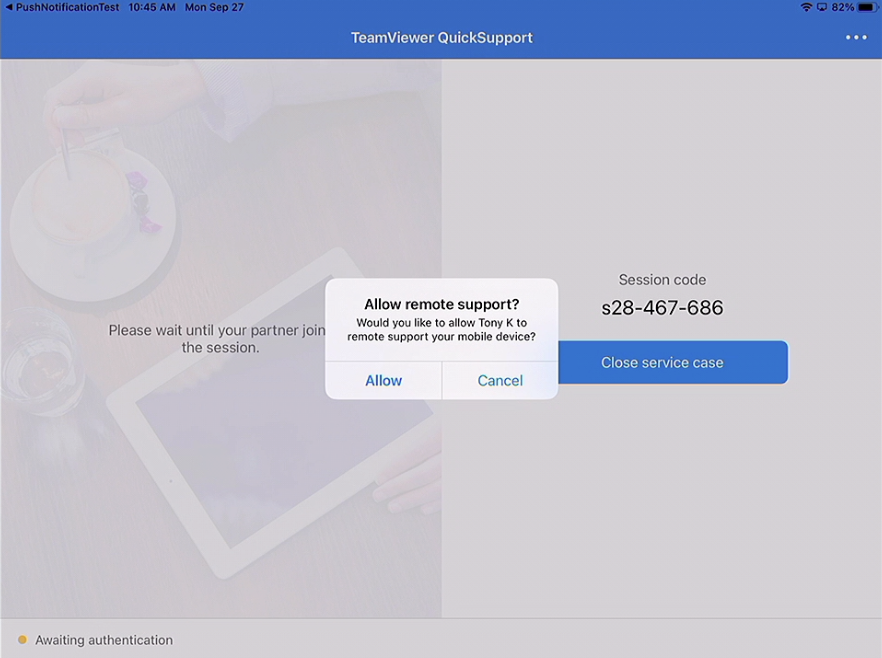
When the administrator's TeamViewer session is ready, the user is prompted to allow the attended session:
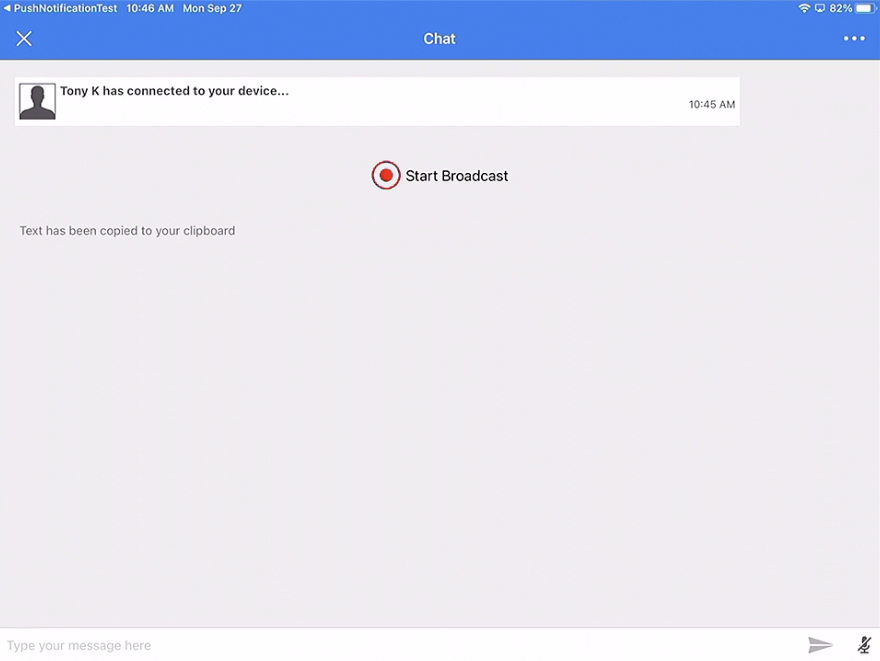
After the user allows the attended session, QuickSupport displays Start Broadcast. Select it to continue:
iOS or iPadOS then opens the Screen Broadcast control. Select TeamViewer and choose Start Broadcast:
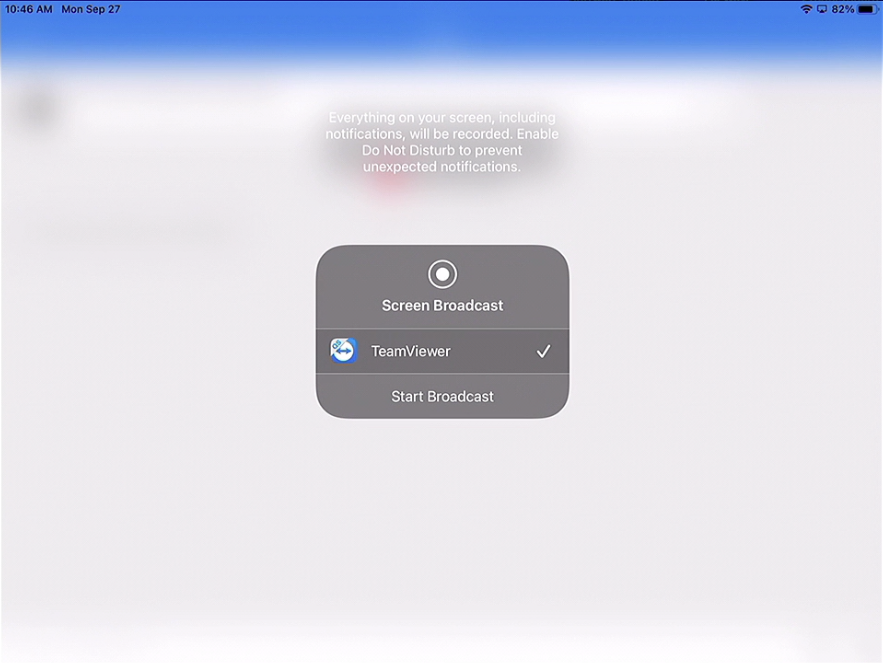
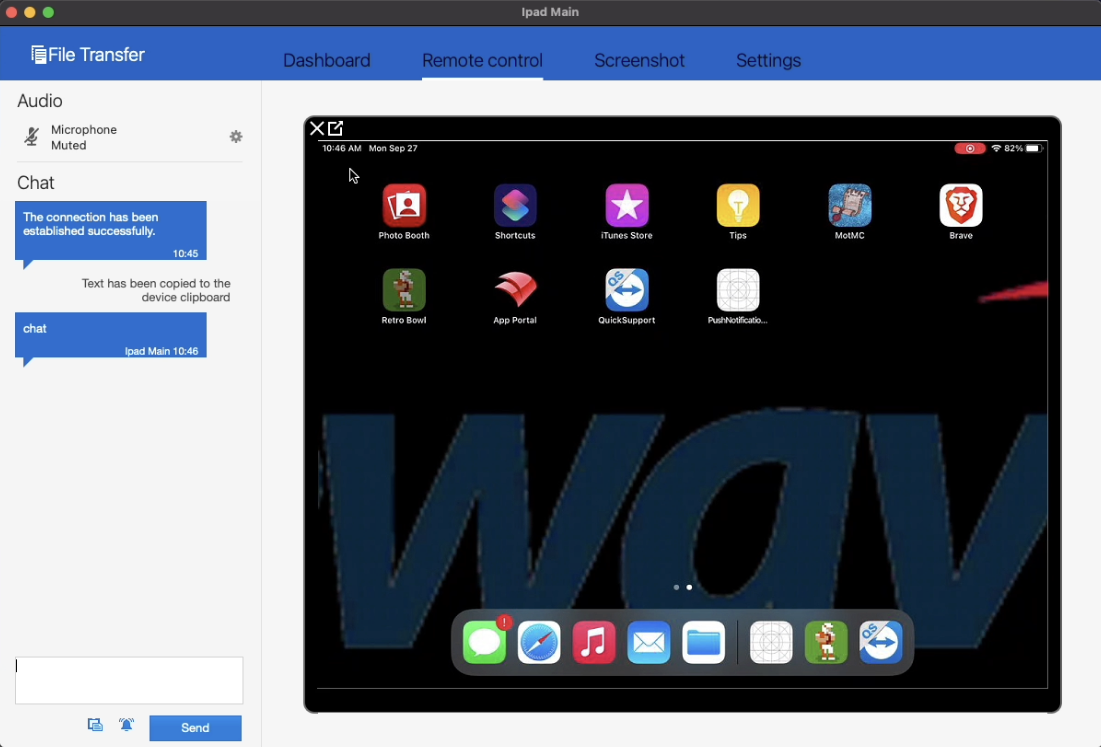
Once the user approves the session and starts the broadcast, the administrator can view the screen. iPhone and iPad sessions are screen-view only, so the administrator guides the user rather than controlling the device:
Stop sharing when finished
On the iPhone or iPad, open Control Center and tap the active screen-recording control to stop the broadcast. Confirm that the broadcast indicator is no longer active and that the technician no longer sees live screen changes. See TeamViewer’s screen-sharing instructions for the device-side stop options.
No comments to display
No comments to display