
Upgrading FileWave Clients
What
FileWave 16.4 provides an integrated upgrade workflow for supported macOS and Windows FileWave Clients that are already running FileWave Client 16.3.0 or later.
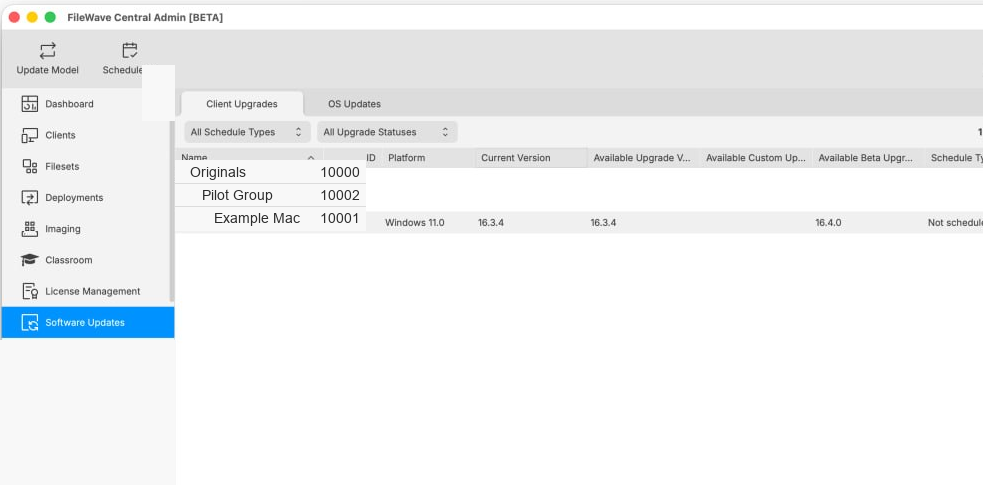
The Client Upgrades view is not a complete fleet-version report. Clients running versions earlier than 16.3.0 do not appear in Software Updates > Client Upgrades. An empty view does not prove that every managed client is current.
Before you begin
- Confirm the Server and Central baseline. Connect to the intended FileWave Server and use a matching FileWave Central version. Both must be running 16.4.0 or later for the integrated workflow described here. Check the target release's platform requirements in Downloads.
- Review the upgrade controls. Open FileWave Central > Preferences > Upgrades. Review Batch Size, Error Threshold, and the client-upgrade report interval before scheduling a rollout. See Upgrades preferences for what each setting controls. These settings govern rollout behavior; they do not schedule a Client upgrade by themselves.
- Identify older clients. Use an Inventory Report to find clients earlier than 16.3.0 and plan the Upgrade Fileset bridge below. They are not listed in Client Upgrades.
- Choose the intended package channel. For normal production upgrades, use the production scheduling workflow. For an Early Access target, complete Enable Early Access (Beta) Package URLs and use the Beta scheduling instructions below.
Need a custom installer for new devices?
On FileWave Server 16.4.0 and later, build custom macOS PKG and Windows MSI enrollment installers in Central instead of using custom.filewave.com. See Build Custom FileWave Client and Booster Installers for configuration, build, download, and automatic package-rebuild steps. The settings are under Preferences > Enrollment in 16.4.1 and later, or Preferences > Mobile in 16.4.0.
Enrollment is not an existing-client upgrade. Do not deploy a custom PKG or MSI over an enrolled Client as its normal upgrade path. Use Client Upgrades for eligible clients, or the Upgrade Fileset bridge for clients earlier than 16.3.0. Keep the package up to date rebuilds enrollment installers; it is not the command to upgrade your existing fleet.
Choose the upgrade path by current client version
| Current client version | Visibility in Client Upgrades | Required path |
|---|---|---|
| 16.3.0 or later | Eligible for the integrated workflow and shown when an applicable upgrade is available. | Use Software Updates > Client Upgrades. |
| Earlier than 16.3.0 | Not shown in Client Upgrades. | Deploy the applicable macOS or Windows Client Upgrade Fileset to reach at least 16.3.0, then use the integrated workflow for later upgrades. |
| Unsupported operating system or failed requirements | May not qualify for the target client version. | Review the target release’s platform requirements and the Upgrade Fileset result before assuming the client can be upgraded. |
Audit the fleet before trusting the upgrade view
- Create an Inventory Report that returns Client Name, FileWave Client Version, Platform, OS Version, and Last Connect.
- Identify every macOS and Windows client whose FileWave Client version is earlier than 16.3.0.
- Deploy the applicable Client Upgrade Fileset to a representative pilot group of those legacy clients.
- Confirm the clients check in and report at least version 16.3.0.
- Open Software Updates > Client Upgrades and confirm the bridged clients are now eligible for the integrated mechanism.
- Continue in controlled batches and rerun the inventory report until no legacy client remains unexplained.
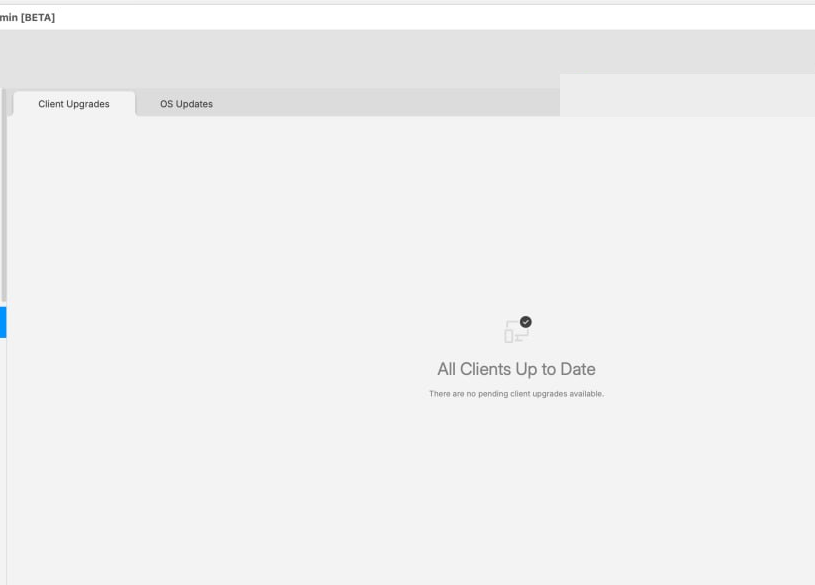
“All Clients Up to Date” means there are no pending upgrades for clients eligible for this view. It does not include clients earlier than 16.3.0. Always reconcile the view against an inventory report before declaring the fleet upgraded.
Schedule an integrated client upgrade
- Open FileWave Central > Software Updates > Client Upgrades.
- Confirm the current version and available target version for the qualifying client or group.
- Start with a representative pilot group.
- For a normal production upgrade, use the toolbar scheduling action or right-click the selection and choose Schedule Upgrade.
- Monitor Schedule Type and Upgrade Status before extending the rollout.
Schedule an Early Access/Beta client upgrade
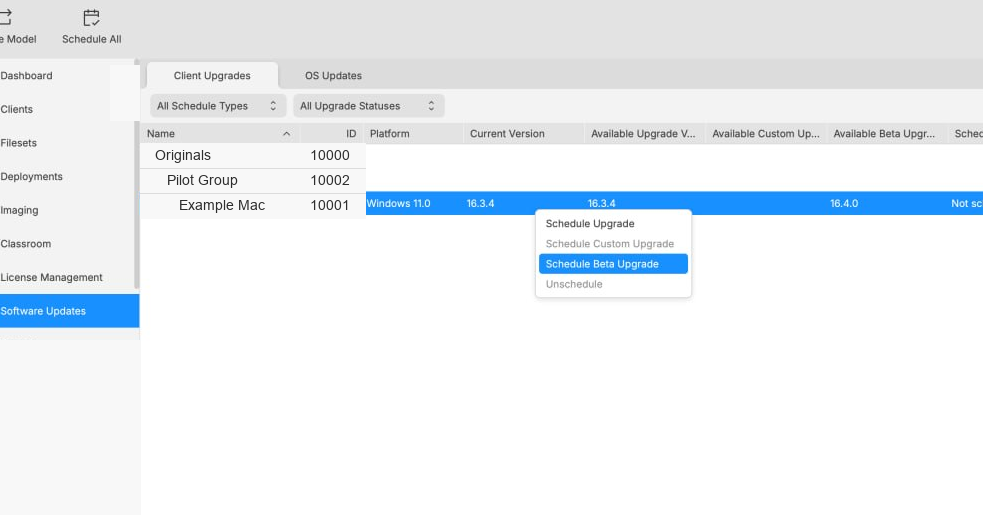
The toolbar scheduling button is for non-Beta upgrades. When the Server is using Early Access/Beta package sources, select the eligible client or group, right-click it, and choose Schedule Beta Upgrade.
- Confirm the client is already running FileWave Client 16.3.0 or later and that an Available Beta Upgrade version is displayed.
- Right-click the selected client or group.
- Choose Schedule Beta Upgrade. Do not use Schedule All or Schedule Upgrade when the intended target is the Beta build.
- Monitor the scheduled target and status before expanding beyond the pilot.
Upgrade Fileset bridge for clients earlier than 16.3.0
Download the applicable macOS or Windows Client Upgrade Fileset from the target FileWave release’s Downloads page, import it into Central, and deploy it to the legacy-client scope. The FileWave 16.4 Upgrade Filesets include a client-version requirement and are skipped on clients already running 16.3.0 or later.
If the required 16.4 Upgrade Fileset does not support the legacy source version, use the FileWave 16.3 Upgrade Fileset first. After the client reaches 16.3.0 or later and checks in, manage future upgrades through Client Upgrades.
Upgrade Filesets also enforce operating-system requirements. A legacy client on an unsupported operating system may remain on its current FileWave Client version until the operating system or device is remediated.
No comments to display
No comments to display