
Location Tracking Setup
FileWave Location Tracking
Location reporting is disabled by default and is optional. Before collecting data, confirm the license allowance, organization policy and Acceptable Use Policy, required user notice and consent, who may view the data, retention, and cleanup. For an evaluation, use one approved device whose user understands the exercise. Leave the server-wide tracking default unchanged; do not select a fleet or bypass privacy restrictions to make the pilot work. Permission prompts vary by platform and do not replace organizational approval.
Requirements:
- Confirm a supported FileWave Server, Client/app, and OS combination for the intended location workflow. FileWave 10.1 was the historical feature baseline, not a current support guarantee.
- The license, Client settings, and OS permissions must allow the approved collection.
- The enterprise iOS/iPadOS IPA App Portal stopped working on July 30, 2026; no replacement IPA will be issued. The former IPA install page is historical, not a working passive-tracking route. See the Kiosk IPA end-of-life statement.
- The approved device must already be enrolled and communicating.
Historical platform baselines—not a current support matrix
- APK Android: 4.1+
- iOS 9+ (historical IPA workflow; no longer a supported passive route)
- macOS 10.9+
- Windows 10+
- ChromeOS 43+
These older minimum versions describe the original feature, not supported OS releases today. Confirm current platform eligibility with FileWave before collecting location. App Store Kiosk delivery alone does not establish passive-location support.
Things to consider:
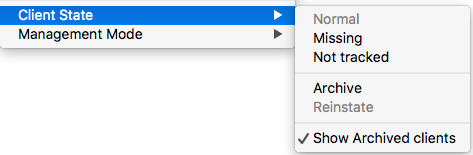
Current Set Tracking Mode documentation names Tracked, Missing, and Untracked. In the illustrated Central menu the active state is greyed out. Confirm the label on your supported release; do not substitute Normal as a guessed alias.
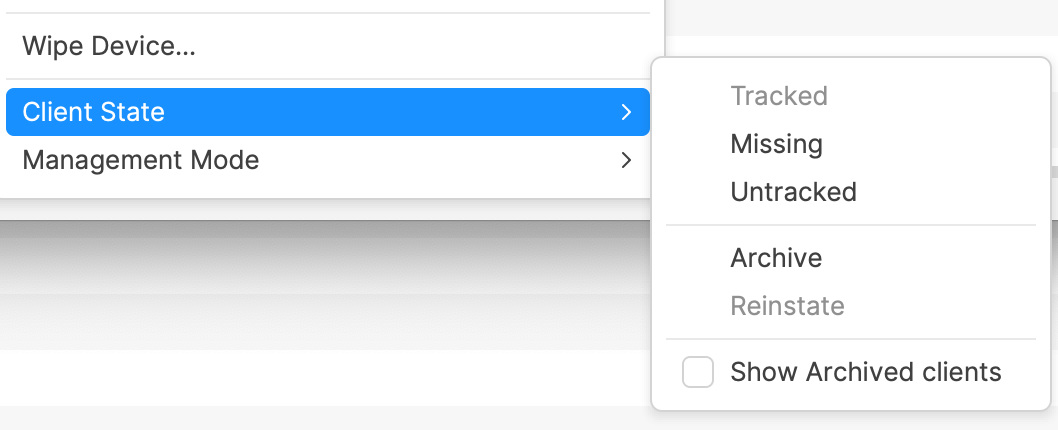
- Tracked — permits passive location lookups when the platform, license, Client settings, and OS permissions allow them. Intervals vary; a selected state does not prove a new report arrived.
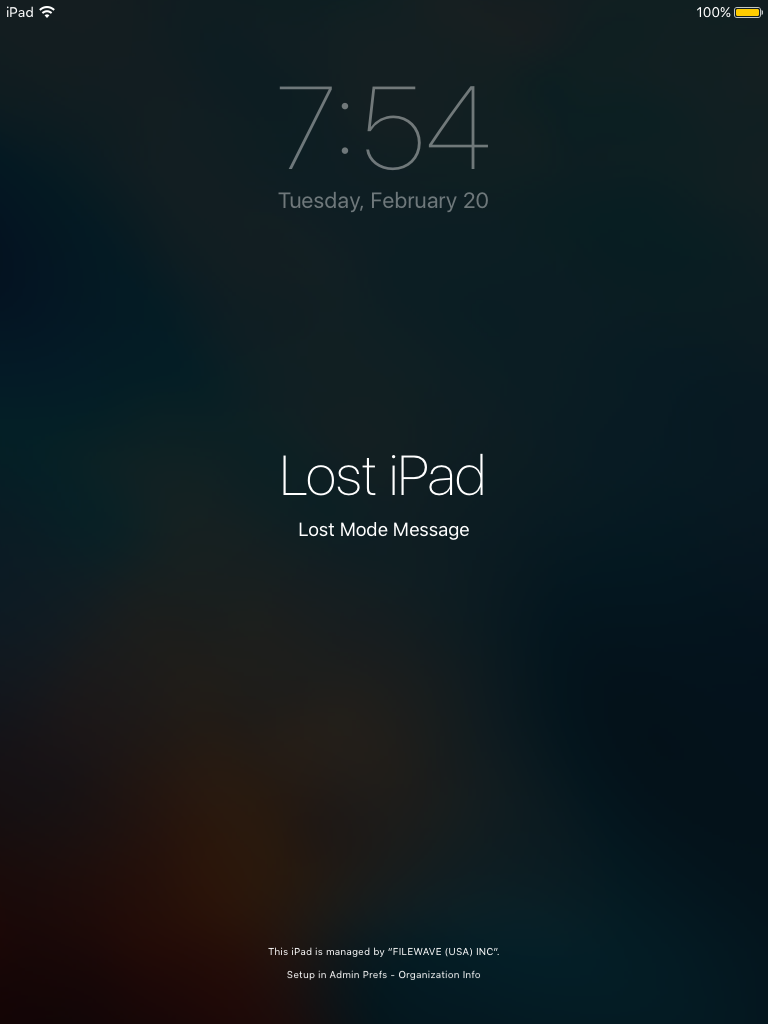
- Missing — a separate missing-device action. Older Client guidance describes immediate reporting and roughly two-minute intervals on applicable paths, not a universal timing promise. On supervised iPhone/iPad it invokes Apple Managed Lost Mode, locks normal use, and can request location. The message/footnote is configured under Organization Info. Do not use Missing to troubleshoot passive reporting.
- Untracked — the documented default; older references call it Not Tracked. It stops new location collection in the documented workflow; it does not delete previously stored data.
- The retired IPA’s former requirements to deploy/open the App Portal and keep it running are no longer evaluation instructions. FileWave 16.3.0 and later deliver the App Store Kiosk through Apps and Books / VPP; that distribution change does not prove passive-location feature parity. Obtain product-owner confirmation of any replacement passive route, exact versions, permissions, timing, and stop behavior before collecting iOS/iPadOS location.
Passive reporting requests location without locking normal device use. The documented desktop route uses the native FileWave Client on macOS/Windows; ChromeOS uses its Inventory extension and policy. Android capability depends on the approved management route and policy. Missing/Lost Mode is different and disruptive. Apple Managed Lost Mode applies to supervised iPhone and iPad, not macOS; Mac Lock/Erase commands are not substitutes. See Apple MDM Lost Mode and the separate Android Lost Mode eligibility requirements.
Lost Mode: supervised iPhone and iPad only
-
Only under an approved missing-device procedure, select the intended supervised iPhone or iPad. Confirm recovery authority and network access for both enable and exit commands. This is not a passive evaluation exercise.
-
Select Missing from the Client State menu
-
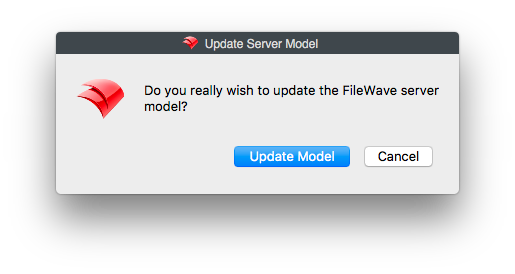
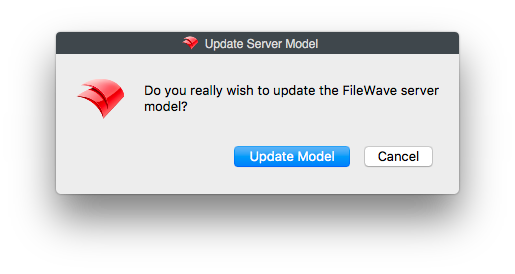
Review the intended change and shared pending work before Update Model. The confirmation dialog is not a pending-change preview, and Model Update publishes all administrators’ pending model work.
-
After the device receives the command, verify Lost Mode on that device and inspect the reported location timestamp and accuracy. Sending or committing a command does not prove receipt. The illustration is an older iPad example, not macOS behavior.
-
To exit, choose another approved Client State such as Untracked (Not Tracked in older documentation), coordinate the required Model Update, and confirm the device receives the exit command and normal use returns. Apple notifies the user about location collection after exit. An offline device cannot receive the exit command.
Do not reboot the supervised iPhone or iPad while it is in Lost Mode. If it loses network connectivity, it cannot receive the exit command until connectivity returns.
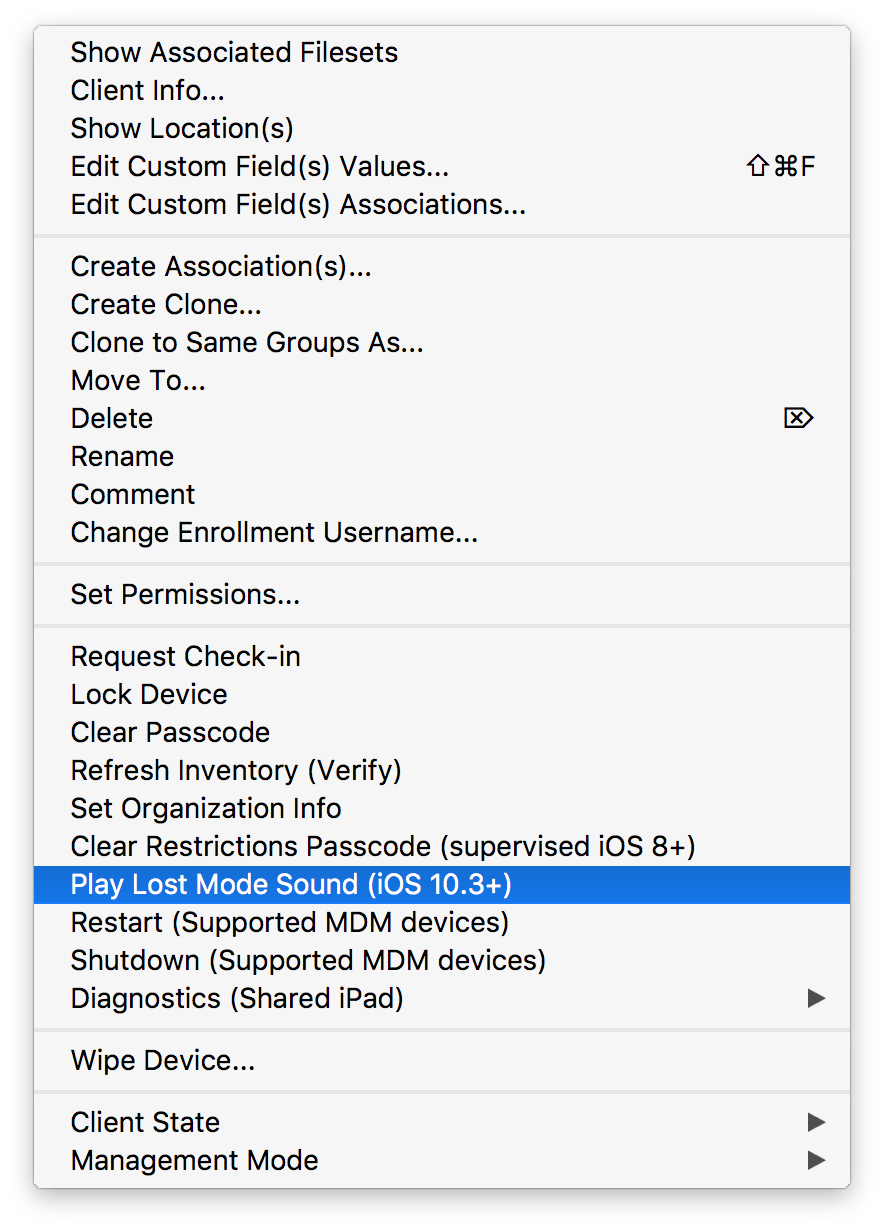
When the device is in Lost Mode, a new option in the tools menu is available, "Play Lost Mode Sound (iOS 10.3+)"
Passive Tracking Setup
Passive reporting is periodic, not guaranteed continuous tracking. This start/stop exercise requires one approved device that is initially Untracked (Not Tracked in older documentation), with its supported platform route, consent, license, and cleanup plan confirmed. Record that state and the original Client settings. If the device is already Tracked, limit the exercise to observing existing reporting under its approved policy; do not alter that reporting or expect it to stop. Do not run this passive pilot on a device marked Missing or whose original state is unclear.
-
Have the administrator check whether the license permits “Allows collection of personal data.” A license allowance is not consent. Do not change it merely to pass an evaluation.
Historical illustration omitted (ltactivationcode.png): license entitlement and deployment details; check the personal-data allowance with the administrator. -
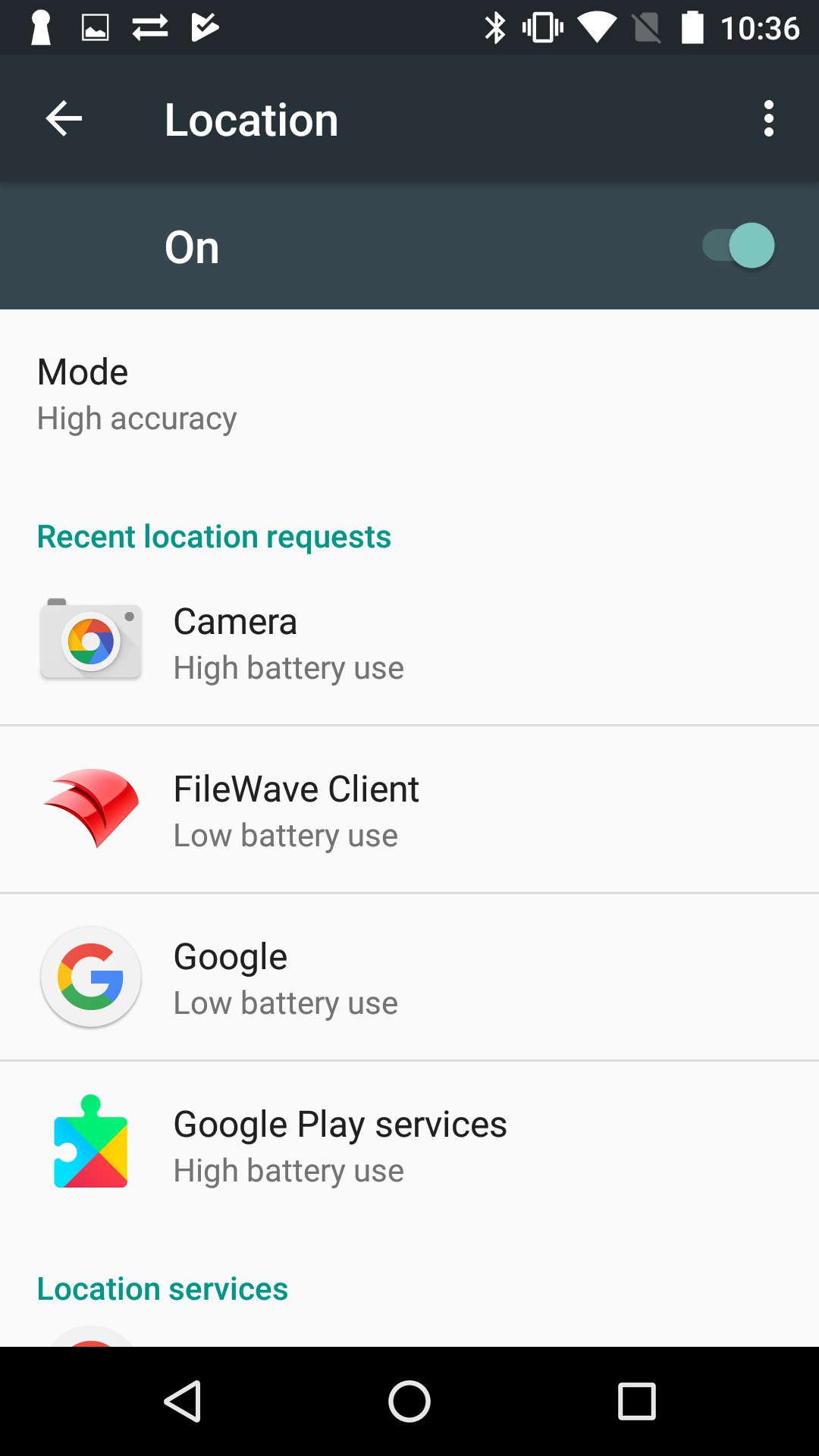
For the approved route, obtain the required permission and check that Location Services allows collection. The settings illustrations are historical; iOS settings do not establish a replacement for the retired IPA. On macOS, confirm fwGUI is allowed in Location Services before troubleshooting FileWave tracking.
iOS macOS Historical illustration omitted (iOSLocation.jpeg): a visible network identifier; global Location Services and app-specific permission are separate controls. 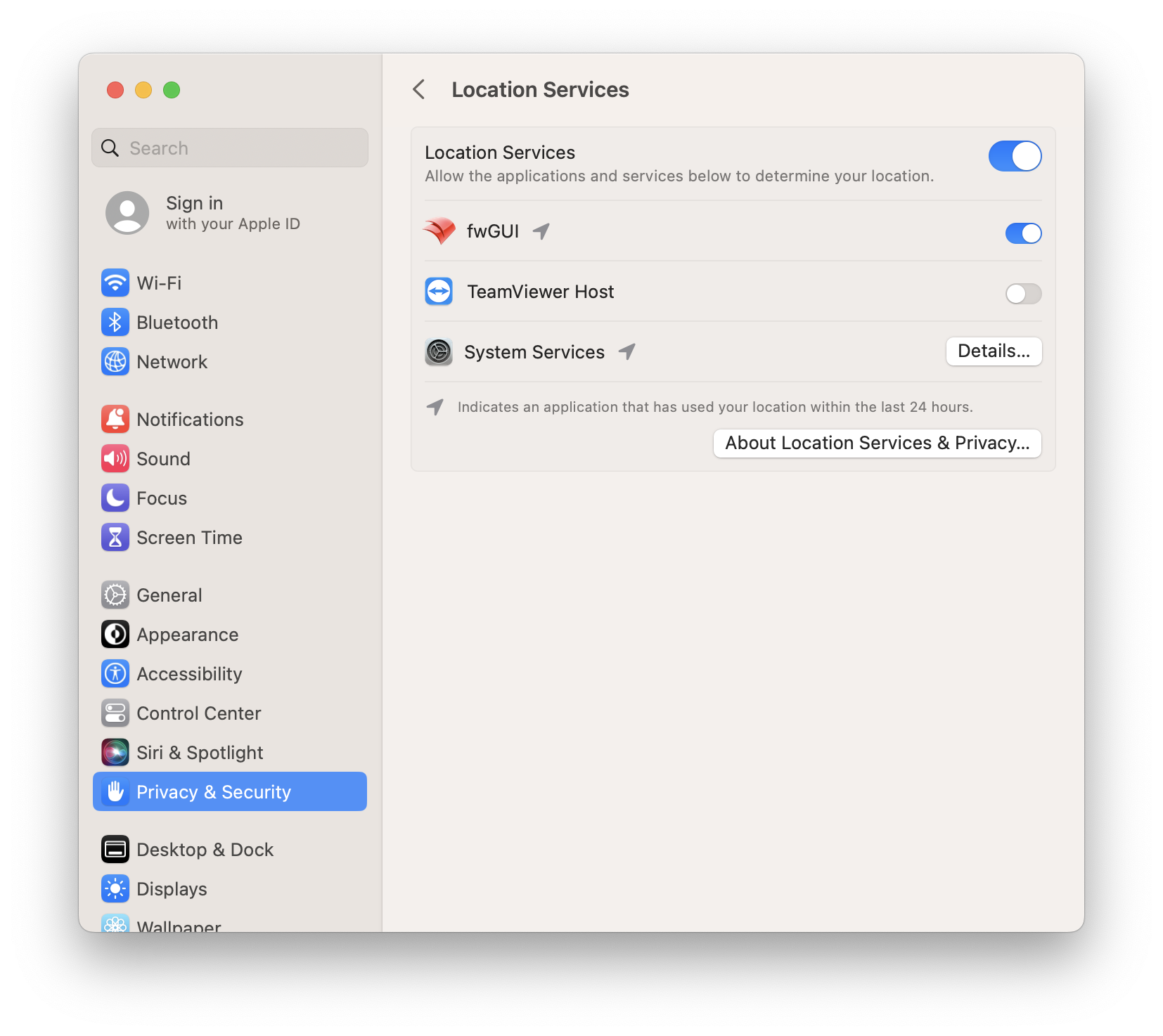
Windows Android 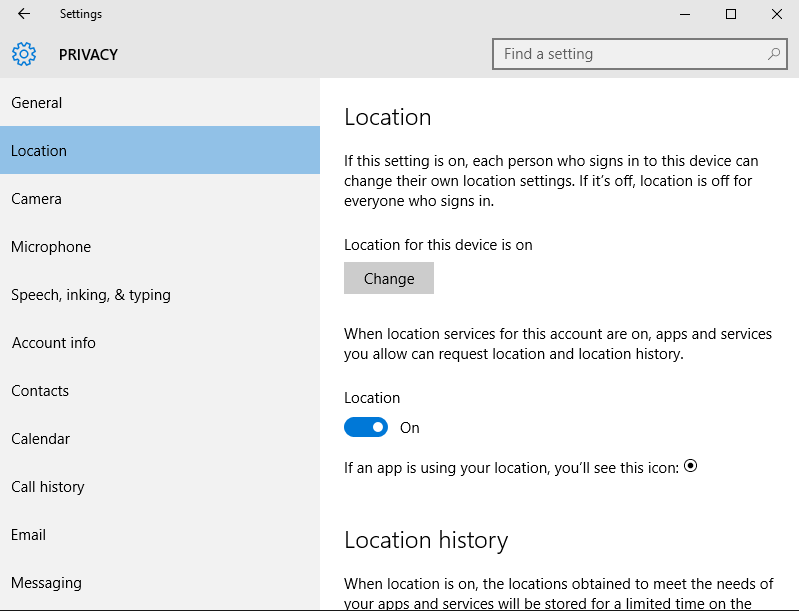
-
Prepare the clients
-
macOS and Windows — For the one approved device, check that "Disable Personal Data Collection" is unchecked in its Client preferences. If it is checked, confirm authorization before changing it; do not disable the privacy restriction merely to make the pilot work.
Historical illustration omitted (Screenshot 2025-08-20 at 10.42.59.png): an identifying device name; review the one-device privacy preference and location refresh interval.Client Monitor is no longer a separate app. Use FileWave Central to review one-device “Disable personal data collection” settings. A Superprefs Fileset can change preferences in bulk, but that requires a separate targeting and privacy review; it is not the first evaluation step. A zero location refresh interval disables queries.
-
iOS/iPadOS — do not deploy or reopen the retired IPA for tracking. The former 15.3+ automatic-IPA behavior is historical. The 16.3.0+ App Store Kiosk delivery path does not prove passive-location parity. Stop until FileWave confirms a supported replacement workflow; do not substitute Lost Mode.
-
Chromebook - Be sure the Chrome Extension is installed and configured (See Quick Start Guide for Chromebooks)
-
Android (EMM) — ask the FileWave owner to confirm the supported, licensed, consented one-device location route and policy scope. Do not force collection across all devices or bypass the license’s personal-data restriction.
The former server-wide force-collection and forced-location policy recipe is not an evaluation procedure. Hosted customers have no server shell access. Any exceptional server-side setting or device-permission policy needs separate FileWave and privacy-owner review; do not edit
/usr/local/filewave/django/filewave/settings_custom.py, restart services, or force permissions to make this pilot succeed.
-
-
For the approved passive route, change the one initially Untracked device to Tracked. If it was already Tracked before the exercise, observe existing reporting only; do not change its state or settings.
-
Right-click only the approved device after confirming its supported platform path. Do not select all or change the server-wide default.
-
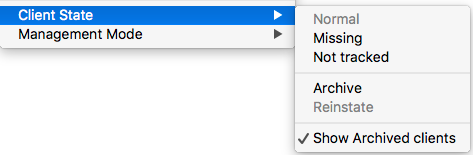
Select Tracked from Client State. If labels differ, stop and confirm the supported control; do not infer that Normal is an alias. The older menu below is retained only as historical UI context, not an instruction to choose Normal.
-
-
Review the one-device change and coordinate shared pending work before the required Model Update. This confirmation does not preview pending changes or prove location receipt.
-
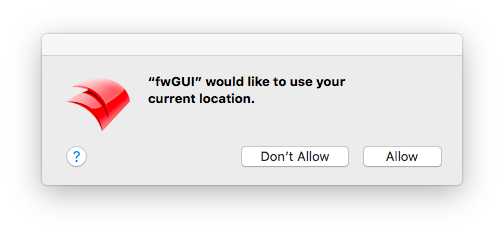
Have the informed user make the approved permission choice; respect a refusal. These older prompts illustrate the separate OS permission gate. The iOS example belongs to the retired app and is not a current permission recipe.
iOS macOS 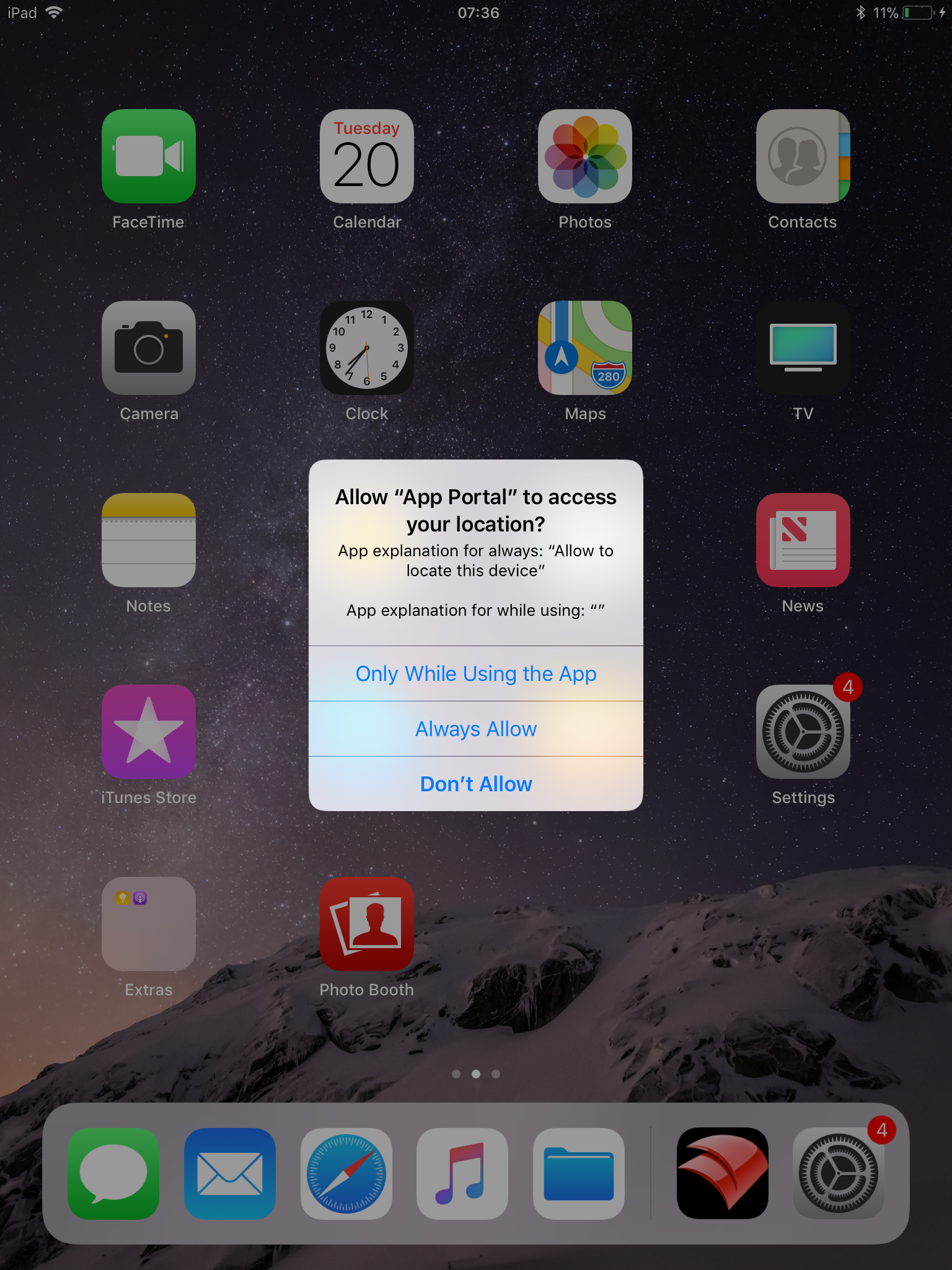
-
After the approved device reports, use Show Location(s) to inspect its reported position, timestamp, and accuracy. Older guidance describes waits of up to about 15 minutes on some paths, but configuration, OS permissions, positioning sources, and connectivity determine the result. Do not promise a fixed interval or accuracy within a few hundred feet. A map pin is not proof of present position.
At the agreed end of this start/stop pilot, return the initially Untracked device to Untracked and restore any settings changed for the pilot to their recorded original values. Coordinate the required Model Update and verify the device receives the change. For this initially Untracked device, confirm that new reporting stops within the agreed observation window. Devices that were already Tracked remain observation-only; do not disable their existing authorized reporting or expect it to stop. Stopping new reports does not delete existing data; apply the approved retention process. If reporting fails, check communication, license, Client state/preferences, interval, and OS permission—not Missing, global collection, or forced permissions.
Historical illustration omitted (LT-newmap.png): device/person identifiers linked to map positions; inspect timestamp and accuracy only for the authorized pilot.
Warning: Enable location tracking only when the license allowance, organizational approval, required user notice and consent, authorized viewers, retention, and cleanup have been confirmed. A user’s permission choice does not replace organizational approval.
Privacy Policies: Apple/iOS and macOS – Microsoft/Windows – Google/Android
Additional OS Specific Considerations
macOS
For macOS passive reporting, the native FileWave Client and fwGUI Location Services access are required by the documented route; MDM enrollment alone is not the Client. Permission and administrative controls depend on the supported macOS version and policy. Respect the user’s choice; do not promise silent permission approval. See Apple’s privacy policy.
iOS
The older iOS passive workflow relied on app permission and could be affected by revocation of location access. It is now retired with the IPA. Do not apply those app instructions to Apple Managed Lost Mode or assume the App Store Kiosk replaces them. See Apple’s privacy policy.
Windows
Windows Location Services and applicable privacy controls must allow the approved native-Client route. Windows 10+ provides location-service controls. The absence of an app-specific prompt is not consent or permission to bypass policy.
Android (APK Client)
Historical Android APK Client 10.1+ guidance describes approval of app rights, including location and background operation, during install or upgrade. Do not treat that legacy permission bundle as the current Android Enterprise workflow; confirm supported versions and permissions with FileWave.
Android (EMM Client)
Location controls depend on Android management mode, OS, and policy. A forced-location policy changes the user’s control and may have broader scope than the Central selection. Do not force it or bypass a refusal in an evaluation. Obtain a separate privacy and product-owner review for any exceptional policy requirement.
Order of operation
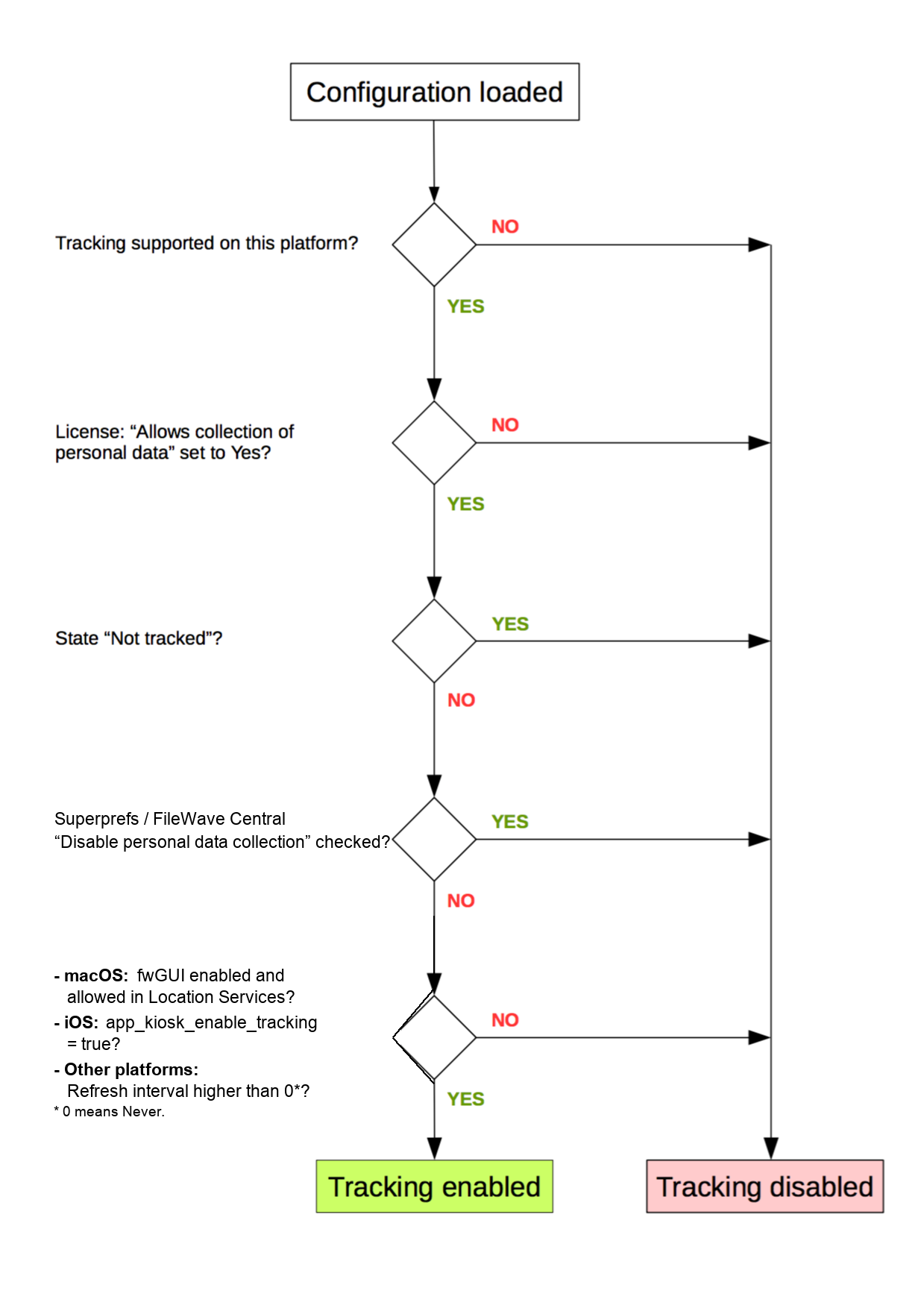
The Client must pass several gates before requesting OS location: supported platform, license allowance, an approved tracking state, personal-data collection permitted by Client preferences, and the applicable interval/OS permissions. A zero refresh interval disables location querying; on macOS check fwGUI Location Services. Passing these gates does not prove a fresh report arrived. The historical flowchart below retains an iOS app_kiosk_enable_tracking branch for the retired IPA; do not follow that branch or apply “other platforms” to iOS as a replacement. The chart is not a Lost Mode procedure or proof that Normal equals Tracked.
Global Location Reporting Disable
To disable location reporting across your organization, your FileWave license can be adjusted to enable personal mode. This disables devices from sending both application usage and location information. This is a license-wide change, not a one-device pilot setting, and it does not delete previously stored data.
To check the license’s personal-data collection allowance in FileWave Admin, go to Server Menu → "Activation Code..." and read the Yes or No value after "Allow collection of personal data:". This shows the license allowance, not user consent or proof that location reporting is active.
To have personal data enabled or disabled on your license, please submit a support ticket with "Personal data License" in the subject.
Only tickets from authorized support agents whose names are on the support contract will be accepted to adjust license personal data settings.
No comments to display
Can this article be updated? The obvious changes would be:
In reply to #1
Thanks for that note. I'm making a task for it to be updated. Both good points.
In reply to #2
Article updated
In reply to #2
Also the macOS prompt (to turn on location services) is now handled via a macOS prompt, not a fwGUI prompt.
No comments to display