
Add a Mac to Apple Business Manager or Apple School Manager with Apple Configurator
Apple Configurator for iPhone can add an eligible Mac to Apple Business Manager (ABM) or Apple School Manager (ASM), even when the Mac was not purchased through Apple or a participating reseller. After Apple records the Mac, assign it to FileWave and complete the normal Automated Device Enrollment (ADE) workflow.
Requirements
- iPhone running iOS 16 or later, with Apple Configurator installed and connected to the internet
- The Mac is not currently assigned to another organization's Apple Business Manager or Apple School Manager account
- The macOS device to enroll is either Apple silicon or has an Apple T2 Security Chip and is running macOS 12.0.1+
- The macOS device to enroll is erased and not yet set up
- A Managed Apple Account with permission to add devices and manage device-management-service assignments in ABM or ASM
If the Mac is already in use, back up all required data before erasing all content and settings. Apple Configurator must capture the Mac at the Select Your Country or Region pane in Setup Assistant.
Apple gives users a 30-day provisional period in which a manually added device can be released from ABM or ASM, supervision, and the assigned device management service. The period begins after the device is successfully assigned and enrolled.
Directions
- Launch Apple Configurator on the iPhone and sign in with the required Managed Apple Account
- Turn on the macOS device to enroll and connect to the network. Consider connecting the power adaptor to prevent the device from sleeping
- Place the iPhone next to the Mac, ready to scan the upcoming image
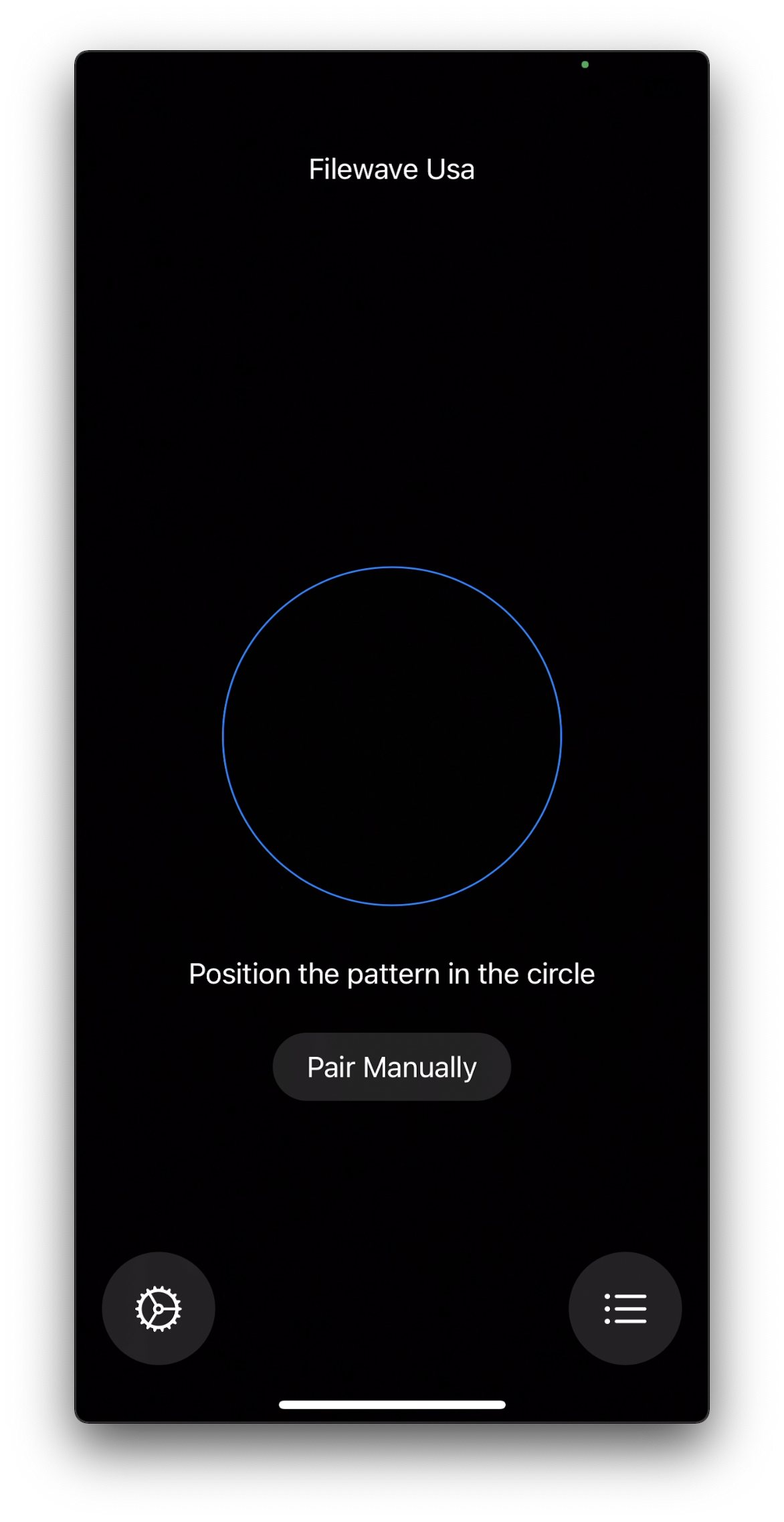
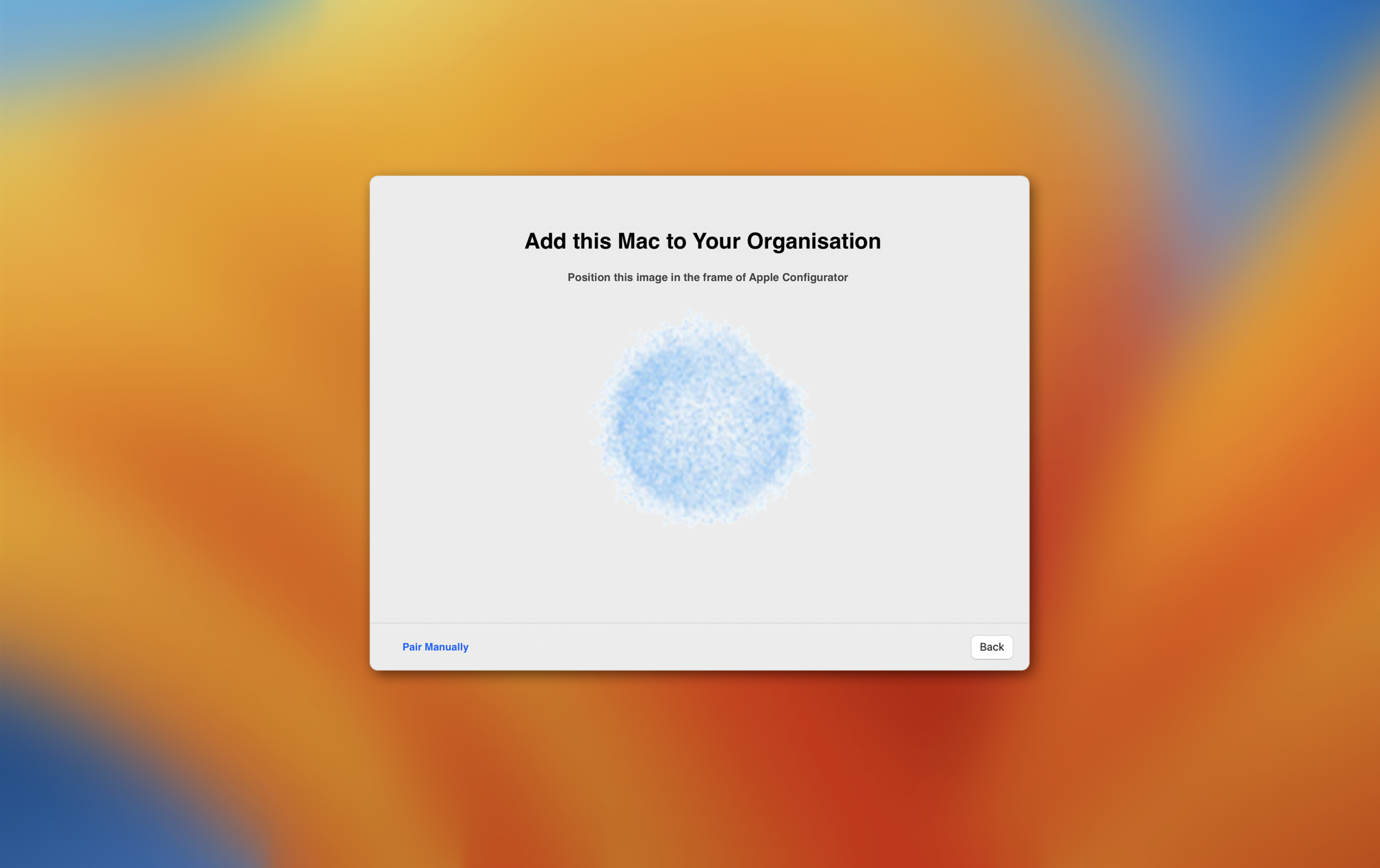
- The macOS device should display an image to capture using the iPhone
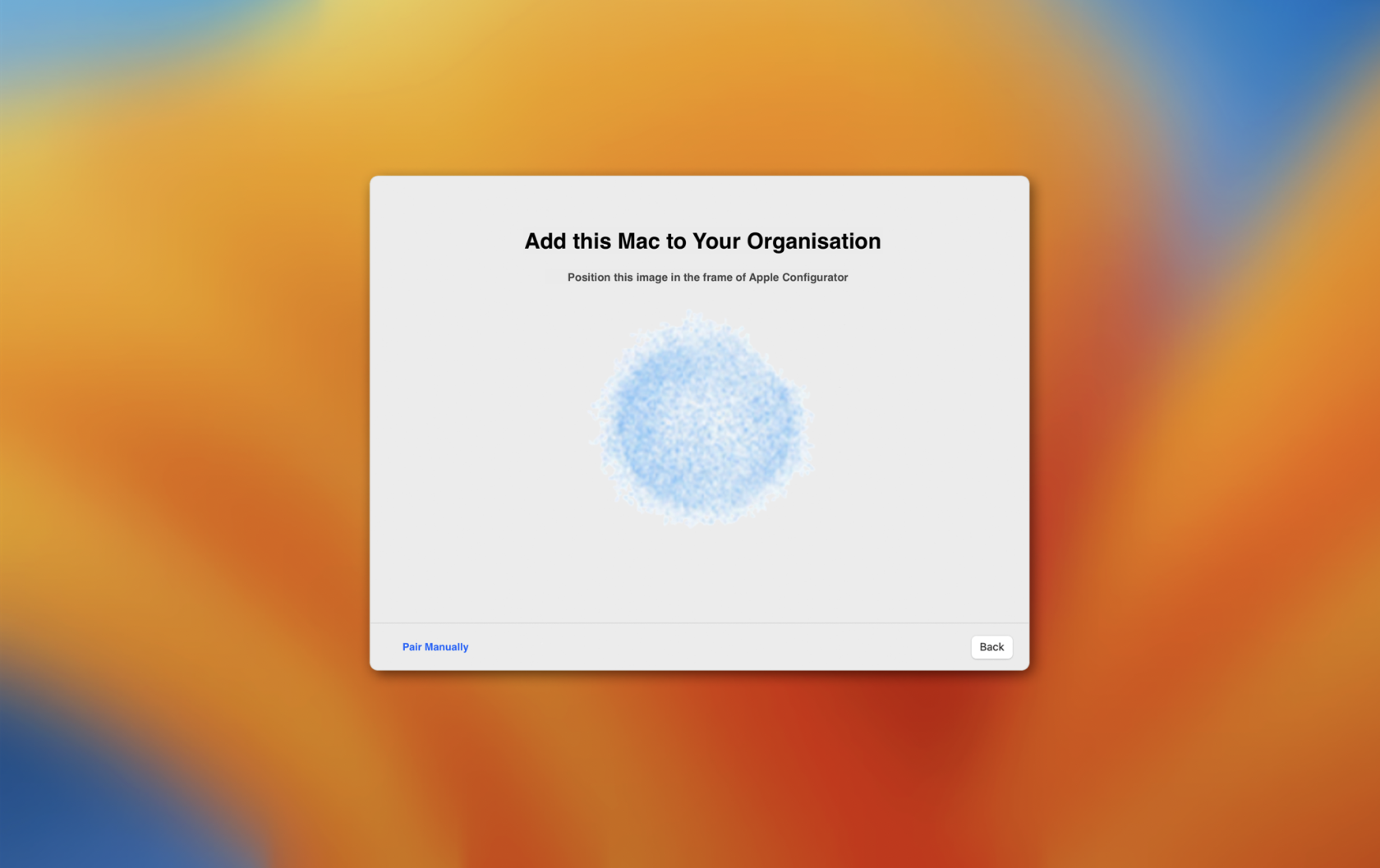
- Scan the image and wait for Apple Configurator to report success. If scanning is unavailable, select Pair Manually and enter the six-digit code shown by Setup Assistant.
When prompted with the options to Restart or Shutdown, refrain from restarting until steps below have been completed.
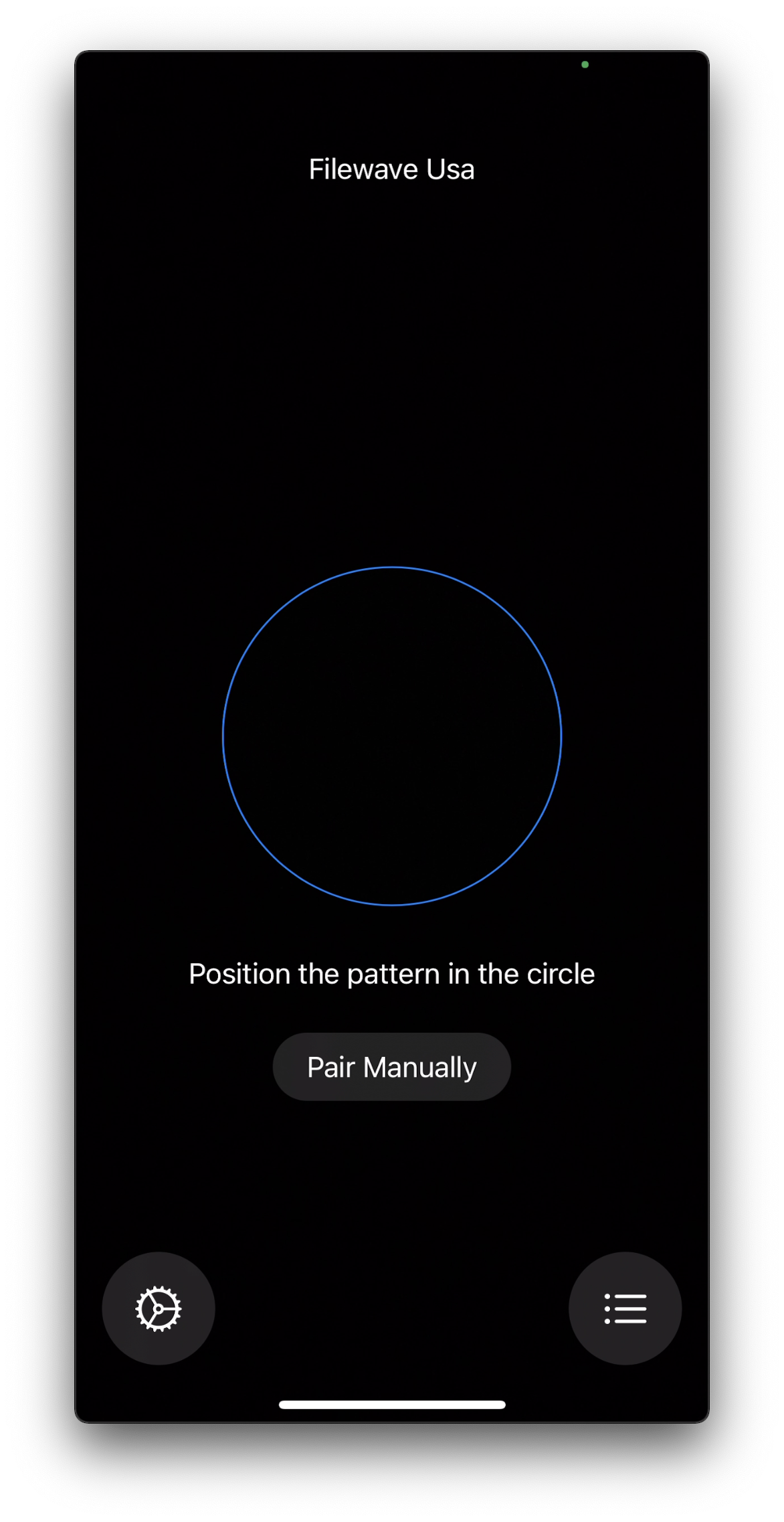
After the Mac appears in ABM or ASM, complete the FileWave ADE handoff:
- Assign the device to the FileWave MDM server within the ABM/ASM account
- In FileWave Central, synchronize ADE from Preferences > VPP & ADE or Assistants > ADE Association Management
- If no Assignment Rule applies an enrollment profile, assign the profile manually to the newly synchronized Mac and synchronize ADE again.
The Mac is now ready to enroll in FileWave through ADE.
Continue with Automated Device Enrollment (ADE). For Apple's eligibility, provisional-period, pairing, and assignment rules, see Add Apple devices to Apple School Manager or Apple Business.
No comments to display
No comments to display