
Apple Automated Device Enrollment (ADE) Overview
What ADE does
Apple Automated Device Enrollment (ADE, formerly the Device Enrollment Program or DEP) provides a zero-touch enrollment path for organization-owned Apple devices. This overview explains how Apple assignment, the FileWave ADE profile, check-in, and authentication fit together.
When to use ADE
Use ADE for eligible organization-owned devices that are new or have been erased and are ready to proceed through Setup Assistant.
Registration
The assignment chain is:
- Eligible devices are present in Apple Business Manager (ABM) or Apple School Manager (ASM).
- The FileWave device management service is connected to ABM or ASM.
- Devices are assigned to FileWave in ABM or ASM, synchronized into FileWave, and assigned an ADE profile.
Enrolment Profile
An ADE profile controls enrollment settings such as which Setup Assistant panes are shown. Different profiles can be assigned to different device groups. FileWave sends the assignment to Apple so the intended profile is available when the device starts enrollment.
Working with Apple’s Device Enrollment Program (DEP)
How
Enrolment Stages
Enrolment Profile delivery
When the device first connects to a network during Setup Assistant, it contacts Apple. If the device is assigned to FileWave and has an ADE profile, Apple provides that profile to the device.
Profile testing boundary. After the device receives its ADE profile, rebooting does not restart enrollment with a different profile. Erase the device before testing a changed assignment from the beginning of Setup Assistant.
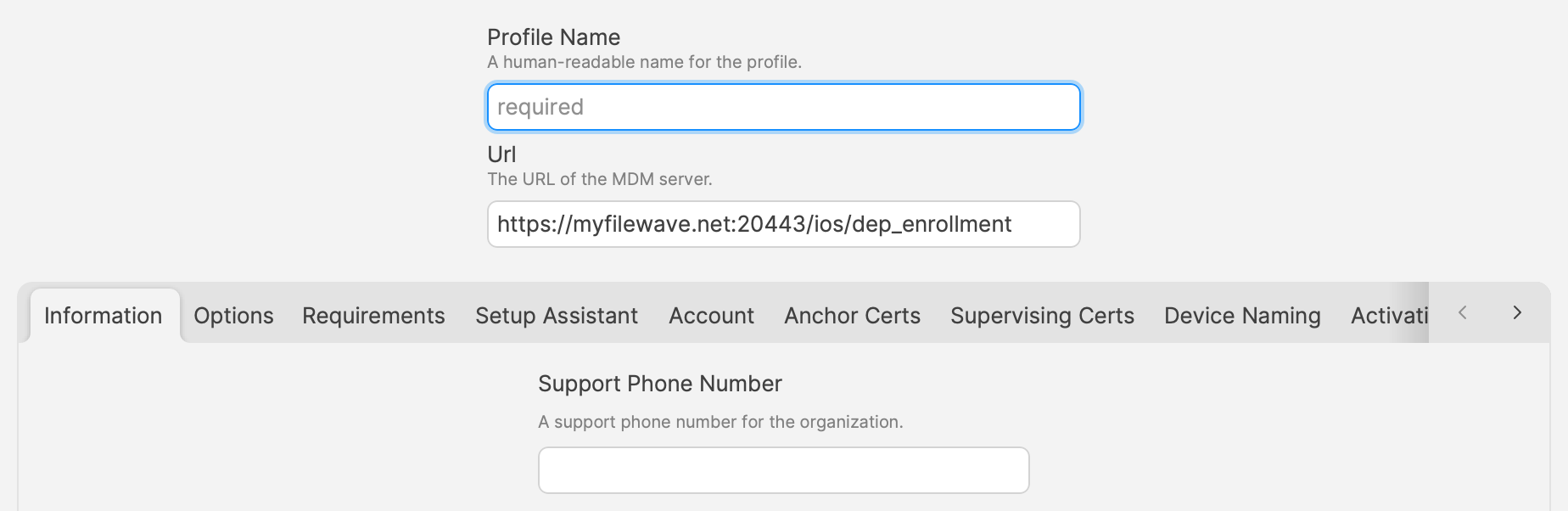
A key item in the Enrolment Profile is the MDM Server URL.
Check-in
The device reads the MDM Server URL and the enrolment process can then begin.
Authentication
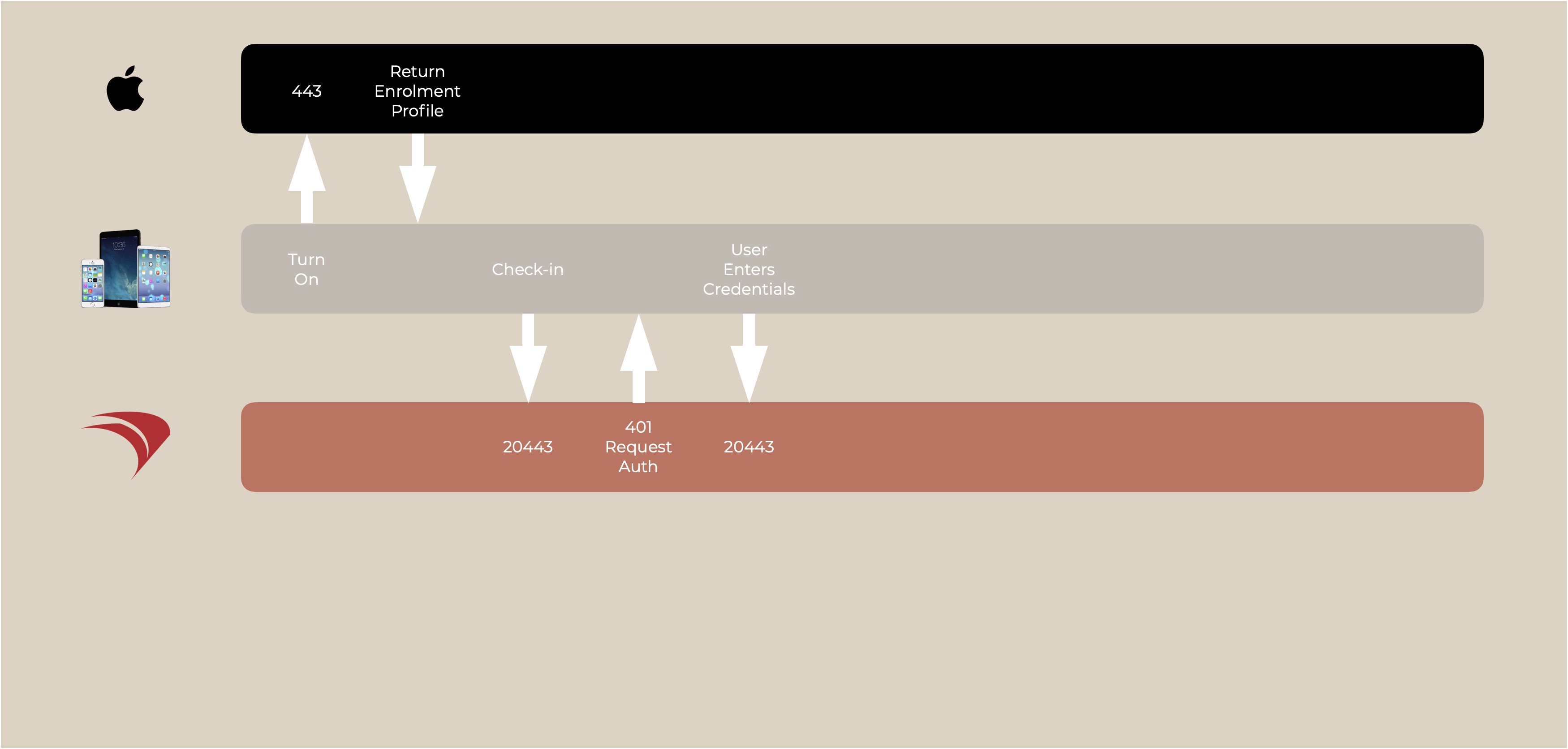
The next requirement from check-in is authentication.
During an authenticated enrollment, an initial HTTP 401 response can be part of the expected challenge flow: FileWave then tells the device which authentication method to use.
| Local Authentication | FileWave is configured with a local username and password encrypted on the FileWave Server (Default) |
| No Authentication | FileWave Server is configured to allow devices to enrol with no authentication required |
| LDAP | An LDAP server, e.g. Active Directory, is configured, allowing directory users to authenticate enrolment |
| IdP | Okta, Google or Entra users may authenticate enrolment |
Local and No authentication are configured through the server command line, LDAP may be configured through FileWave Central, whilst IdP is configured through FileWave Anywhere.
Basic Authentication
IdP Authentication
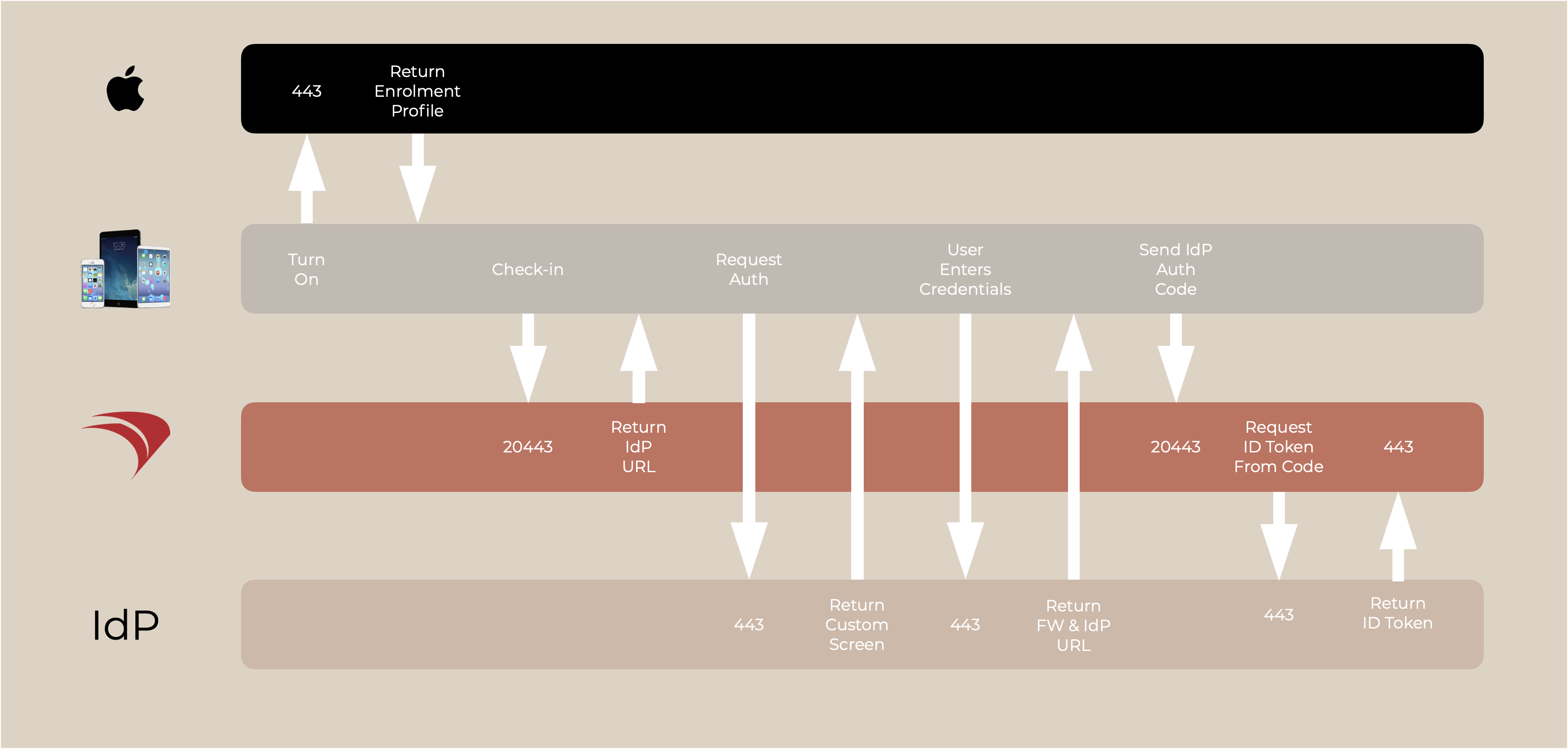
IdP requires a special mention here due to the additional steps involved.
FileWave server informs the device with a URL to direct the authentication; the IdP. The IdP custom authentication screen should be presented to the user and on entering details, if successful, the IdP uses the configured redirect, to contact the FileWave server to inform of success.
Redirects provided to IdP for connection with FileWave Server may be viewed from FileWave Anywhere, for example:
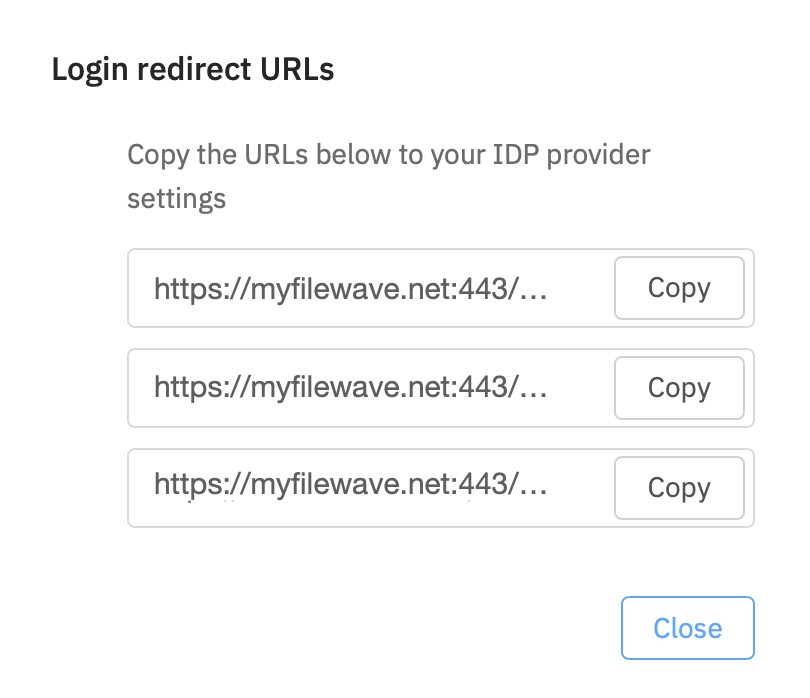
FileWave provides the IdP redirect destination used to return the completed authentication response to the FileWave Server. The returned URL uses port 20443 and includes the authorization code as a parameter.
Federated Authentication
An extension of IdP, Federated Authentication is an offering from Apple, which allows Apple IDs/passwords to be synchronised with an IdP. This is configured within Apple's Management portal; FileWave is not involved with this configuration.
https://support.apple.com/en-gb/guide/apple-business-manager/axmb19317543/web
No comments to display
No comments to display