
Automatically Advance Apple TV Through Setup Assistant
What Auto Advance does
Use Auto Advance with Automated Device Enrollment (ADE, formerly DEP) to enroll an organization-owned Apple TV in FileWave and skip Setup Assistant without user input.
Requirements: A supervised Apple TV with tvOS 11.3 or later, assigned to FileWave through Apple School Manager or Apple Business Manager, connected to power and active Ethernet. Configure Auto Advance and do not enable other Setup Assistant panes.
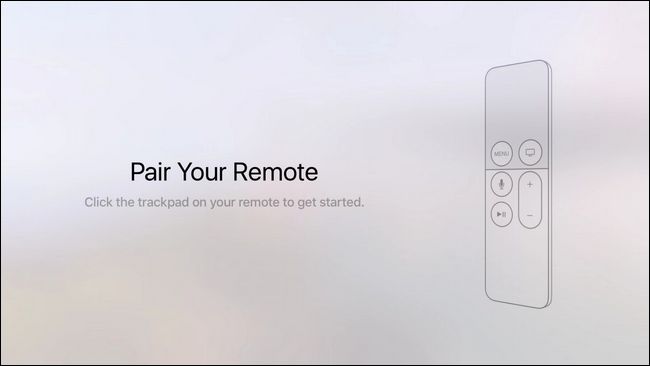
Do not begin manual setup. Do not pair the Siri Remote or respond to Setup Assistant. User interaction can interrupt Auto Advance.
Before you begin
- A working Apple School Manager or Apple Business Manager integration with FileWave ADE
- The Apple TV assigned to the FileWave MDM server and synchronized into FileWave Central
- Power and an active Ethernet connection for the Apple TV
Configure Auto Advance in FileWave
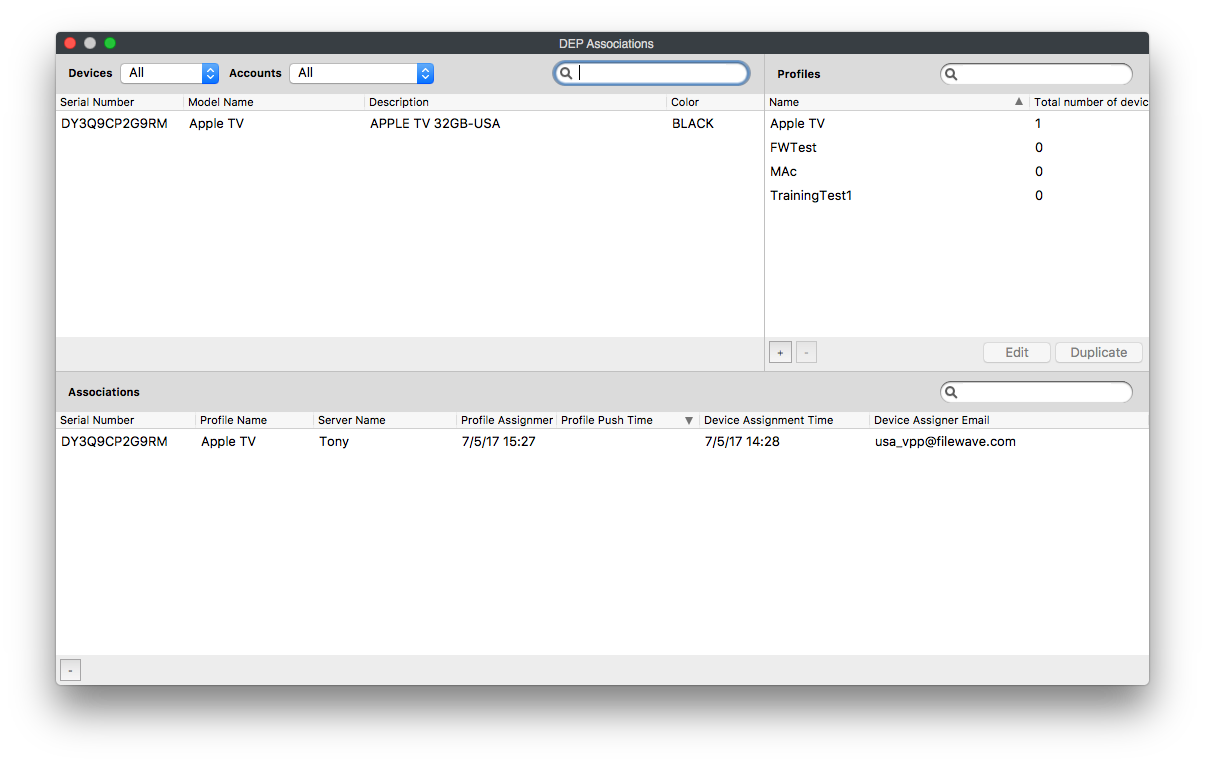
- In FileWave Central, choose Assistants → ADE Association Management.
The ADE Associations window opens.
- Configure the profile in the Options, Setup Assistant, and Device Naming tabs. Enable Automatic Advance and leave other Setup Assistant panes disabled.
Automatic Advance must be enabled. If you do not configure the Device Naming tab, FileWave uses the serial number as the device name.

- Save the profile. Select the Apple TV devices in the left pane, then drag the profile from the right pane onto the selected devices. Confirm the assignments in the bottom pane.
- Connect each assigned Apple TV to power, Ethernet, and a display. Do not pair the remote or answer prompts. The Apple TV pauses briefly at the Siri Remote pairing step, then advances through Setup Assistant and enrolls in FileWave.
- In FileWave Central, verify that the Apple TV is enrolled, has the expected name, and can receive inventory and a test configuration or app command.
No comments to display
No comments to display