
iOS and iPadOS Software and Profiles
Deliver one approved app to one iPhone or iPad
This page contains the complete one-device exercise. Fileset Creation and Deployment explains the shared workflow and editor; if you complete the exercise here, do not create a second Deployment there.
Start with one harmless, approved free Apps and Books app that is not already installed on the test device. Choose an app that needs no personal sign-in, purchase, sensitive data, or special permissions for the demonstration. The goal is to find and open the app on the test device—not merely save a Fileset or increase the model number.
This exercise uses Apple MDM, not the native Mac/Windows Client. A Fileset describes the managed content; a Deployment selects its targets and delivery settings. For Apps and Books, the device downloads the app from Apple rather than an app binary uploaded to the FileWave Server.
Before you change anything
- Verify the Apple prerequisites and existing MDM enrollment. Complete missing setup and, for a device not yet enrolled, use either ADE or manual MDM enrollment. Match the exact approved test device in Central and on the device; confirm recent management information.
- Acquire the app for the approved test Location/token and correct platform, synchronize VPP, and confirm at least one available license and its app Fileset. Do not take ownership of another MDM's token or reserve a fleet's licenses for this test.
- Review existing groups and Deployments. Use the individual test device or a group whose actual membership is just that device; do not target a platform-wide group or a Fileset group whose contents can grow unnoticed.
- Agree that removing the managed app may delete its local data. Do not use an app the test device's user already relies on. Know how you will restore connectivity if a later profile test changes it.
1. Inspect the app Fileset
In Central Filesets, open the imported app Fileset and check the app's name, platform, version information, and associated token/license availability. In Details, review Remove App when MDM profile is removed, Prevent Data Backup, and Take management of this app if the user has installed it already. Do not accept defaults blindly: takeover and removal can affect an existing app and its data. Because the test app is not already installed, no takeover of personal content is needed.
Keep AppConfig and per-app VPN out of the first exercise. If an app installed through declarative device management (DDM) exposes Application update (DDM), review its setting rather than assuming every app has that control. Its choices and availability are documented in Apps and Books Filesets. Do not pin an arbitrary version or promise that the same controls exist on every OS.
2. Prepare, review, and publish the Deployment
- In Central Deployments, create a clearly named evaluation Deployment. Use + beside Clients to add only the verified test device, and + beside Filesets to add only this app Fileset. Review the resulting target count and identity; Fileset Creation and Deployment explains the shared editor.
- Inspect included targets, exclusions, content, activation timing, and delivery mode. Expand Options and choose Direct Installation so this exercise does not require Kiosk self-service. Confirm the license-distribution choice and leave optional scheduling unset unless timing is the approved test. Confirm no unexpected group or second app is included.
- Select OK to save the Deployment. Before Update Model, coordinate with the other administrators and review all pending work that will be committed. The update is shared; it is not confined to the device you selected.
- Confirm Update Server Model only after that review. The dialog confirms the update; it does not preview pending changes. Record the model number as publication evidence, not proof that the app installed.
3. Prove installation on the device
Keep the device online. Complete any legitimate on-device installation/management approval needed for its enrollment mode. In Central, inspect the device's app/Deployment result and any reported error, then find and open the app on the test iPhone/iPad. Record the app name/version where visible, device identity, and time of observation. Stop at the app's landing screen; no personal account or sensitive data is needed.
A license assignment, saved Fileset, model commit, or status alone is not proof the app opens. Use the app’s actual result on this iPhone or iPad alongside Central’s reported state. Desktop Client status screenshots do not prove an iPhone/iPad installation. Do not click Verify merely to refresh a view; it can trigger device work.
If it does not arrive: check the exact target, saved/published Deployment, activation timing, app-platform compatibility, token ownership/expiry, available licenses, device connectivity to Apple and FileWave, and any pending on-device prompt. Read the actual error before duplicating Filesets, changing token ownership, or adding devices. An offline device has not failed solely because the model was committed.
4. Clean up only this test
Remove this test app Deployment from the test target using the reviewed removal workflow, coordinate any required Model Update, and wait for the device result. Check the app is removed and inspect license availability after synchronization. App removal can delete local app data; it is not a backup operation. Do not delete a shared app Fileset, revoke the Location token, or unenroll the device just to undo this exercise. Uninstalling Filesets Safely explains why cleanup depends on the content and platform.
If you retain the app for further testing, record that decision and its remaining Deployment. The exercise is complete when you can show which device you targeted, that the Deployment was published, and that the app installed and opened—or explain the failure using the evidence you collected.
Optional: profiles and other content after the first app
A configuration profile applies Apple-supported settings; it is not an app installer. Test one approved payload per Profile Fileset. Review all configured values and defaults, platform support, removability, and effects on existing settings before targeting it. Wi-Fi, VPN, certificates, restrictions, passcode rules, and accounts are not harmless default exercises: they can remove access or change user behavior. Verify both the installed profile and the intended setting on the device; plan removal without breaking the connection back to FileWave.
For a later document test, use a non-sensitive PDF/EPUB/iBooks file and confirm it opens in Apple Books. AppConfig requires the app developer's supported keys and values; use the app vendor’s current configuration reference. Do not place passwords or certificates in ordinary AppConfig values; follow the app vendor’s secure configuration design. License splitting and duplication are optional allocation tools, not prerequisites for one app.
Kiosk boundary: Apps and Books delivery of the iOS/iPadOS FileWave Kiosk began in 16.3.0. The older automatic IPA behavior belonged to 15.3.0–16.2.x. That legacy IPA stopped working on July 30, 2026, and is not an alternative to the App Store Kiosk. Follow the Kiosk IPA EOL advisory for migration; do not infer replacement-app location-tracking parity. Valid organization-signed in-house IPA apps remain a separate workflow with their own signing and provisioning requirements.
Apple Vision Pro uses the FileWave mobile Fileset/Deployment workflow, but each profile payload, app, and content type must support the target visionOS version. Completing the iPhone/iPad exercise does not establish compatibility with Vision Pro.
After recording the result and cleanup, continue to Inventory Reports to review what FileWave has learned about the test device.
Create a Profile Fileset
Use one approved payload at a time while evaluating profiles. Wi-Fi, VPN, certificates, restrictions, passcodes, and accounts can affect access or user data; agree on recovery and removal before deploying them.
- In Central Filesets, select New Mobile Fileset > Profile.
- Enter a recognizable name under General and review the other General settings.
- Choose the payload and check its supported platforms. Select Configure, then review every required value and default.
- Save the profile. Its Modified marker means pending changes, not installation.
- Add the Fileset to a reviewed one-device Deployment, save, and coordinate Update Model. Verify both the installed profile and its intended effect on the device.
- Remove only the test Deployment when finished, after confirming removal will not break the device's connection to FileWave. Verify the profile and its effect have been removed as expected.
Parameterized Profiles can insert device-specific values. Use a complete supported token such as %custom_field.asset_tag%, with that field populated for the device; %custom_field% alone is not a usable field token. Check the resolved value, not just the profile's installation status. Changing inventory data does not by itself revise an already installed profile.
Allocate licenses across separate app Filesets
A single app's licenses from one token can be allocated across duplicate Filesets. For example, 100 Duolingo licenses can be divided into a 50-license Fileset for each of two grade groups. This is an allocation exercise for later testing, not a requirement for your first app.
- In Filesets, duplicate the relevant Apps and Books Fileset.
- Open one instance and set Reserve a maximum of to its approved allocation.
- Set the limit on the other instance too; otherwise it may reserve the remaining available licenses.
- Review actual license availability, then use separate reviewed Deployments for the intended devices or groups. Check membership before targeting a group.
A reservation does not prove an app installed. When changing allocations, check both the reservation and the resulting app behavior; do not delete an in-use Fileset just to free licenses.
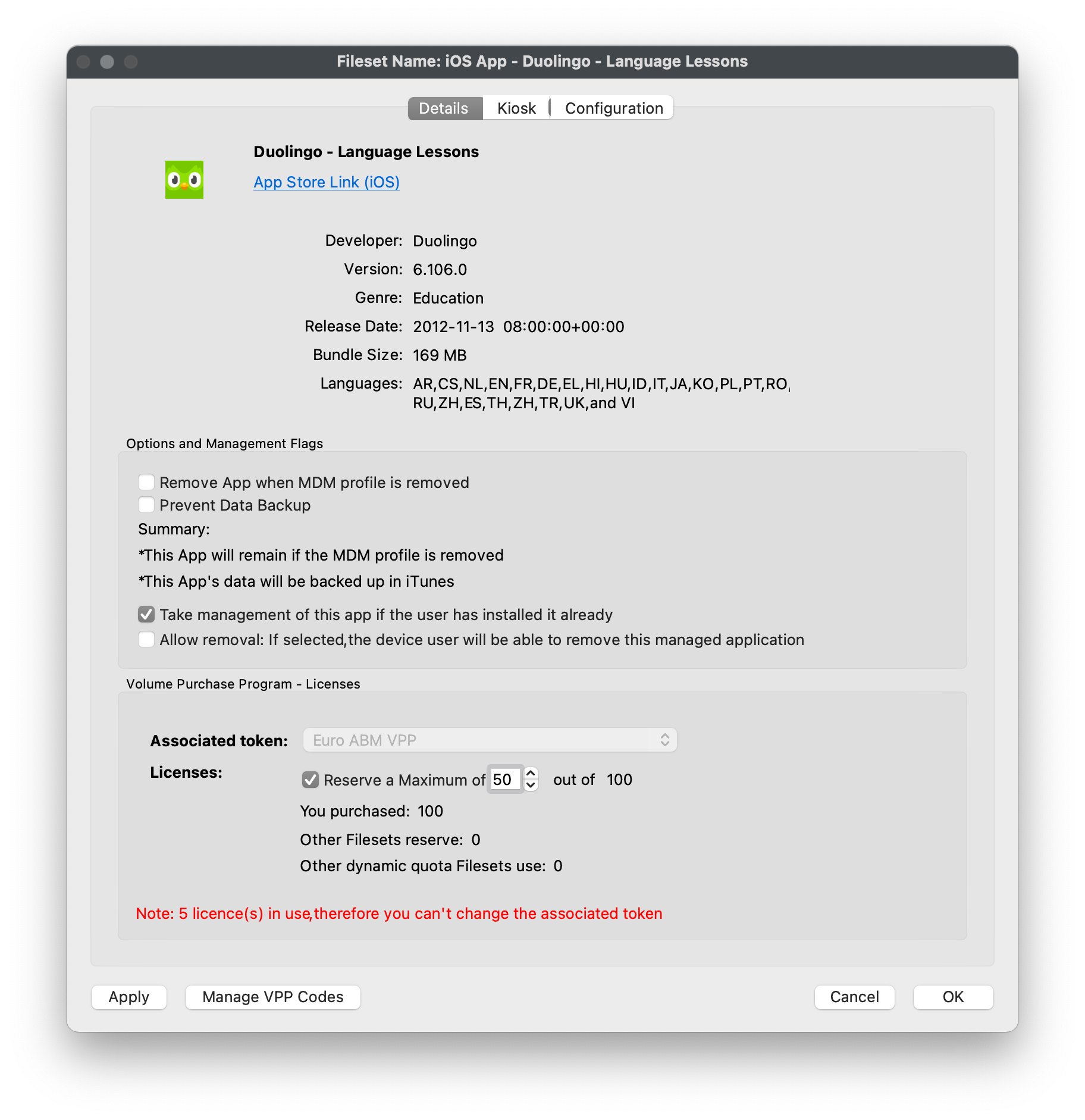
The license-reservation screenshot shows an older interface. Follow the steps above and use your approved license allocations, not the pictured values.
Configure a managed app with AppConfig
AppConfig supplies settings defined by the app developer. It can be applied at initial deployment or later, but not every app supports the same keys. Use the vendor's documentation and the AppConfig Community, not values copied from another app.
- Duplicate the approved app Fileset so you can review the configuration separately from existing deployments.
- Open its Configuration tab.
- Add the vendor-supported keys or import the developer's XML configuration. Review data types, required values, and sensitive-data handling. Do not place passwords or certificate material into ordinary values.
- Select OK, review the intended one-device Deployment, and coordinate its Model Update.
- Open the app on the test device and check that the intended setting took effect. Plan how to restore the prior configuration; removing a key is not a universal reset of app data.
Deploy an organization-signed in-house IPA
An in-house IPA is a different distribution method from an App Store app. Confirm the organization's signing and provisioning are valid for the target devices, and agree on an app-data/removal plan. This route does not restore the retired IPA-based FileWave Kiosk; use the Apps and Books Kiosk described above.
- In Filesets, select New Mobile Fileset > iOS > Enterprise.
- Choose Import a local file, select Browse, and choose the approved IPA.
- Name the Fileset, select Import, and wait for upload completion. Select Done.
- Create and review its one-device Deployment, save, and coordinate Update Model. Confirm the app installs and opens before expanding the target.
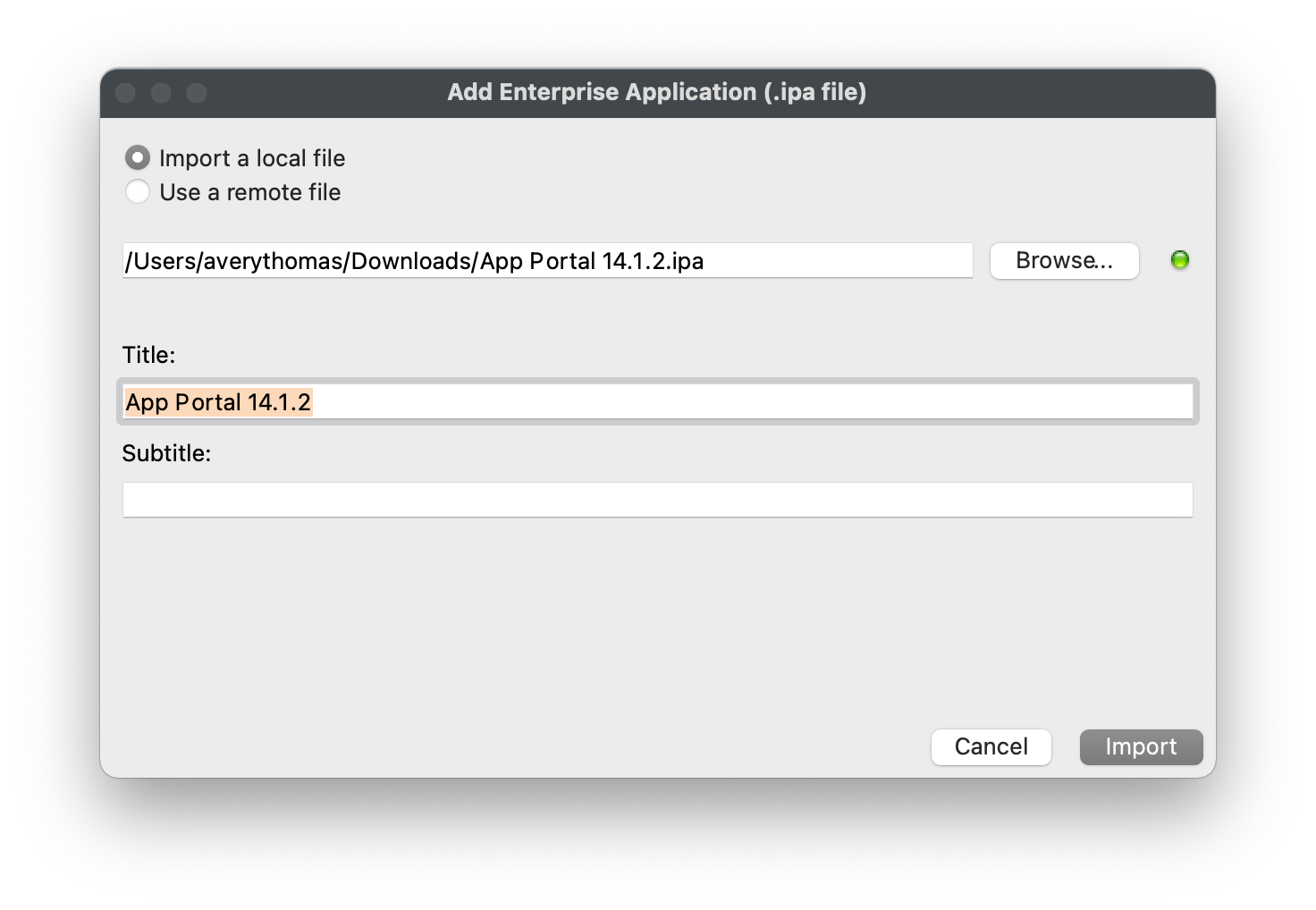
The IPA import screenshot shows an older interface. Follow the steps above and select your organization's approved IPA.
Deliver a document to Apple Books
Use a non-sensitive PDF, EPUB, or iBooks file with an unambiguous test name. Confirm the device supports the content and that removal will not discard a user's working document.
- In Filesets, select New Mobile Fileset > iOS > Document (iOS 8+). This is the editor's label, not a statement that FileWave currently supports iOS 8.
- Choose Import a local file, select Browse, and choose the
.pdf,.epub, or.ibooksfile. - Name the Fileset, select Import, wait for upload completion, and select Done.
- Add it to a reviewed one-device Deployment, save, and coordinate Update Model. Open the document in Apple Books on the device to confirm the result.
- Use the content-specific removal plan and check the device afterward. Do not remove the device's enrollment to clean up a document test.
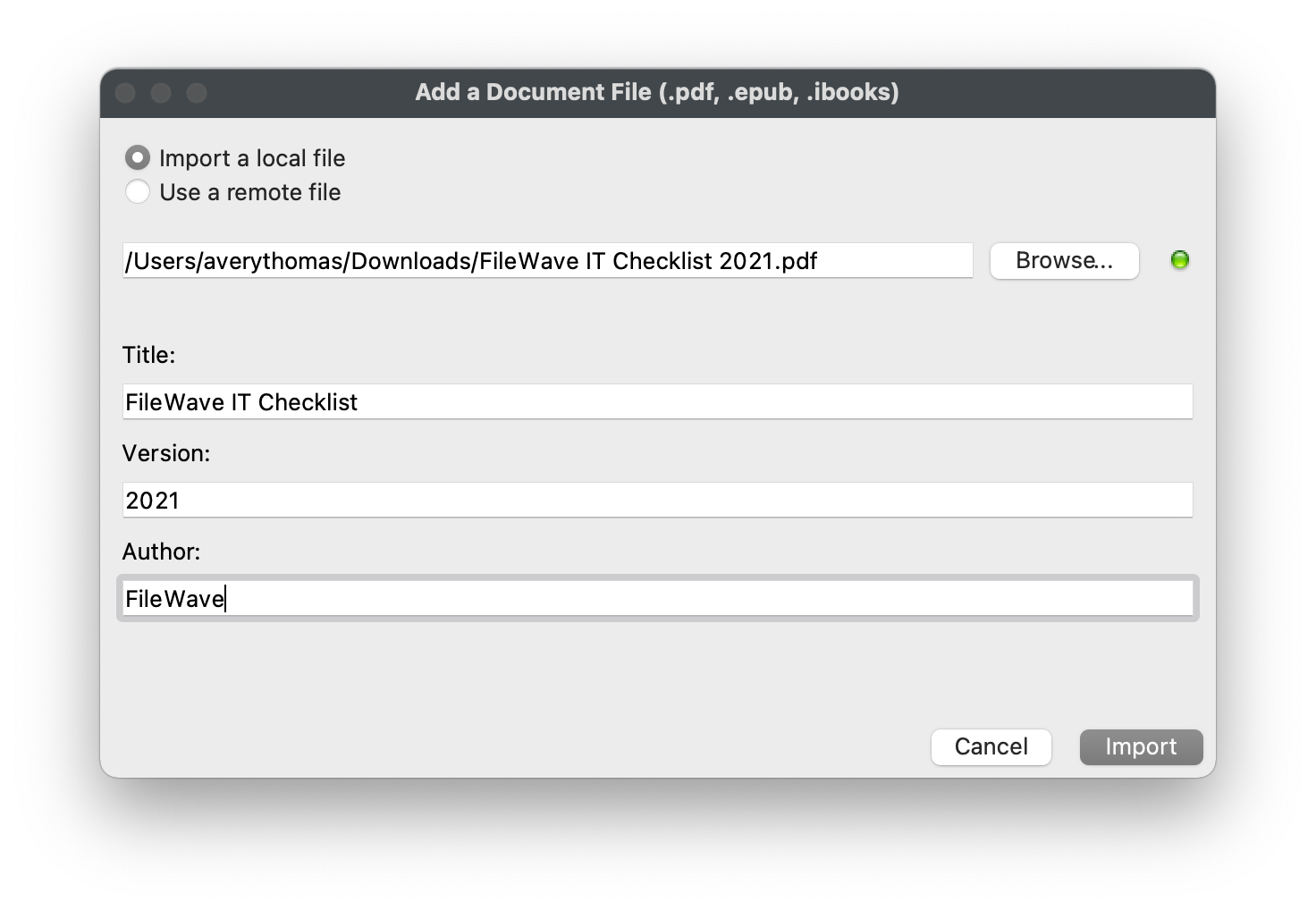
The document import screenshot shows an older interface. Follow the steps above and select your non-sensitive test document.
No comments to display
No comments to display