
Apple Profile Filesets
What a Profile Fileset is
Apple configuration profiles are .mobileconfig files made of payloads that configure settings, accounts, restrictions, certificates, privacy controls, and other managed-device behavior. In FileWave Central, a profile is stored as a Profile Fileset. FileWave Anywhere presents the same managed content as a payload.
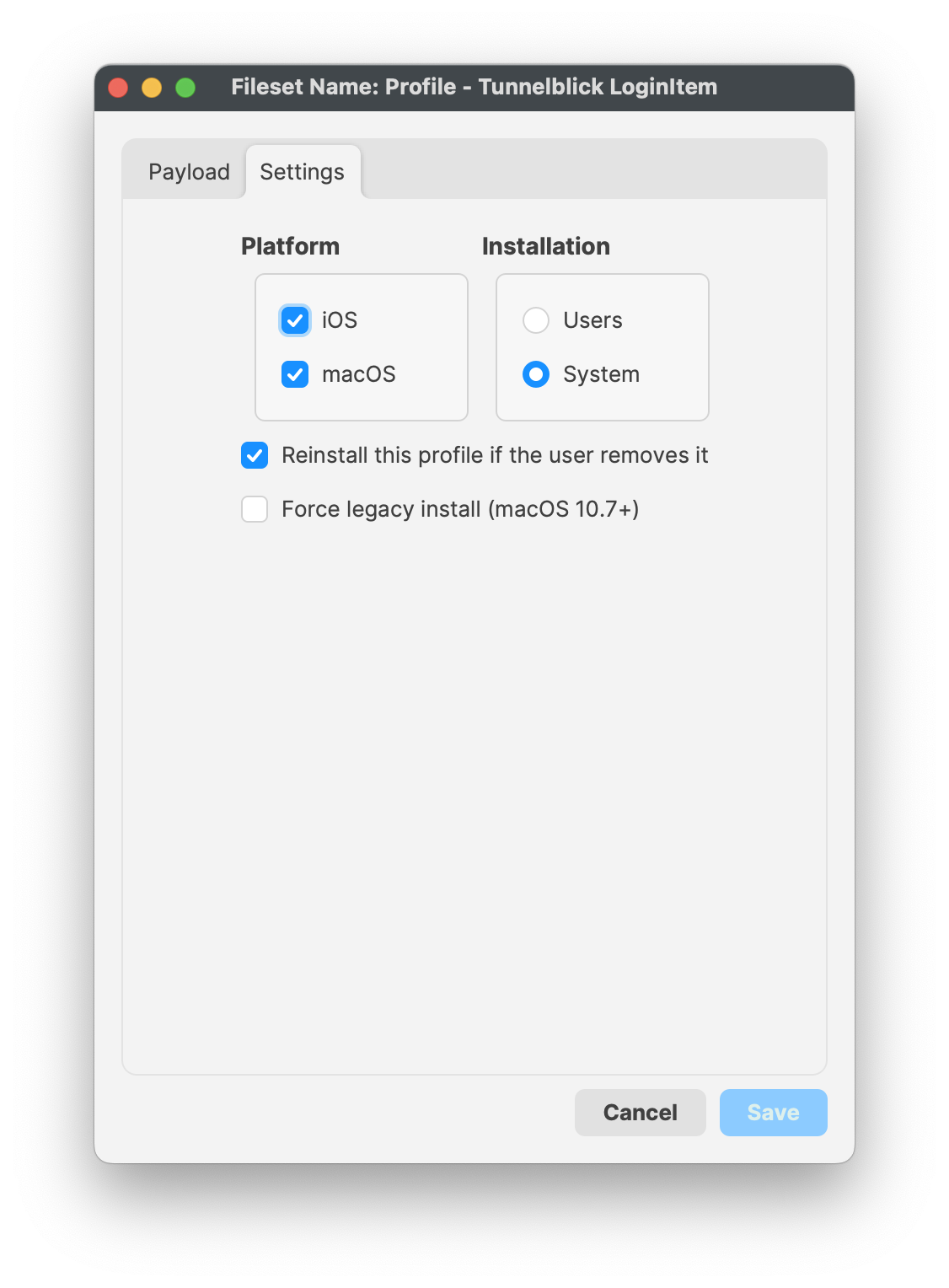
A Profile Fileset can contain one or more Apple payloads. The configured platform and installation scope apply to the whole profile, so every payload added to it must support that combination. Some payloads also require a particular operating-system version, supervision, Automated Device Enrollment (ADE), or another enrollment condition.
For macOS 11 Big Sur and later, managed profile installation requires MDM enrollment. Configuration profiles for FileWave-managed iPhone, iPad, Apple TV, and Apple Vision Pro devices are also delivered through Apple device management.
Create and deploy a Profile Fileset
- Create an Apple profile in FileWave Central's Filesets view or in FileWave Anywhere under Payloads → Create Configuration. To reuse an existing
.mobileconfig, drag it into Central's Filesets view or use Anywhere's profile upload workflow. - Give the profile a descriptive name and configure the required payload settings. Keep unrelated controls in separate profiles so exceptions, testing, reinstall, and removal are easier to manage.
- Confirm the target platform and choose the correct User or System installation scope. For FileWave 16.4 and later, run the profile compatibility check for each platform, OS range, and enrollment type that the Deployment will target.
- Save the profile and create a Deployment for a small pilot group. In FileWave Central, update the FileWave Model after saving the Deployment.
- Verify both that the profile installed and that the intended setting took effect. Then test profile updates and removal behavior before expanding the Deployment, especially for Wi-Fi, VPN, certificate, passcode, and privacy profiles.
Choose User or System scope
FileWave selects the required installation scope when a payload supports only one. When Apple permits either scope, choose it in the Profile Fileset settings:
User |
Applies when the managed user logs in; use for settings that belong to that user. |
System |
Applies at the device level regardless of which user is logged in. |
User-scope boundary. A Mac can have multiple managed directory users, but FileWave manages one local user for user-scoped profile delivery: the first local user after the device enrolls. Test User scope with the actual local or directory account type used in the Deployment.
Plan profiles that can be maintained
- Avoid conflicting payloads. Do not deploy two profiles that manage the same setting differently. Apple does not guarantee which conflicting value will win.
- Keep profiles focused. A smaller profile reduces the impact when one setting must be changed, temporarily removed, or force-reinstalled.
- Check removal impact. Removing a profile does not necessarily reverse every change it made. A profile that supplies network access, VPN, or certificates can also remove the connection needed to receive its replacement.
- Reinstall when resolved values change. If a profile uses FileWave inventory, directory, or Custom Field parameters, changing the source value does not change the profile definition by itself; reinstall the profile when devices need the new resolved value.
- Account for MDM timing. Profile installation depends on APNs delivery, device connectivity, and MDM check-in. Do not assume it follows the same activation sequence as a standard desktop Fileset.
Related guidance
- Add Profile — create and configure an Apple profile in FileWave Anywhere.
- Profile Payload Planning — plan focused profiles, avoid overlapping payloads, and evaluate reinstall and removal impact.
- Checking Apple Profile Compatibility (16.4+) — check platform, OS, supervision, and enrollment requirements before deployment.
- Using Parameters in Apple iOS/macOS Profiles — use inventory, directory, Custom Field, and Apple device-resolved values.
- Deployments in FileWave Central — assign the Profile Fileset to pilot and production targets.
- macOS 11 Big Sur and later profiles require MDM — understand delivery-channel and migration behavior for existing Mac profiles.
- Signed Apple Profiles — understand automatic profile signing and signed-profile export.
- Apple Profiles & Dependencies — coordinate software installation when an Apple profile must arrive first.
- Apple: Intro to device management profiles — review Apple's current profile, payload, scope, enrollment, and removal model.
No comments to display
No comments to display