
Create and Update PKG and MSI Filesets
What
FileWave can create installer-aware Filesets for macOS PKG and Windows MSI packages. The Fileset runs the installer when its deployment activates.
Why
Use this Fileset type for standard PKG or MSI installers. An MSI Fileset can also accept vendor-supported properties through Custom MSI install options and Custom MSI uninstall options in Fileset Properties; custom MSI properties alone do not require an empty Fileset. Use an empty Fileset when you need a custom execution workflow rather than the native package workflow, and provide its removal method explicitly.
How
In FileWave Central, choose New Fileset, select the PKG or MSI Fileset type, and choose the installer. FileWave creates the installer-aware Fileset for you.
You can also drag a PKG or MSI file into the Filesets view to create the same Fileset type.
Drop the installer onto a Fileset Group when you want the new Fileset created in that group.
Before the first upload, consider removing the version number from the installer filename and putting it in the revision name instead. This makes later in-place installer replacement easier.
Review MSI lifecycle settings
New MSI Filesets imported in Central 17.0 use Self Healing for the installer file and enable Use MSI uninstaller. Existing Filesets keep their settings. Check the installer file in Get Info > Verification and the uninstaller option before deployment; the installer's Self Healing setting does not repair the application's installed files or guarantee reinstallation after manual removal.
On a 17.0 Client, Ignore At Verify (Left Behind) suppresses the MSI uninstaller when the Fileset is removed, even if the uninstaller option is checked. Use Self Healing with the uninstaller enabled when later assignment removal should uninstall the application. Filesets created in 16.4 may retain Left Behind after upgrading; review them rather than assuming the new default was applied. For 16.4 Clients, check the existing uninstaller settings and vendor-supported removal behavior instead of applying the 17.0 rule.
After assignment, review shared pending changes and run Update Model, then verify both Fileset status and the intended application version and operation on the device. Installation is complete at that point; retain the Deployment while the application should remain managed. Removal is a separate task. PKG installers do not gain an automatic uninstaller from the MSI settings above; use the vendor's supported macOS removal method.
Information
Opening a PKG or MSI Fileset will show the contents similar to the below:
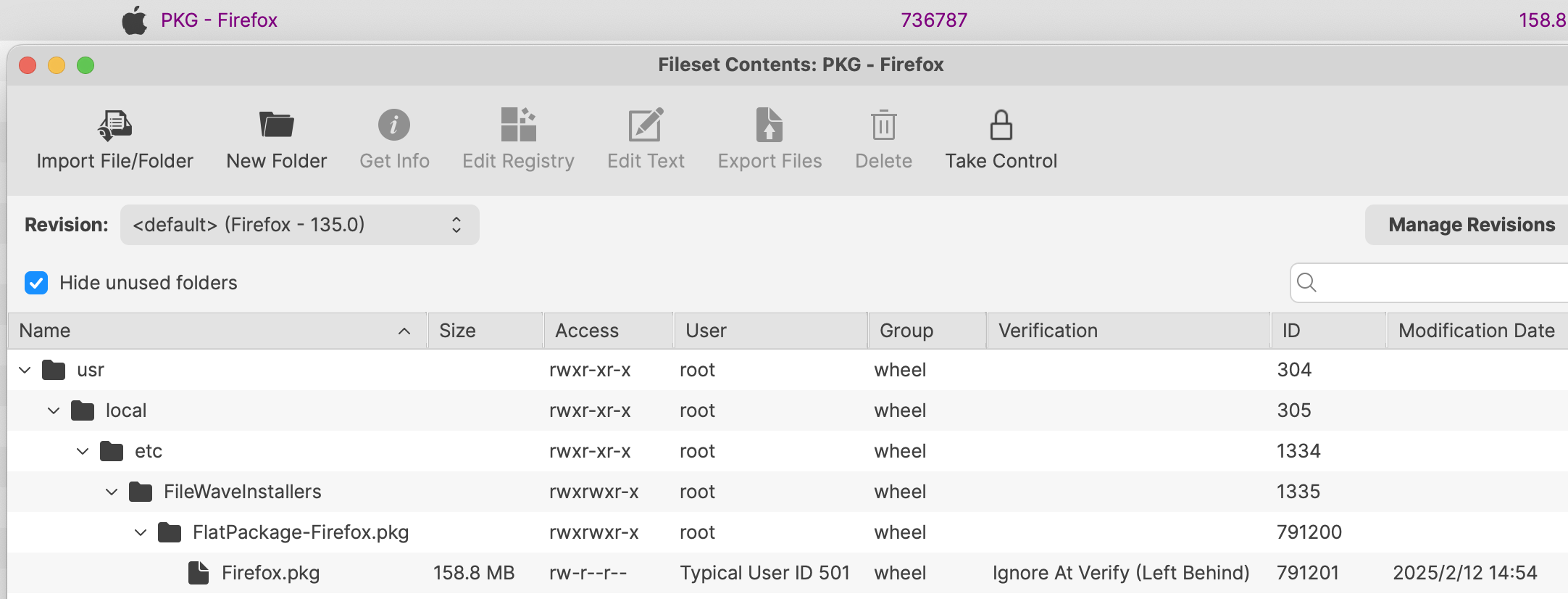
The Fileset records the installer filename used when it was created.
When you replace the installer manually inside a PKG or MSI Fileset, the new file must use the same filename as the installer it replaces.
Revisions
Use revisions to test a newer installer while preserving the current deployment and its additional Fileset content.
There are two ways to create a new revision:
- Drag and drop a new installer onto the existing Fileset
- Open the existing Fileset, choose the option to Manage Revisions and from the button to add a new revision, choose to duplicate
Drag & Drop
When dragging a PKG installer onto a current PKG Fileset or an MSI onto a current MSI Fileset, a prompt similar to the below should be shown:
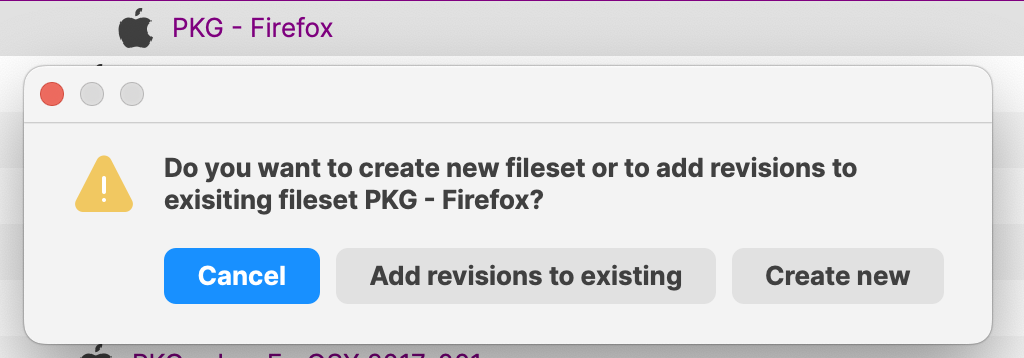
Choose Add revisions to existing to create a revision with the new installer. The installer reaches devices only after you assign that revision or make it the default revision for the applicable associations.
In Central 17.0, importing an MSI as a new revision also gives that new revision's installer the Self Healing default. Other existing revisions keep their settings. This new-import rule is not a reason to assume that duplicating an existing revision resets its verification settings; inspect the revision you intend to deploy.
Name the new revision with the installer version so administrators can tell which package each assignment uses.
Duplication
When choosing to Manage Revisions from within the Fileset, there is the option to duplicate a revision of choice. On doing so, everything from the prior Revision can be copied over to this new revision.
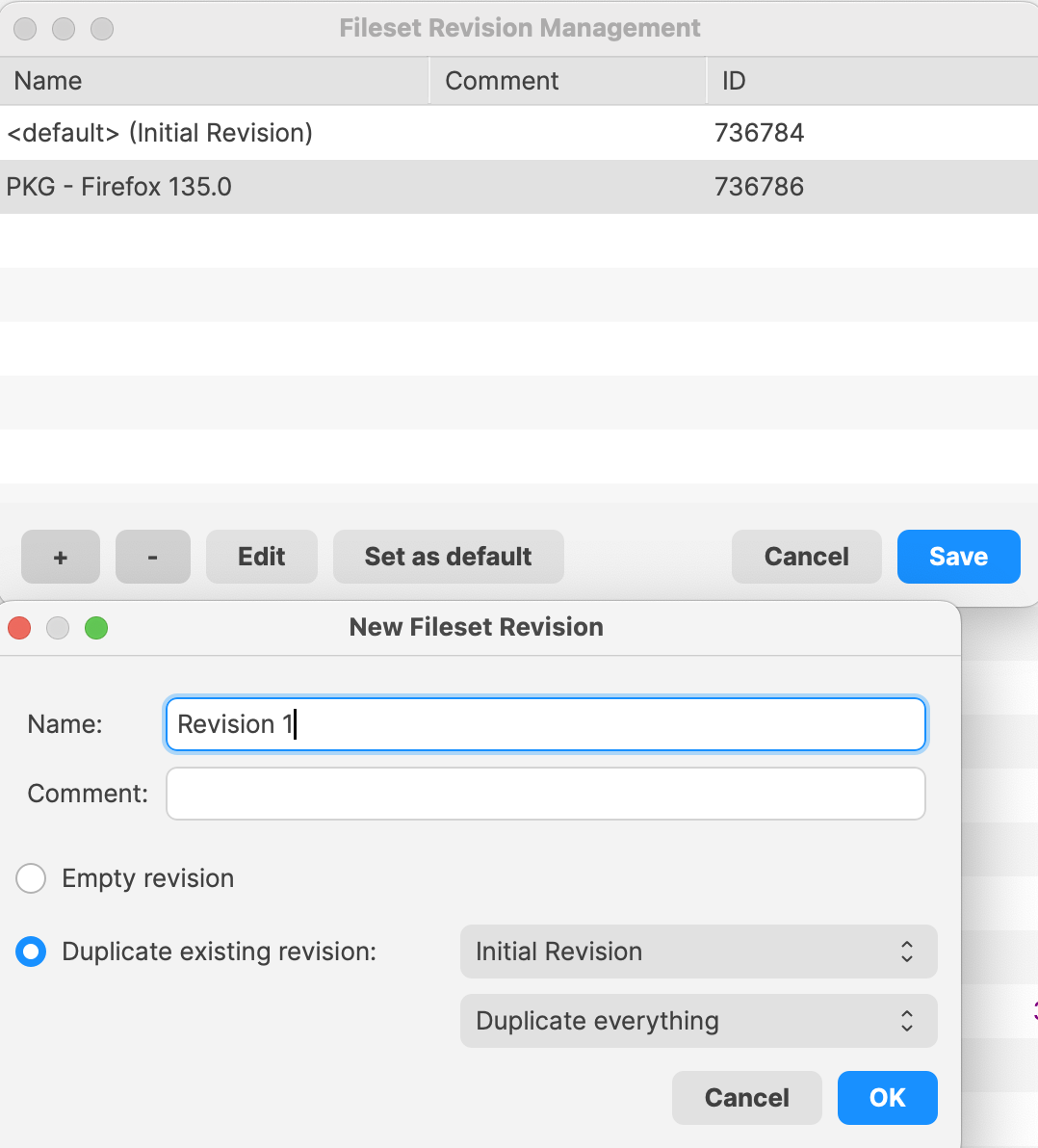
Duplicate a revision when the Fileset includes supporting files or settings that should carry forward. The installer filename rule still applies.
When replacing the installer in a duplicated revision, the new installer filename must match the filename already stored in the Fileset.
Before creating the first Fileset for a given installer, rename the installer to exclude the version number before uploading. Instead, add the version number into the name of the revision instead.
The name of the installer to be uploaded does not need to match, but the name of the installer within the Fileset must match. If the name of the installer file does not match before upload, 'copy' the name from within the Fileset, upload the new installer into the same folder as the original installer, delete the original installer and rename the new installer using 'paste'.
If the name of the initial installer uploaded includes the version number, when manually altering the revision, since the name must match, the newly uploaded version would have to be misnamed with a version number that does not make sense.
File Level Filesets (including PKG and MSI Filesets) can be exported for transfer to another FileWave server. They can also be compressed and stored for future use or archived.
Most installers only handle upgrade, not downgrade. If there is a desire to rollback to an older revision, it is likely the currently installed version on the device will need to be deleted beforehand.
Removal of the local .msi staging file is not proof that the installed application has been uninstalled. Uninstalling Filesets explains the Use MSI uninstaller option. Use the native MSI custom-options fields for supported MSI properties. A custom scripted execution or removal workflow requires its own configuration; do not substitute the Executable tab's EXE launch arguments for these MSI options.
No comments to display
No comments to display