
FileWave Admin Command-Line Interface (CLI)
What the FileWave Admin CLI can do
The FileWave Admin executable includes command-line options for automation on macOS and Windows. It can:
- Import folders, packages, exported Filesets, and images.
- Create, export, or remove Filesets.
- List Clients, Filesets, and Associations.
- Create or remove Associations.
- Update the FileWave model.
Default executable locations
macOS
/Applications/FileWave/FileWave\ Admin.app/Contents/MacOS/FileWave\ AdminWindows — FileWave 15.4.2 and earlier
"C:\Program Files (x86)\FileWave\FileWaveAdmin.exe"Windows — FileWave 15.5.0 and later
"C:\Program Files\FileWave\admin\FileWaveAdmin.exe"Running the executable without arguments opens the FileWave Central interface.
Command options
Run the executable with --help to display the options supported by the installed version:
macOS
/Applications/FileWave/FileWave\ Admin.app/Contents/MacOS/FileWave\ Admin --helpWindows (FW v15.4.2 or lower)
C:\Program Files (x86)\FileWave\FileWaveAdmin.exe --helpWindows (FW v15.5.0 or higher)
"C:\Program Files\FileWave\admin\FileWaveAdmin.exe" --helpThe following output is an example. Treat the installed executable's --help output as authoritative:
FileWave Command Line Tool

Options:
  -h, --help                            Displays this help.
  -v, --version                         Displays version information.
  -u <user>                             The filewave admin username.
  -p <password>                         The filewave admin password.
  -H <host>                             The filewave server hostname.
  -P <port>                             The filewave server port number
                                        (defaults to 20016).
  -k                                    Allows connections to filewave server
                                        without checking certificate.
  --listClients                         Lists all the client client/clone/group
                                        information.
  --listFilesets                        Lists all the fileset information.
  --createFileset <name>                Creates a new empty fileset with the
                                        specified name.
  --importFolder <path>                 Imports a folder as a fileset (not as a
                                        package).
  --importPackage <path>                Imports a package (pkg, flat, mpkg or
                                        msi) as a fileset.
  --importFileset <path>                Imports a previously exported FileWave
                                        fileset or template.
  --exportFileset <path>                Exports the given fileset name/id to
                                        the specified path
  --setRevisionAsDefault                the imporing revision will be set as
                                        default.
  --addRequirementsScript <path>        Adds requirements script (only valid
                                        for --importFolder).
  --addPreflightScript <path>           Adds preflight script (only valid for
                                        --importFolder).
  --addActivationScript <path>          Adds activation script (only valid for
                                        --importFolder).
  --addPostflightScript <path>          Adds postflight script (only valid for
                                        --importFolder).
  --addVerificationScript <path>        Adds verification script (only valid
                                        for --importFolder).
  --addPreuninstallationScript <path>   Adds preuninstallation script (only
                                        valid for --importFolder).
  --addPostuninstallationScript <path>  Adds postuninstallation script (only
                                        valid for --importFolder).
  --importImage <path>                  Imports an image as a fileset.
  --deleteFileset <id>                  Deletes a fileset by ID/Name.
  --listAssociations                    Lists all the associations held in the
                                        system.
  --createAssociation                   Create an association between a
                                        client/clone/group ID/Name and a fileset
                                        ID/Name.  Use the --clientgroup and
                                        --fileset options.
  --deleteAssociation <id>              Deletes an association between a
                                        client/clone/group ID/Name and a fileset
                                        ID/Name.  Use the --clientgroup and
                                        --fileset options.
  --kiosk                               Make this a kiosk association.
  --software_update                     Make this a software update
                                        association.
  --licenseDistribution <model>         The license distribution model (only
                                        for associations to VPP filesets). Can
                                        be "user" or "device".
  --updateModel                         Updates the FileWave model (as long as
                                        no other admins have locked objects).
  --setProperty                         Sets a fileset property value, use the
                                        --fileset, --key and --value parameters
                                        to determine for which fileset this is
                                        done (Used solely by AutoPkg FileWave Importer)
  --delProperty                         Removes a fileset property value, use
                                        the --fileset and --key parameters (Used solely by AutoPkg FileWave Importer)
  --setCriticalFlag                     Sets the critical flag value for a
                                        fileset ; use the --fileset and --value
                                        (0/1) parameters
  --name <name>                         The name value which will be applied to
                                        any newly created object.
  --comment <comment>                   The comment value which will be applied
                                        to any newly created object.
  --filesetgroup <id>                   The ID/Name of the target fileset
                                        container, if not specified all objects
                                        are created in their respective root
                                        container.  If the Name of the container
                                        does not exist then its assumed to be a
                                        Fileset Container and will be created
                                        automatically.
  --fileset <id>                        The ID/Name value of a fileset object.
  --revision <name>                     The name of a revision object.
  --clientgroup <id>                    The ID/Name value of a client, clone or
                                        group object.
  --root <root>                         When importing, if you specify the root
                                        then all the data that was imported will
                                        be moved into this root folder.  The
                                        root folder will be created if required.
  --key <key>                           The key used in the --setProperty call.
  --value <value>                       The value which will be used in the
                                        --setProperty call.
  --listExitCodes                       Lists all exit codes and their
                                        description.
** You are seeing this because the -h option was used **
Best practices
Use a dedicated FileWave administrator account with only the permissions the automation requires. The -p option can expose a password in scripts, shell history, or process listings, so protect the script and its execution environment. A CLI login can also end an interactive session that uses the same administrator account.
The -k option disables FileWave Server certificate validation. Do not use it in production automation.
--updateModel applies model changes without a confirmation prompt. Confirm the intended changes and check for locked objects before running it.
Use --listExitCodes to map the command's exit code to a FileWave error:
$ FileWave\ Admin --listExitCodes
    0: No Error
  100: Unknown Error
  101: The given fileset does not exist
  102: The given client does not exist
  103: The given group does not exist
  104: The given target is not a group
  105: Database internal error
  106: Error while uploading fileset
  107: Error while updating the model
  108: Login Error
  109: Error while importing a fileset
  110: Package Type not supported for import
  111: Command line parse failed
  112: Can't create association with an imaging fileset
Examples
Import a folder as a Fileset
$ FileWave\ Admin -u api -p <password> --importFolder /Applications/TextEdit.app --name "My New Application"Import a package
$ FileWave\ Admin -u api -p <password> --importPackage ~/Downloads/MyExamplePackage.pkgImport a revision into an existing Fileset
This example imports the package as a revision named Revision2 in the existing Fileset whose ID is 537136:
$ FileWave\ Admin -u api -p <password> --importPackage ~/Downloads/MyExamplePackage.pkg --fileset 537136 --revision Revision2Add --setRevisionAsDefault when the imported revision should become the Fileset's default revision.
Language options
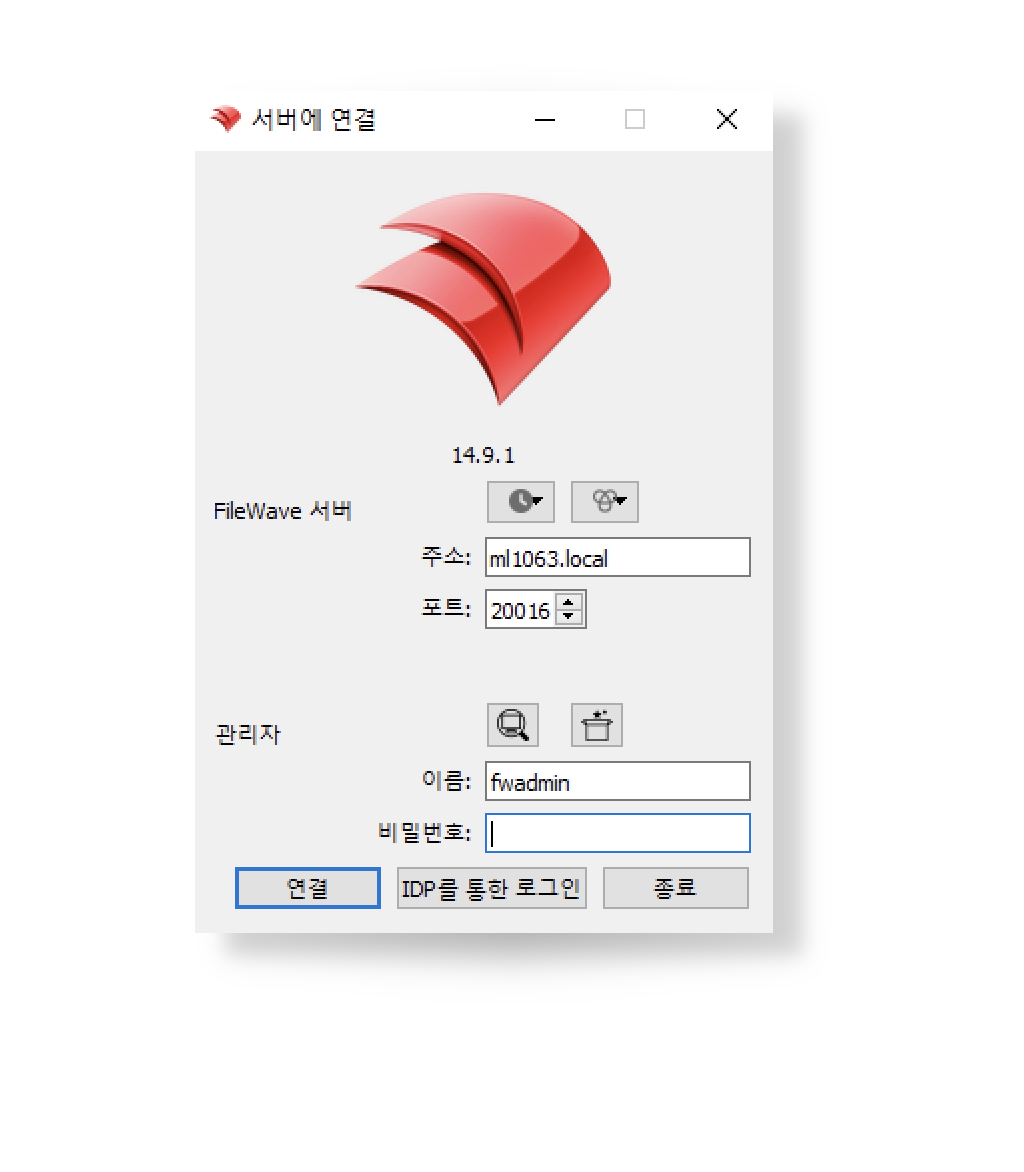
FileWave Central uses the workstation language when FileWave has a matching translation and defaults to English when it does not.
In FileWave 16.2.0 and later, set a persistent language in Central under Admin Preferences > General > Local Settings. In FileWave Anywhere, select the globe on the login page and choose Browser Default Language or another supported language.
Use --lang <locale> to override Central's language for a specific launch. Current locale codes are:
| Language | Locale code |
|---|---|
| Chinese (Simplified) | zh_CN |
| Chinese (Traditional) | zh_TW |
| Dutch | nl_NL |
| English (US) | en_US |
| Filipino (Tagalog) | tl_TL |
| French | fr_FR |
| German | de_DE |
| Japanese | ja_JP |
| Korean | ko_KR |
| Spanish (International) | es_ES |
| Swedish | sv_SE |
| Thai | th_TH |
| Turkish | tr_TR |
See What languages does FileWave support? for the canonical language list. The platform-specific articles under Related content explain the persistent Central and Anywhere settings and the earlier command-line workflows.
Windows Korean example
& 'C:\Program Files\FileWave\admin\FileWaveAdmin.exe' --lang ko_KRmacOS German example
/Applications/FileWave/FileWave\ Admin.app/Contents/MacOS/FileWave\ Admin --lang de_DE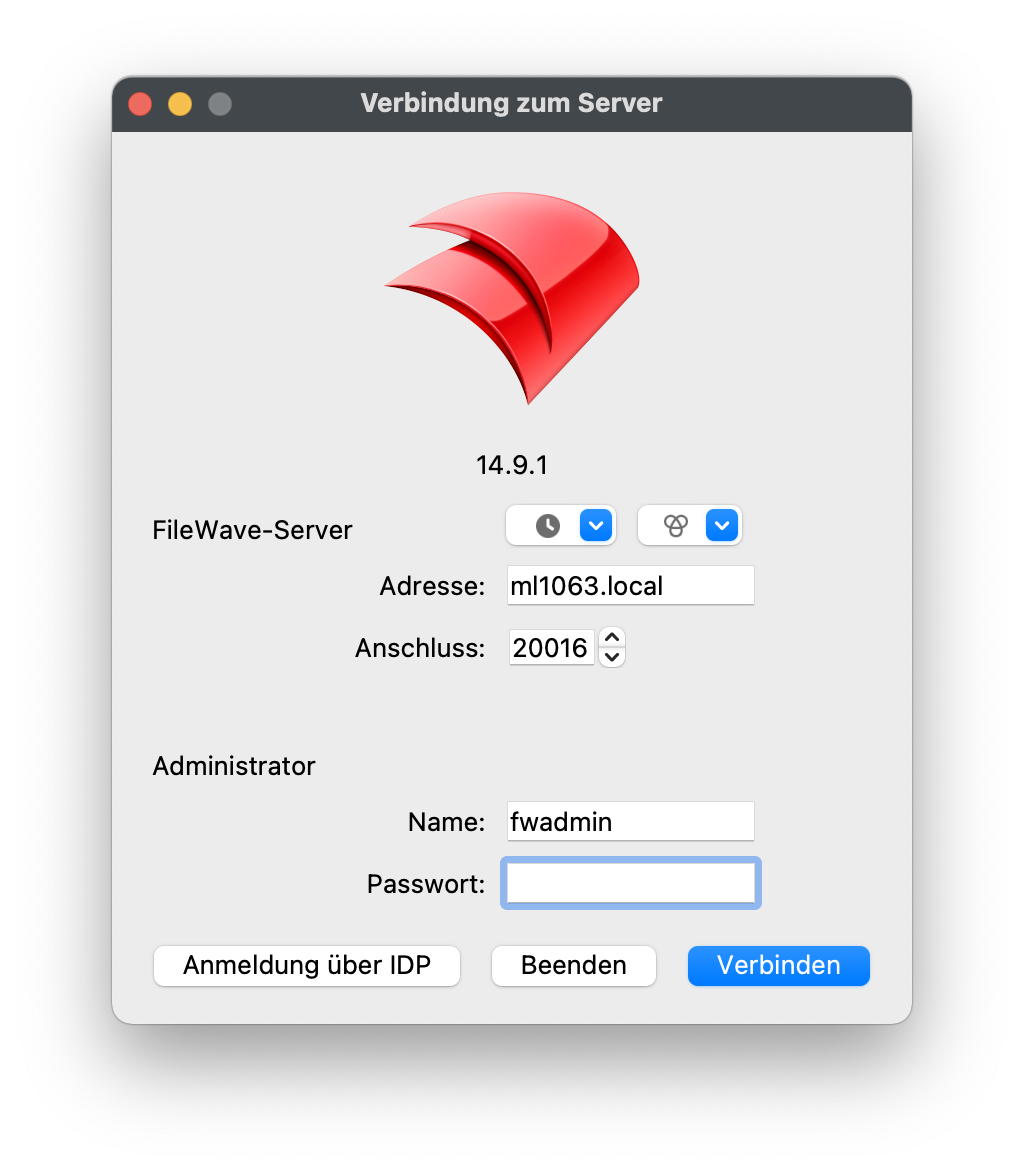
Related content
- What languages does FileWave support?
- Change the Language in FileWave Central or Anywhere (macOS)
- Opening FileWave Central / Anywhere in a Specific Language (Windows)
- FileWave AutoPkg on GitHub
No comments to display
No comments to display