
Automated Client Conflict Resolution
What
FileWave can automatically resolve conflicting new desktop clients when they enroll.
When/Why
A new Client can conflict with an existing record because its name, device identifier or serial number is already in use. Determine whether it is an intended replacement, a different computer using the same identifier, or an unexpected request before choosing a policy.
Automatic conflict resolution is optional, not the normal response to an unexplained conflict. It makes record decisions without an administrator reviewing each arrival. Use manual conflict resolution when identities or outcomes need individual review. Even for a planned enrollment process, the certificate-security warning below applies; understanding the replacement and data-retention policy does not remove that risk.
Scope: Native FileWave Client admission in Central, not the Apple MDM enrollment queue. Linux Client management requires FileWave 17.0 or later.
Warning: Automated conflict resolution bypasses client certificate security, and is not recommended. Prefer manual conflict resolution so that an administrator can review each conflicting request.
Prerequisites
- Automatic enrollment must be enabled. The automatic conflict resolution option is only available when auto-enrollment is enabled.
- The FileWave administrator must have permission to manage automatic enrollment and automatic conflict resolution.
- You should have already tested the conflict-resolution behavior on a small set of devices before relying on it during a large enrollment event.
Verify the incoming device and the existing record before replacing or removing anything. A matching name alone does not prove identity. Compare the device identifier, serial number where available, expected replacement history, group membership and clones. If the existing record belongs to another computer, replacing or removing it stops FileWave from managing that computer. Review the assignments and Custom Field values you need to retain before choosing.
Automatic conflict resolution is a policy, not an action limited to your selected rows. Do not use a search or status filter as a boundary for automatic admission. Review the destination group and its assigned work before enabling automation.
Review automatic conflict resolution (17.0+)
In FileWave Central 17.0, choose Clients → New Client to open New Client From Server. The automatic policy selector has the three choices below. The highlighted Replace existing clients with new ones policy is an example from a configured environment, not a default or recommendation.
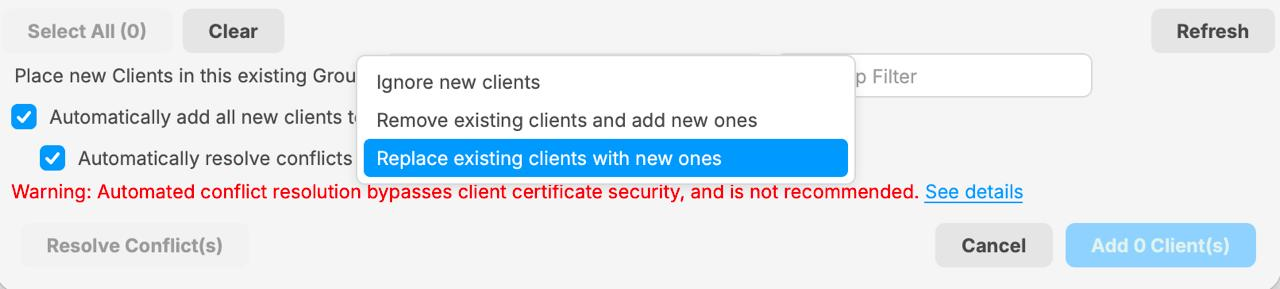
Automatic conflict policies in Central 17.0. The checked controls and highlighted choice illustrate an existing configuration, not recommended settings.
| Option (17.0+) | Outcome |
|---|---|
| Ignore new clients | Keeps the existing record and dismisses the new request. The request can appear again if the Client retries while the conflict remains. |
| Remove existing clients and add new ones | Creates a new record in the selected group. Deletes the existing record, its clones and its Custom Field values; this is not the preservation option. |
| Replace existing clients with new ones | Retains the existing record’s group membership, clones, Fileset associations and Custom Field values. Use only for the verified same computer or its intended replacement when that configuration should be retained. |
- Open Clients → New Client in Central. In New Client From Server, review Place new Clients in this existing Group and the selected group.
- Review Automatically add all new clients to the selected group. Automatic admission is a prerequisite for automatic conflict resolution, not for manual resolution; do not enable it merely to resolve one unexpected request.
- Review Automatically resolve conflicts and its certificate-security warning. Do not enable automation just to avoid reviewing a changed identity or certificate.
- If your organization has approved automatic resolution despite the warning, check the selected policy against the outcomes above, the verified device identities, and the intended data-retention policy. A displayed selection alone does not confirm that an arriving Client was admitted or that the intended record was retained.
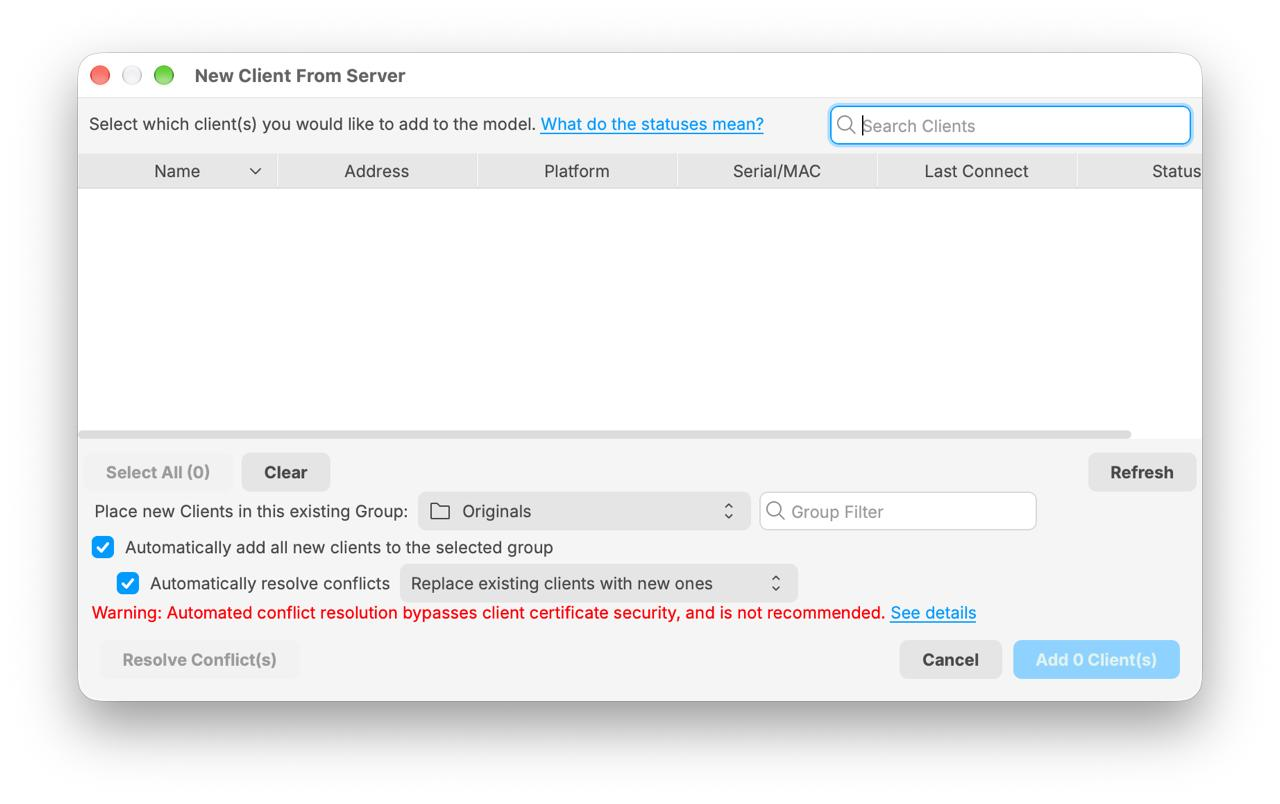
Central 17.0 example: the Originals group, both checked controls, and the replacement policy are configured values, not defaults or recommendations. The See details link opens this Automated Client Conflict Resolution article; it is not an additional in-app confirmation dialog.
Mac and Windows re-enrollment in 17.0+: when an existing Client returns with a new key while its previous certificate remains on the Server, review the device identity and certificate-approval requirements. Do not enable automatic conflict resolution to avoid that review: Central explicitly warns that it bypasses client certificate security and is not recommended. See native Client admission and re-enrollment to distinguish certificate approval from an identity conflict.
Earlier versions: legacy option labels
The following procedure retains older Central labels. Do not use these labels as the 17.0+ dropdown names.
- Open the New Clients/Desktop Clients dialog in FileWave Central.
- Confirm that automatic enrollment is enabled.
- Enable Automatically resolve conflicts.
- Choose the resolution behavior that matches your policy for conflicting clients:
- Ignore new conflicting clients leaves the existing client record alone and refuses the incoming conflicting client for now.
- Remove old clients and enroll new removes the old record and enrolls the incoming client as the new managed device.
- Replace old clients with new lets the incoming client take over the existing record, including its existing clones and associations.
- Click Save to confirm the preference.
Do not enable automatic conflict resolution just to clear a busy New Clients list. During re-imaging or back-to-school enrollment windows, the certificate-security warning still applies, and a wrong automatic choice can replace or remove records faster than an administrator can review them.
Check the result
Confirm that expected arrivals appear in Clients with the correct identities and group placement. For a replacement, check retained clones, Fileset associations and Custom Field values. Review unexpected waiting requests rather than changing the policy just to empty the queue. Reassess the automation setting when the planned enrollment window ends.
No comments to display
No comments to display