
Choose Deployment Targets and Exclusions in FileWave Anywhere
What
The Targets tab defines which endpoints receive every payload in a FileWave Anywhere deployment. Include individual devices, manual groups, Smart Groups, or LDAP OUs. Use exclusions to omit specific devices or groups from the selected targets.
When/Why
Use Targets for recipients and Exclusions for exceptions:
|
Targets - What you want to receive Groups - Static, Smart Groups, and LDAP OUs to include Devices - Specific devices to include |
|
|
Exclusions - What you don't want to receive Groups - Static, Smart Groups and LDAP OUs to exclude Devices - Specific devices to exclude |
|
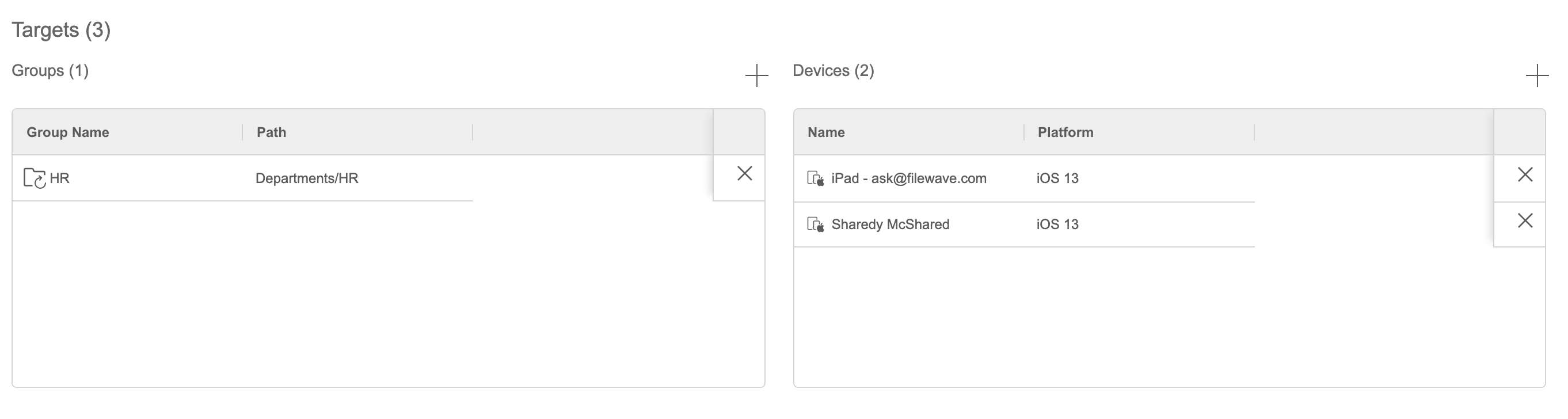
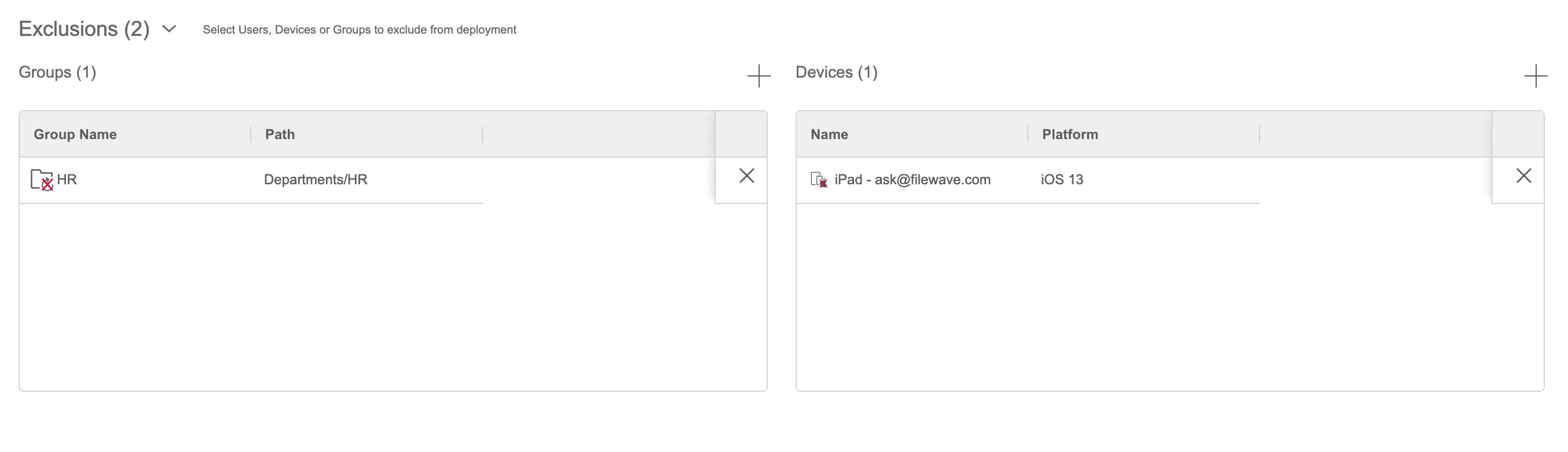
You can save a deployment without targets, but it will not deliver payloads until you add at least one target. This is useful when preparing a deployment for later use.
How
- Open the Targets tab.
- Add the groups or individual devices that should receive every payload in the deployment.
- Optional: add groups or devices under Exclusions when they should not receive the payloads.
- Select Save to continue later or Next to continue creating the deployment.
No comments to display
It would be very nice if there was a way to click on the Targets to view them within the Deployment, similar to the "Reveal Client/Group/Clone" button for Associations. Additionally, a column that shows the status of the deployment would be helpful, including if there were any errors. So for instance, there could be 3 columns: Successful, Pending, and Failed. If there was a count of each status, and a way to right-click and view the clients with each specific status, that could really help with troubleshooting, similar to the report tool in FileWave Admin.
In reply to #1
Thanks Sam. I'll log this note for you in Product Board ( https://kb.filewave.com/books/community-engagement/page/filewave-product-management ) and we are making it easier to get to Product Board by adding a menu item to get there right in FileWave Central and Anywhere menus.
No comments to display