
Check FileWave License Counts and Expiration Dates
Use FileWave Central to check how many FileWave device licenses are in use, how many are available in each category, and when the license expires. This is useful before adding devices, planning a renewal, or investigating a Model Update blocked by a license limit.
This article covers the license for managing devices with FileWave. The License Management sidebar item is a different feature for tracking application, font, and Apple Apps and Books licenses.
Open your license information
- Open FileWave Central and connect to the FileWave Server you want to check.
- Find the Licenses Used/Total summary at the bottom-right corner of the main window. It lists Computers, Mobile, and Chromebooks.
- Click that summary to open the Status dialog, then read the License section.
You do not need to run Update Model or enter an activation code just to view this information.
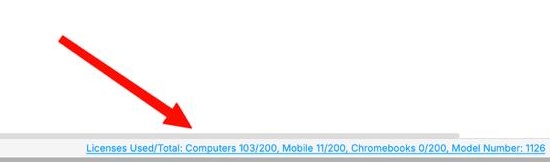
Click the underlined license summary at the bottom right of Central.
Read the license counts
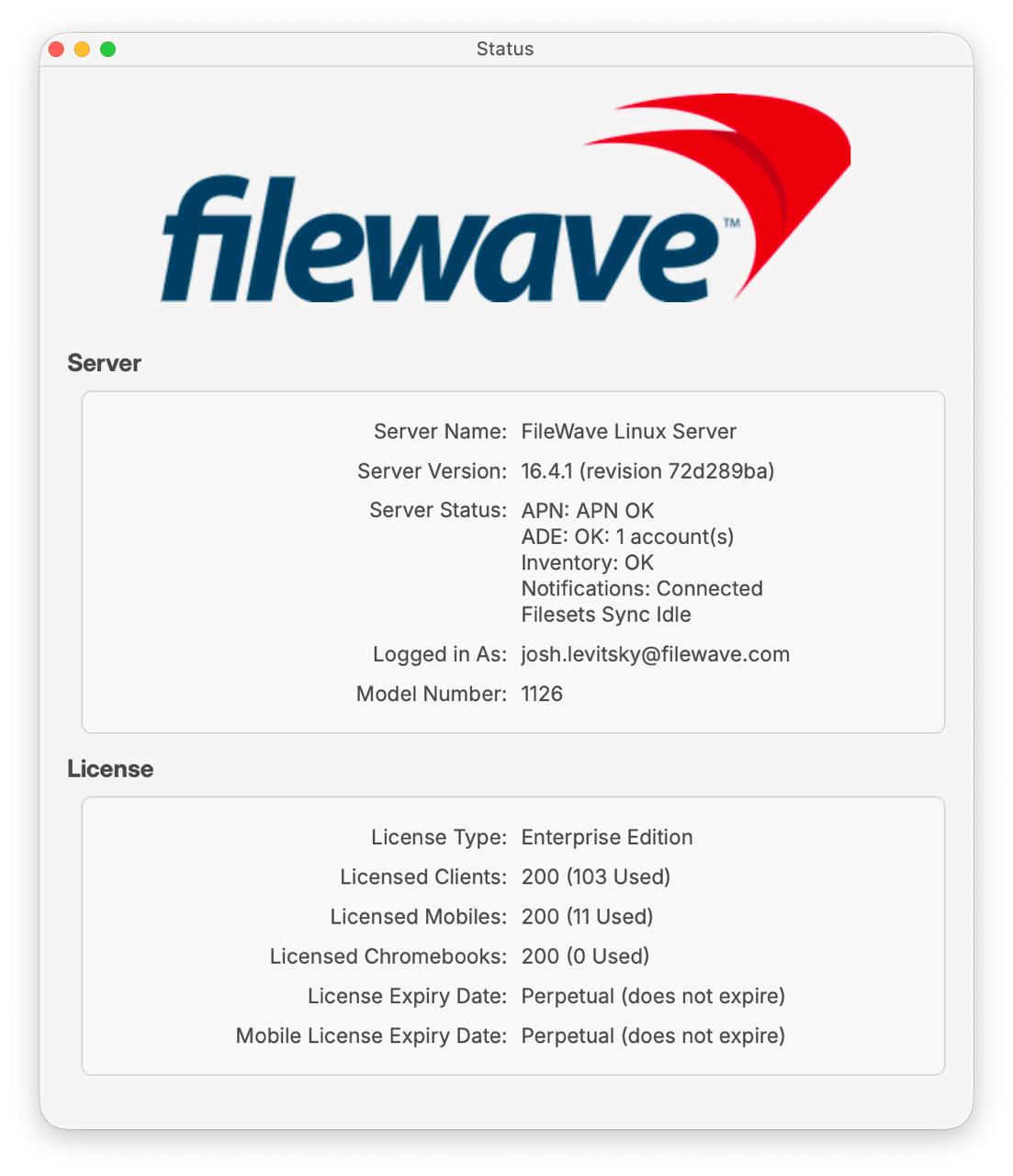
The status bar and dialog display the same counts in different orders:
- Status bar — used/total:
Computers 103/200means 103 computer licenses are in use out of 200 licensed. - Status dialog — total (used):
Licensed Clients: 200 (103 Used)describes the same computer-license count.
| Field in the Status dialog | What to check |
|---|---|
| License Type | The FileWave license edition shown for your Server. |
| Licensed Clients | The total computer-license count, followed by the number used. This corresponds to Computers in the status bar. |
| Licensed Mobiles | The total mobile-device license count, followed by the number used. |
| Licensed Chromebooks | The total Chromebook license count, followed by the number used. |
| License Expiry Date | The expiration value displayed for the license. |
| Mobile License Expiry Date | The expiration value displayed for mobile licensing. Check it separately rather than assuming both dates match. |
The example shows 200 licenses in each device category, with 103 Clients, 11 Mobiles, and 0 Chromebooks in use. Your edition, counts, and dates may differ.
Check expiration and renewal dates
License expiration dates are usually tied to your renewal date. Check the values shown for your Server when planning renewal or discussing licensing with FileWave.

Example with expiration dates: both fields show August 17, 2029. Read the dates on your own Server; these example values are not a standard license term.
In the full Status dialog example above, both expiry fields show Perpetual (does not expire). That describes the displayed license; it is not a statement that every FileWave license is perpetual. For questions about your renewal or agreement, contact Customer Success.
If a license limit blocks Model Update
When the number of devices of a particular type exceeds the licensed count for that type, Model Update is blocked. Check each category separately; a combined device total does not show which category is over its limit.
- Open the Status dialog and identify the affected device category and its used/total counts.
- Contact FileWave Customer Success to discuss the additional licenses you need. Include the affected category, current counts, and the number of additional devices you plan to manage.
- After the licensing change has been applied, reopen the dialog and confirm the updated counts. Review all administrators’ pending changes before trying Update Model again.
Do not delete or archive actively managed devices simply to make a license warning disappear. If the displayed counts are unexpected or a Model Update still fails after the licensing issue is resolved, contact Customer Technical Support with the error details.
Related content
- Configuring FileWave Server License — entering or updating an activation code when required.
- License Management — the separate application and content-license tracking workflow.
- Customer Success — license increases and renewal questions.
No comments to display
No comments to display