
Export Inventory Report Results from FileWave Central
Description
Use FileWave Central to export inventory results for a spreadsheet or to share with colleagues. In FileWave Central 16.3.0 and later, open Reports (formerly Queries); earlier versions call this area Queries. Exporting the current view saves result values, not a reusable Report definition. To copy a Report's criteria to another FileWave Server, use Exporting & Importing Inventory Reports instead. For a CSV from FileWave Anywhere, use Exporting Data.
Requirements
- Mainly, just the FileWave Central App
- Optionally (for Scheduled Reports), Email configured in FileWave Central > Preferences
- Optionally (for API method), API token
Steps
Export View
Open the Report whose results you need in FileWave Central, check its displayed columns and records, then choose View > Export Current View:
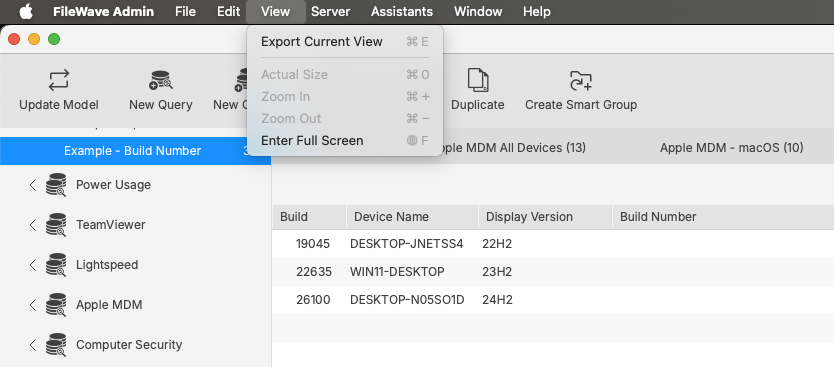
The export is a text file with a header row naming the columns, followed by the result rows. Open the file and compare its headings and a few records with the Report before sharing it. This is a point-in-time copy; export again when you need updated results:

Scheduled Reports
From the Assistants drop down menu, is an option Show Scheduled Reports:

Scheduled Reports email the selected inventory results to the configured recipients. The results reflect the report owner's permissions, so check the received file against the intended device scope rather than assuming that it includes every device.
For the schedule, recipients, report owner, and delivery options, see: Generating Scheduled Reports
API Queries
As demonstrated in our KB pages for FileWave API, it is possible to build out queries using the API as well as reporting on them. Please view the KB pages for extensive details.
No comments to display
No comments to display