
Exporting & Importing Inventory Reports
Description
FileWave can export and import Report definitions (Reports were formerly called Queries), which makes it easier to share reporting work between FileWave Servers. A definition contains the Report’s criteria, not a copy of its result rows. To save inventory values for a spreadsheet instead, use Export Inventory Report Results from FileWave Central.
If a Report uses Custom Fields, export and share those Custom Fields with the Report definition.
Importing & Exporting Custom Fields
Reports identify Custom Fields by their Internal Name. If an imported Custom Field conflicts with an existing field, review the import choices before proceeding. Choosing Keep both adds _2 to the imported field’s Internal Name; a rename is not the outcome of every conflict choice. Review dependencies before considering Overwrite existing.
Imported Reports reference Custom Fields by Internal Name. If FileWave changes an imported Custom Field Internal Name to avoid a conflict, update the Report to reference the new Internal Name.
Information
Earlier workflows used API commands to copy Inventory Query definitions between FileWave Servers. Current FileWave versions provide export and import actions in the right-click contextual menu in FileWave Central.
Directions
From FileWave Central > Reports:
Export Report
- Select a Report from the main window.
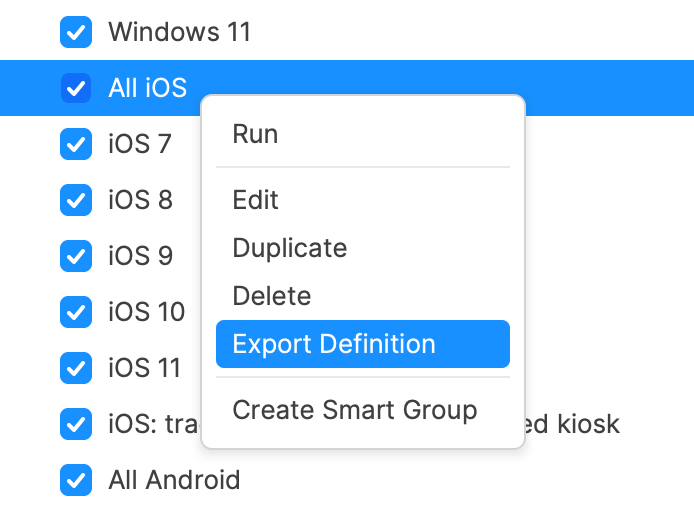
- Right click
- Choose Export Definition and save the definition file.
Import Report
On the destination Server, first review and import any required Custom Field definitions using the linked procedure above. Resolve Internal Name conflicts before checking the imported Report. Review any scripts in those Custom Fields before assigning them to devices.
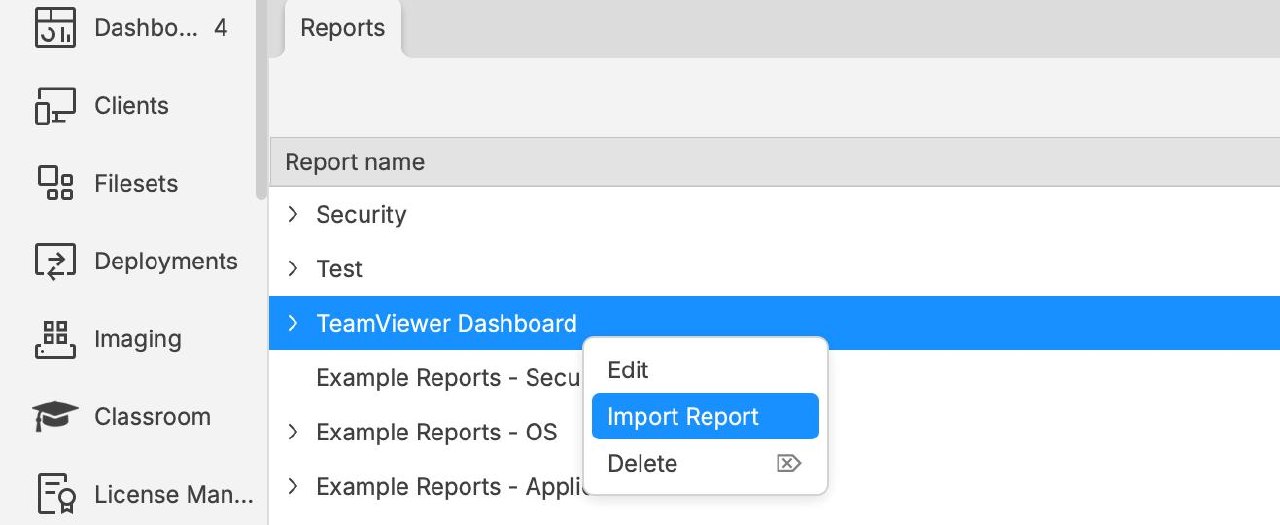
- Select the category where the imported Report should be added.
- Right click
- Choose Import Report and select the exported definition file.
- Open the imported Report, check its criteria and Custom Field references, then run it against the destination Server’s inventory. Compare a few known devices with the results; an empty result is not proof that the imported criteria or required field values are correct.
No comments to display
No comments to display