
Restart (Windows)
What
Use Restart Windows Devices when you need FileWave to remotely reboot one or more managed Windows computers from FileWave Central or FileWave Anywhere.
When/Why
A remote restart is useful when a Windows device needs to finish an installation, recover from a known issue, or complete an admin-approved maintenance task.
How
The action is available in both FileWave Central and FileWave Anywhere.
Review the selected devices and allow users to save their work before sending a restart. The confirmation in FileWave Anywhere is an administrator prompt; it is separate from the restart warnings displayed on the Windows computer.
FileWave Central
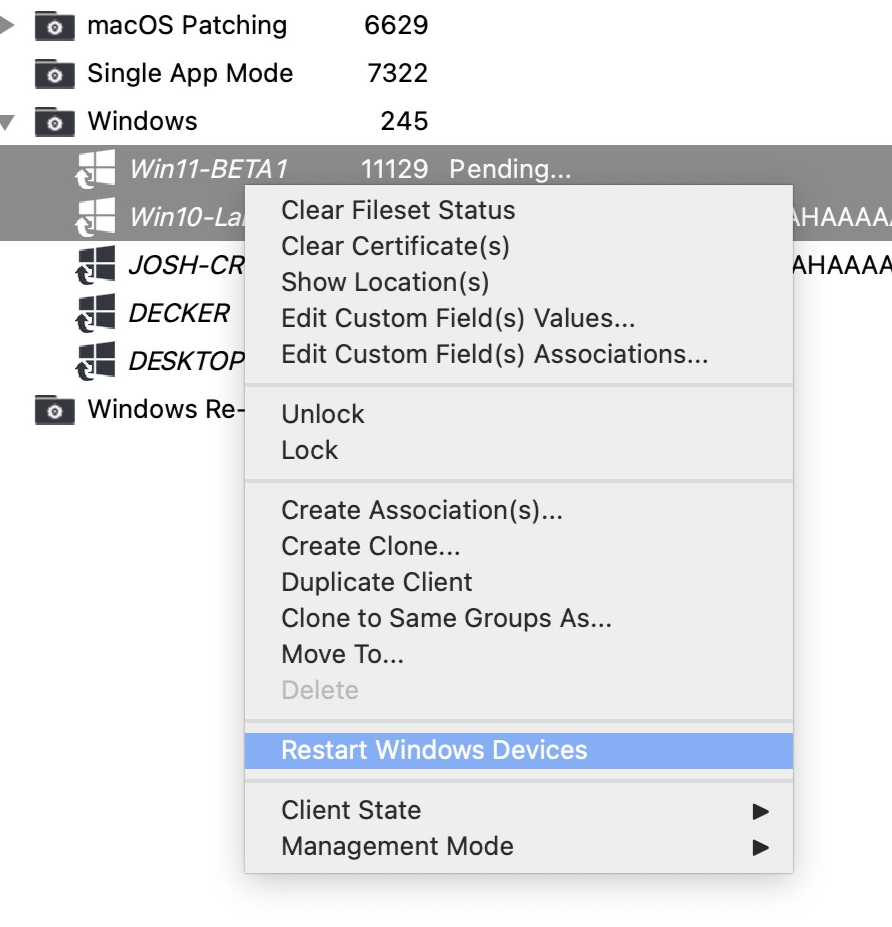
In FileWave Central, right-click one or more devices and choose Restart Windows Devices:
FileWave Anywhere
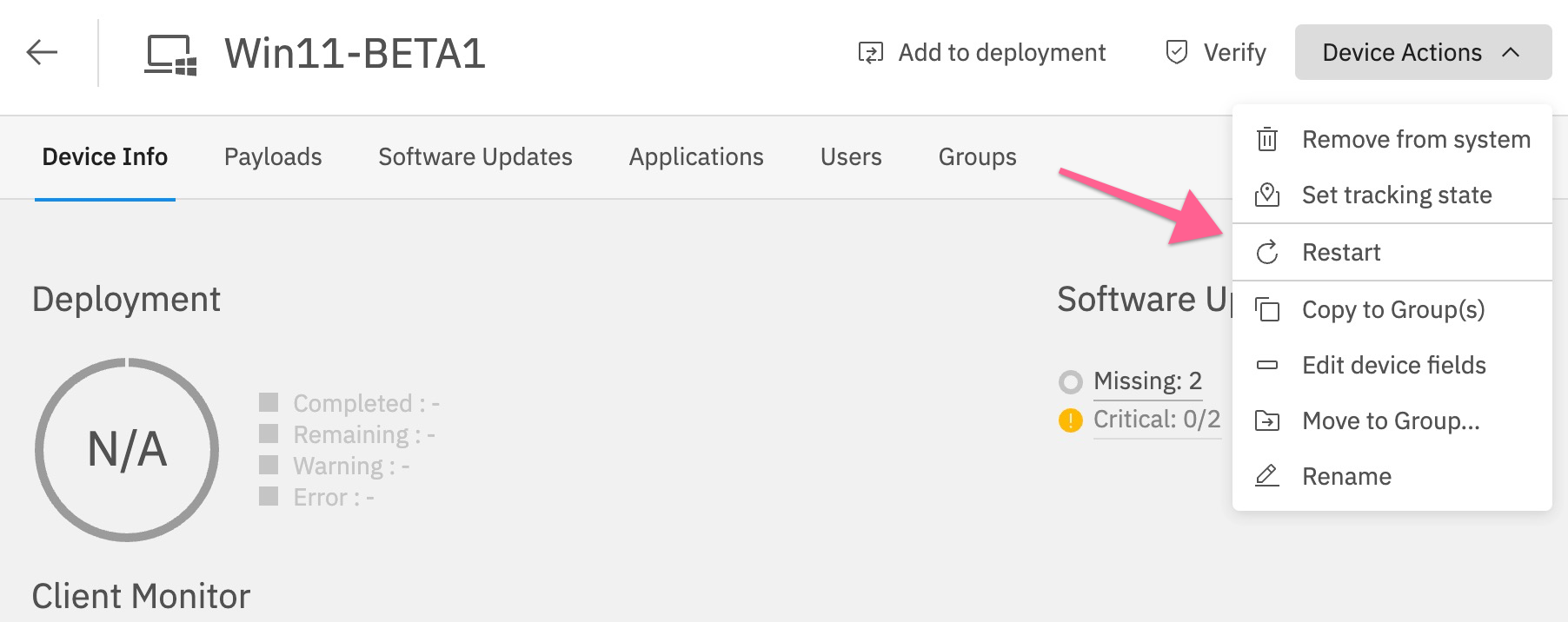
In FileWave Anywhere, the same restart action is available from the device details action menu:
From the Devices view, select multiple Windows devices to restart them in one action:

After selecting the restart action, FileWave Anywhere opens a Restart device confirmation dialog. Check the device name or selected-device count, then choose Restart device to send the command. Choose Cancel to close the dialog without sending it. This confirmation applies to both a single Windows device and a selection of Windows devices.
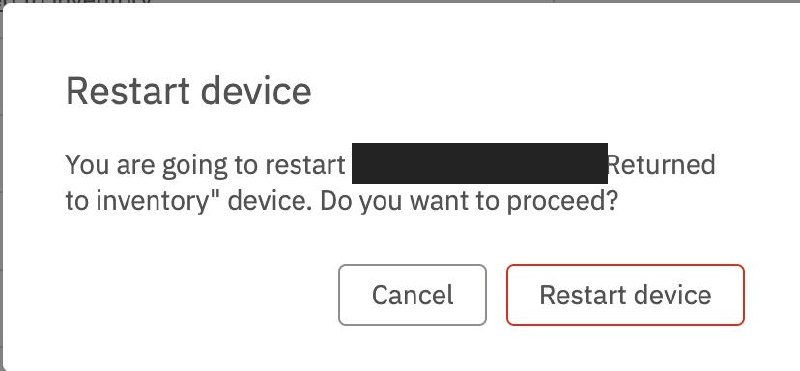
Administrator confirmation in FileWave Anywhere. The device name has been redacted.
Warnings on the Windows device
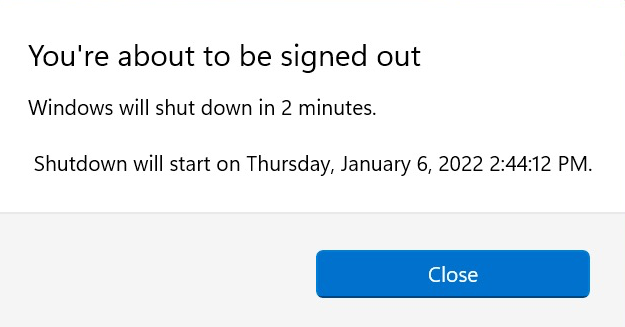
After the restart command has been sent, any logged-in user sees a warning dialog similar to the first example below. The screenshots are from Windows 11, so the prompt may look slightly different on Windows 10.
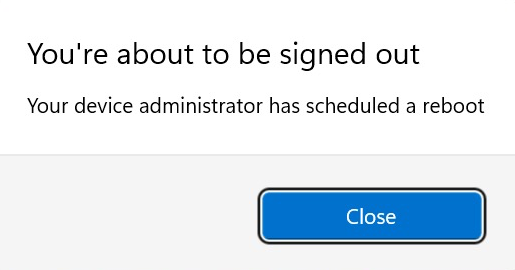
Three minutes after the first warning appears, FileWave shows a second warning. That second warning tells the user the Windows device will restart in 2 minutes.
Confirm that the device restarts and returns to management. A notification that the command was sent does not by itself confirm that the restart completed.
No comments to display
No comments to display