
Send Verify Command
What
Use Send Verify when you want a managed device to check in, refresh inventory, and process the inventory or MDM requests FileWave sends for that platform.
When/Why
Send Verify asks the selected device to report current inventory and process the relevant verify commands. The exact requests depend on device type and enrollment method, so a macOS client, a Windows client, and an MDM-enrolled mobile device will not all receive the same sequence.
For macOS and Windows devices running the FileWave Client, Verify can also prompt the client to re-evaluate assigned content. It is not just a refresh of the screen. Check the selected device and its intended Fileset assignments before sending it.
How
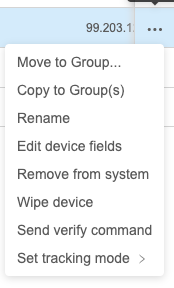
Run Send Verify from the Device action menu (...) or from the device detail views ( ):
Check the result
For an Apple MDM-enrolled device, open its Device Detail View and select Command History. This tab is not a history of every platform's commands and is absent for a Mac managed only by the native FileWave Client.
In Apple MDM Command History, not sent means the request is queued while FileWave waits for the device to check in; acknowledged means the device processed that request. Inspect not now and error responses before sending another Verify.
For an inventory refresh, return to the device's inventory and confirm that the expected changed value has been reported. A send confirmation is not proof that fresh inventory has arrived. For native macOS and Windows Clients, also check the relevant Fileset result when that was the reason for verification; do not rely on Apple MDM Command History to confirm native Client work.
No comments to display
No comments to display